

Prepare the live or VOD source
Verify the camera, encoder, uploaded asset, audio, bitrate, and backup path before putting access control in front of the video.
Pay-per-view (PPV) restricts a live event or video until the viewer completes the configured purchase or access step. Use this guide to plan the feed, ticket policy, player, viewer test, and event-day support.
This page explains the definition and setup workflow. To compare hosting, access controls, deployment options, and the Callaba product, see Callaba Pay-Per-View Streaming.
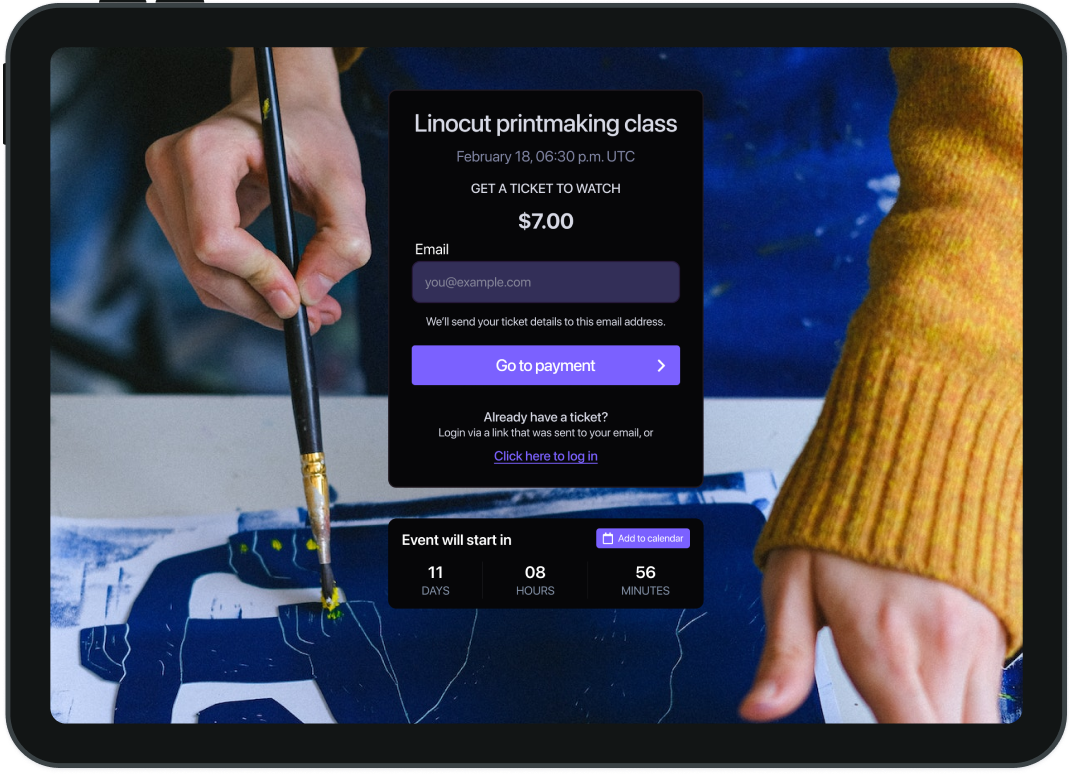
Pay-per-view gives a viewer access to a specific live event or video after a purchase. The organizer defines the offer and access rules, the payment provider handles the transaction, and the playback system verifies the viewer before serving the protected page. Pricing, tax, refunds, chargebacks, and viewer support remain responsibilities of the organizer and its payment provider.
Verify the camera, encoder, uploaded asset, audio, bitrate, and backup path before putting access control in front of the video.

Create the player, define the event or video entitlement, and configure the available purchase or authorization settings.

Complete the full viewer journey in a clean browser, including payment, access, playback, support, and replay where applicable.
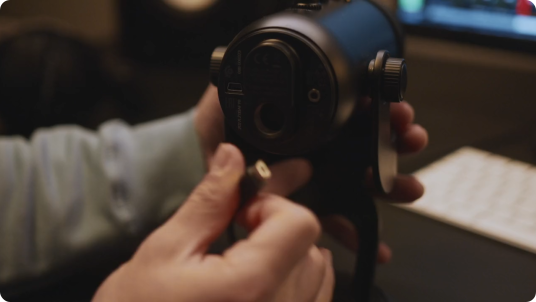
Connect a stable live source or prepare the VOD asset.
Define what one purchase unlocks, when access starts and ends, whether replay is included, and who handles refunds and viewer support.
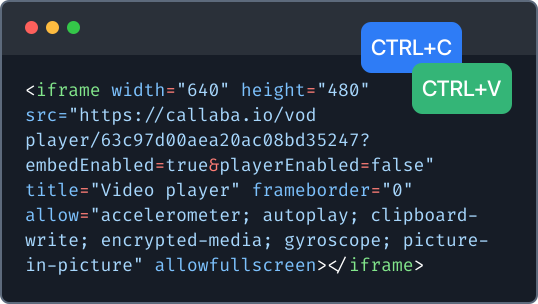
Create the web player, connect the correct source, apply the available PPV or authorization settings, and embed the reviewed player on the event page.
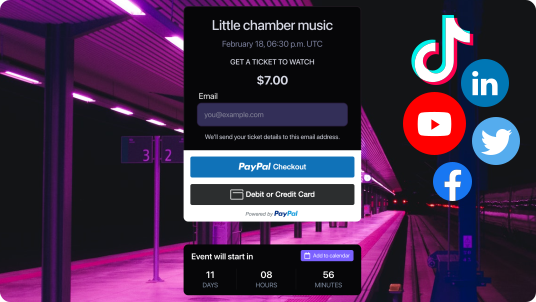
Use a clean browser and a real test purchase or authorized test account. Confirm email or receipt delivery, access activation, playback, mobile behavior, and the support path.

Monitor ingest and playback, keep a backup route ready, record when replay is promised, and document how the team will handle access failures, refunds, and post-event viewing.
A viewer receives access to the live event, replay, video, or playlist described by the organizer. The entitlement should not be broader or less clear than the offer.
A successful checkout is not enough if playback fails. A healthy stream is not enough if access cannot be granted. Test the two paths together.
Confirm payment-provider terms, fees, taxes, refunds, chargebacks, rights, availability, and buyer communication for the organizer’s own account and market.
Choose a managed or cloud path when the team wants one operating surface for ingest, monitoring, playback, recording, and access configuration.
The organizer still owns event terms, pricing decisions, payment-provider configuration, refunds, and audience communication.
Choose self-hosting when network placement, data control, internal integrations, or deployment policy require the video workflow to run on infrastructure your team controls.
Your team is then responsible for capacity, updates, monitoring, backups, security, and event-day operations.