

Related vendor hub
Browse all PTZOptics SRT gateway workflows
Use the PTZOptics hub to compare Studio Pro, Link 4K, Move SE, and Move 4K SRT workflows.
For a PTZOptics Move SE SRT setup, use the camera as an SRT Caller and send its encoded IP feed to a cloud SRT Listener in Callaba. Use this setup when Move SE is at the venue and Callaba is the cloud SRT receiver for monitoring, recording, routing, multiview, or restreaming. The main path is direct SRT; before the event, confirm that the installed firmware exposes the expected SRT streaming modes and fields.
Quick answer
To use PTZOptics Move SE with SRT, set Move SE as the SRT Caller and send the stream to a cloud SRT Listener. In this guide, Callaba works as the SRT gateway, receiver, monitor, recorder, and routing layer. Confirm the camera firmware, SRT menu, Stream ID, passphrase, codec, and audio before the event.
The PTZOptics Move SE sends one SRT contribution feed into Callaba. After ingest, Callaba can preview, record, route, restream, and use multiview as parallel downstream options, not as mandatory sequential steps.
- PTZOptics Move SESRT Caller at venue
- Callaba GatewaySRT Listener in cloud
- Preview
- Record
- Route
- Restream
- Multiview
What this setup does
The Move SE acts as the camera and encoder. It sends the live program over SRT through the venue internet connection to a Callaba SRT server. Callaba receives the contribution feed and can then expose it to operators, record it, restream it, route it, or place it in a multiview.
Keep the camera as the Caller for most WAN jobs. That means the venue side opens an outbound UDP connection to Callaba, which is usually easier than accepting inbound traffic at the venue.
What this model can and cannot do in this workflow
PTZOptics documents Move SE as an IP-capable PTZ camera with SRT, RTMP, RTMPS, RTSP, NDI HX / NDI HX2, ONVIF, and multicast workflows, depending on firmware and menu availability.
- Confirmed contribution path: direct SRT from Move SE to Callaba, with Caller and Listener modes documented in the Gen 3 Web UI streaming settings.
- SRT fields to match: server, port, AES encryption setting, password or passphrase, latency, bandwidth overhead, and optional Stream ID.
- Video outputs: 3G-SDI, HDMI 1.3, USB 3.0 Type-C UVC, and RJ45 IP streaming are listed for Move SE.
- Codecs: PTZOptics lists MJPEG, H.264, and H.265 / HEVC for the model. Use H.264 for the first SRT test unless every downstream decoder and player is known to accept HEVC.
- Audio: the camera has 3.5 mm line-level audio input and output; confirm AAC audio is present in Callaba after connection.
- Not a video input device: do not plan to feed another camera into Move SE over HDMI or SDI. It is the camera source.
- No bonded transmitter or ST 2110 role: official Move SE sources do not list bonded contribution hardware operation or ST 2110 output.
- NDI nuance: PTZOptics says Move SE NDI HX support is standard after a firmware update. Confirm the NDI settings page before using NDI as a local workflow.
The Move SE G3 manual family covers PT12X, PT20X, and PT30X Move SE variants. Do not copy these settings to Move 4K, Studio SE, or another PTZOptics line without checking that model’s own documentation.
Recommended workflow
For remote production, create an SRT Listener in Callaba and point the Move SE SRT Caller to that host and UDP port. This keeps the venue network simple and lets Callaba provide one cloud receiver for monitoring, recording, routing, and restreaming.
Move SE Listener mode is useful only when Callaba can call into the camera. That normally requires a public IP, port forwarding, firewall rules, or a tested NAT plan at the venue. I would treat that as an advanced exception, not the default Move SE SRT to cloud workflow.
When not to use this setup
- If the camera and switcher are on the same LAN, local SDI, HDMI, USB, or NDI may be simpler than sending SRT to the cloud.
- If the only destination is a public platform and you do not need cloud monitoring, routing, or recording, Move SE RTMP or RTMPS may be enough.
- If SRT is missing from the installed firmware menu, update firmware first. Use RTMPS/RTMP as the first fallback, then RTSP or NDI through a local bridge only when that design is intentional.
- If you need bonded cellular transmission, use a dedicated bonded encoder or receiver workflow. Move SE itself is not documented as bonded contribution hardware.
Before you start
- Update or confirm the Move SE firmware and open the Gen 3 Web UI.
- Confirm that Streaming Settings show SRT, RTMP(S), RTSP, and, if needed, NDI settings.
- Open outbound UDP from the venue to the Callaba SRT port.
- Choose H.264 for the first test. Start around 4-6 Mb/s for 1080p30 or 6-8 Mb/s for 1080p60 if the uplink supports it.
- Copy Stream ID and passphrase carefully. They are case-sensitive and whitespace-sensitive; a trailing space or copied newline can break the handshake.
- If unexplained handshakes continue, check firmware release notes or vendor support for the device-side SRT implementation and compare that with Callaba server build or support information.
Create the Callaba SRT ingest
In Callaba, create an SRT server and set it to listen on a known UDP port. If your workflow uses access control, configure the expected Stream ID and encryption/passphrase on the Callaba side before starting the camera.
Copy the Callaba public hostname or IP address and the UDP port. When the Move SE connects, Callaba should show connection uptime, incoming bitrate, and stream statistics before you rely on preview or recording.
Configure the Move SE
Open the PTZOptics Gen 3 Web UI for the camera and go to Streaming Settings. In the SRT section, choose Caller mode for the standard cloud workflow. Enter the Callaba server address, port, encryption choice, password if used, latency, bandwidth overhead, and optional Stream ID.
Start with 250-500 ms SRT latency for an internet test. Lower it only after packet loss, RTT, retransmits, and received bitrate are stable in Callaba.
Settings table
| Where | What to do / field to fill | First-test value | Why / check |
|---|---|---|---|
| Callaba | Create SRT server and choose UDP port | Use a dedicated open UDP port | Callaba must be listening before the camera calls out. |
| Callaba | Set SRT authentication rules if used | Match Stream ID and passphrase exactly | Mismatch usually appears as no connection or immediate disconnect. |
| Move SE SRT settings | Mode | Caller | Best default for a venue camera sending to a cloud receiver. |
| Move SE SRT settings | Server | Callaba public hostname or IP | Do not include extra spaces or protocol text unless the UI requires it. |
| Move SE SRT settings | Port | Callaba SRT UDP port | Must match the Callaba listener and firewall rule. |
| Move SE SRT settings | Encryption and password | Off for isolated lab test; AES with passphrase for production | Encryption type and passphrase must match both sides. |
| Move SE SRT settings | Latency | 250-500 ms | Use more latency on unstable networks; tune down after testing. |
| Move SE SRT settings | Stream ID | Optional, if required by Callaba | Case-sensitive and whitespace-sensitive. |
Monitoring the incoming feed
After connection, verify the feed in Callaba before sending it downstream. Check incoming bitrate, connection uptime, RTT, packet loss, retransmits, preview video, and audio meters. A stable SRT connection with no audio is not a complete production check; confirm the Move SE audio input, AAC settings, and Callaba audio meters.
Failover and local ingest options
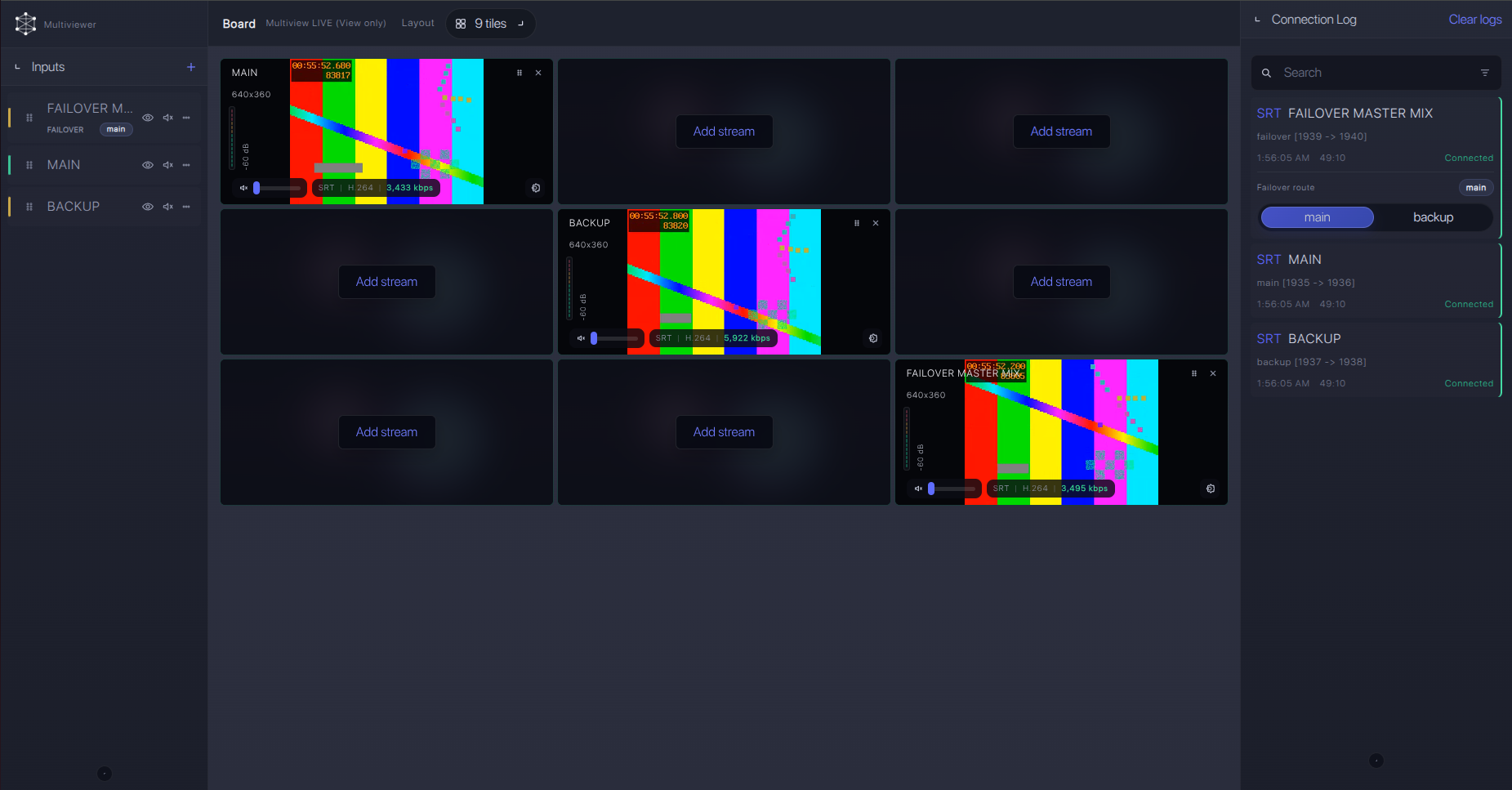
For production events, plan what happens if the main encoder, venue uplink, or primary contribution path fails. Callaba can be part of that continuity plan without changing the basic PTZOptics Move SE ingest workflow.
Recording and playback
Once ingest is stable, recording and playback are downstream choices in Callaba, not required steps in the SRT handshake. You can record the received Move SE feed, create a preview or web player, route the same source to other outputs, or restream it while operators watch the signal in multiview.
Troubleshooting
| Symptom | Check in Callaba | Check on Move SE | Likely fix |
|---|---|---|---|
| No connection | SRT server running, UDP port open, no Stream ID rejection | Caller mode, server, port, firmware SRT menu | Open outbound UDP, correct address/port, update firmware if SRT is absent. |
| Connects then drops | Uptime resets, packet loss, retransmits, RTT spikes | Latency and bandwidth overhead settings | Raise latency, reduce bitrate, test a cleaner uplink. |
| Black preview | Incoming bitrate and codec shown | H.264 versus H.265 setting | Use H.264 for the first test; confirm HEVC support in every downstream decoder. |
| No audio | Audio meters and recording track | 3.5 mm line input, audio enable, AAC settings | Send line-level audio, enable audio, retest with headphones and meters. |
| Authentication failure | Stream ID and passphrase expected by listener | Stream ID, encryption, password | Re-type values manually; remove trailing spaces and copied newlines. |
| NDI fallback not visible | Not a Callaba ingest issue | NDI settings page and firmware | Update Move SE firmware or use RTMPS/RTMP/RTSP instead. |
Official references
Use these resources to confirm the exact firmware, menu names, and protocol behavior on the camera you are taking to production.
Vendor references
- PTZOptics Move SE product page
- PTZOptics Move SE technical specs
- PTZOptics Move SE features
- PTZOptics Gen 3 Web UI streaming settings
- PTZOptics NDI HX licensing and firmware note
Protocol references
Callaba resources
FAQ
Does PTZOptics Move SE send SRT directly to Callaba?
Yes. Current PTZOptics sources list SRT for Move SE, and the Gen 3 Web UI documentation describes SRT Caller and Listener settings. I still recommend confirming the installed firmware and visible SRT menu before the event.
Should Move SE be SRT Caller or Listener?
Use Move SE as the SRT Caller for most cloud workflows. Let Callaba listen in the cloud. Use camera Listener mode only when the venue network can accept inbound UDP reliably.
What if the SRT menu is missing on Move SE?
Update the camera firmware and check the vendor manual for your exact unit. If SRT is still unavailable, use RTMPS/RTMP as the first direct fallback, or use RTSP/NDI through a local bridge when that fits the production design.
Can I use a Move SE SRT Stream ID and passphrase?
Yes. PTZOptics documents optional Stream ID plus encryption and password settings in the SRT section. Match them exactly in Callaba; capitalization and whitespace matter.
Should I use H.264 or H.265?
Move SE lists both H.264 and H.265 / HEVC. Start with H.264 because it is easier for downstream monitoring and playback. Use HEVC only when Callaba outputs, decoders, and players in the path support it.
Can I use NDI or RTSP instead of SRT?
Yes, for local-network designs. NDI may require updated Move SE firmware, and RTSP is usually better as a local bridge source than as a public internet contribution protocol.
Next steps
Create a Callaba SRT server, configure Move SE as Caller, and run a full test with real venue internet, camera audio, the intended resolution, and the final Stream ID/passphrase. Do not stop at a successful handshake; verify preview, audio, bitrate stability, and recording before the event.
