

Related vendor hub
Browse all PTZOptics SRT gateway workflows
Use the PTZOptics hub to compare Studio Pro, Link 4K, Move SE, and Move 4K SRT workflows.
The PTZOptics Move 4K SRT setup is a direct camera-to-cloud contribution workflow: the camera sends SRT from the venue and Callaba receives it in the cloud. Use this setup when Move 4K is at the venue and Callaba is the cloud SRT receiver for monitoring, recording, routing, multiview, or restreaming.
Quick answer
To use PTZOptics Move 4K with SRT, set Move 4K as the SRT Caller and send the stream to a cloud SRT Listener. In this guide, Callaba works as the SRT gateway, receiver, monitor, recorder, and routing layer.
The camera sends one SRT contribution feed into Callaba. After ingest, Callaba can preview, record, route, multiview, and restream the same source in parallel. These are downstream uses, not mandatory sequential steps.
- Move 4KSRT caller at venue
- Callaba GatewaySRT listener in cloud
- Preview
- Record
- Multiview
- Restream
- Route
What this setup does
In this workflow, Move 4K is the camera and encoder. Callaba is the Move 4K SRT receiver in the cloud. The camera does not need a vendor cloud layer for this path: it sends SRT over the public internet to a UDP port on Callaba, and Callaba then makes the received source available for operator preview, recording, routing, restreaming, multiview, or playback as separate downstream actions.
If someone on the team asks for a PTZOptics Move 4K SRT server, clarify the role: in the default internet workflow, Callaba is the SRT server/listener, and the camera is the caller.
What this model can and cannot do in this workflow
- PTZOptics documents Move 4K IP streaming over SRT, RTMP, RTMPS, RTSP, and NDI HX3.
- The reviewed SRT settings for this exact model include SRT on/off, Caller/Listener mode, server, port, encryption, password, bandwidth overhead, and variable latency.
- Caller and Listener are documented for Move 4K. I would use Caller from the venue to Callaba for most cloud jobs.
- The public manual page I reviewed does not clearly show an SRT Stream ID field. Do not make Stream ID mandatory for the first test unless you confirm it in the installed firmware.
- Supported video compression listed for the model includes H.264 and H.265/HEVC, plus MJPEG and YUY2 in the technical specifications. For SRT contribution, start with H.264 unless all downstream decoders are ready for HEVC.
- The camera has an integrated PTZ source, 3.5 mm line-level audio input, RJ45 Ethernet for IP video/control/PoE+, HDMI 2.0 output, 3G-SDI output, USB 2.0 output, RS-232, and RS-485 control connections.
- NDI HX3 is useful on a local production LAN, but it is not required for the direct SRT-to-Callaba workflow.
- The exact-model technical specs I reviewed do not list SMPTE ST 2110. Do not plan this camera as an ST 2110 source.
Recommended workflow
Use Move 4K as SRT Caller and Callaba as SRT Listener. This avoids exposing the camera to inbound internet traffic and usually fits venue networks better: the camera only needs outbound UDP access to the Callaba address and port.
Move 4K Listener mode can be useful in controlled networks, but it changes the operational problem. The camera side must accept an inbound connection, so you may need a public IP, UDP port forwarding, firewall rules, or a tested NAT plan. Treat that as an advanced fallback, not the normal Move 4K SRT to cloud setup.
When not to use this setup
- If the camera and switcher are on the same LAN, NDI HX3 or local HDMI/SDI may be simpler than sending SRT to the cloud.
- If the only destination is a public platform and you do not need low-latency monitoring, recording, routing, or multiview, RTMP or RTMPS from the camera may be enough.
- If you need cloud monitoring, a returnable receiver point, recording, restreaming, or routing to several destinations, SRT into Callaba is the better fit.
- If your workflow depends on SMPTE ST 2110, choose a device whose exact model documentation lists ST 2110 support.
Before you start
Update or at least check the camera firmware in the Web UI before production. PTZOptics documents firmware management from the camera interface, and SRT behavior can depend on installed firmware. Also confirm the venue uplink, outbound UDP policy, audio input wiring, chosen codec, target resolution, and whether the event requires encryption.
For a first internet test, I usually prefer H.264, 1080p30 around 4-6 Mb/s, or 1080p60 around 6-8 Mb/s if the uplink is stable. Start with 250-500 ms SRT latency, then lower it only after packet loss, RTT, and retransmits look clean.
Create the Callaba ingest
- Open Callaba and create an SRT server.
- Choose a UDP port that is open on the Callaba side.
- Set encryption and passphrase only if you will enter the same values on Move 4K.
- Copy the Callaba public IP address or DNS name and the UDP port for the camera.
- Keep the Callaba SRT server page open so you can watch connection state, incoming bitrate, uptime, packet loss, RTT, retransmits, preview, and audio meters.
If your Callaba ingest design uses Stream ID, test carefully. The reviewed Move 4K SRT settings do not clearly document a Stream ID field, and Stream ID values are case-sensitive and whitespace-sensitive when used by SRT systems.
Configure Move 4K
Open the Move 4K Web UI and go to the streaming/SRT configuration area. Enable SRT, select Caller mode, enter the Callaba server address and UDP port, then match encryption and password settings. The password/passphrase is case-sensitive and whitespace-sensitive; a trailing space, copied newline, or changed capitalization can break the SRT handshake.
Set variable latency for the network you are actually using. Leave bandwidth overhead conservative for the first test unless you have a specific reason to tune it. If H.265/HEVC is selected, confirm that every downstream decoder, player, or restreaming target in the path supports it.
Settings table
| Where | What to do / field to fill | First-test value | Why / check |
|---|---|---|---|
| Callaba SRT Servers | Create SRT server and choose UDP port | Any open UDP port, for example 9000 | Callaba must listen before the camera calls it. |
| Move 4K SRT settings | SRT | On | Enables the camera SRT output. |
| Move 4K SRT settings | Mode | Caller | Camera initiates outbound connection to Callaba. |
| Move 4K SRT settings | Server | Callaba public IP or DNS name | Must resolve from the venue network. |
| Move 4K SRT settings | Port | Same UDP port as Callaba | A mismatch gives no connection. |
| Move 4K SRT settings | Encryption | Off for lab test; on for production when required | Must match the Callaba SRT server. |
| Move 4K SRT settings | Password | Same passphrase configured in Callaba | Check exact spelling, capitalization, and hidden spaces. |
| Move 4K SRT settings | Variable latency | 250-500 ms for first internet test | Raise it if RTT, loss, or retransmits are unstable. |
Monitoring
Success is more than a connected socket. In Callaba, confirm incoming bitrate, connection uptime, RTT, packet loss, retransmits, preview video, and audio meters. If the preview is stable but the program destination is not, troubleshoot the downstream output separately; recording, routing, multiview, and restreaming are parallel uses of the same received source.
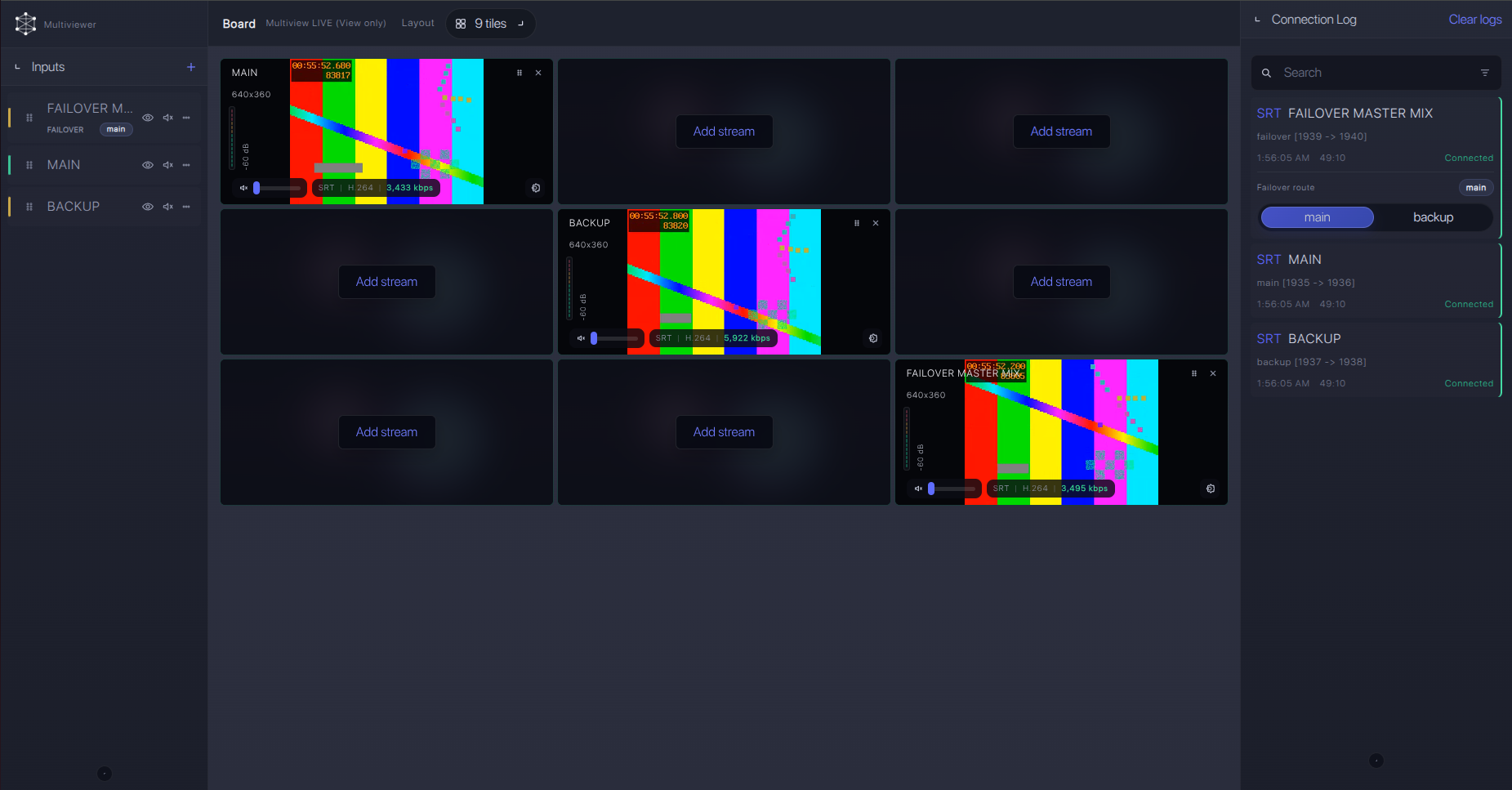
Failover and local ingest options
For production events, plan what happens if the main encoder, venue uplink, or primary contribution path fails. Callaba can be part of that continuity plan without changing the basic PTZOptics Move 4K ingest workflow.
Recording and playback
After ingest is stable, enable recording on the Callaba side if the event needs archive or compliance files. Use playback or web player outputs when operators, producers, or clients need to watch the feed without connecting directly to the camera. Keep the camera contribution settings unchanged while you validate each downstream output.
Troubleshooting
| Symptom | Check in Callaba | Check on device | Likely fix |
|---|---|---|---|
| No connection | No uptime or incoming bitrate on the SRT server | SRT on, Mode Caller, Server, Port | Open UDP port, correct address, confirm venue firewall allows outbound UDP. |
| Handshake fails with encryption | Connection attempts but no stable stream | Encryption and Password | Re-enter passphrase on both sides; remove trailing spaces or copied newlines. |
| Connects but video is black | Preview, incoming video bitrate, codec information if available | Video encoding and camera output settings | Start with H.264 and a modest bitrate before trying HEVC or high frame rates. |
| Unstable video | RTT, packet loss, retransmits, bitrate spikes | Variable latency, bitrate, uplink quality | Increase latency, reduce bitrate, or move to a stronger network path. |
| No audio | Audio meters and recording playback | 3.5 mm line input, mute, level, audio settings | Verify line-level source and meter audio before the event starts. |
| Persistent SRT incompatibility | Server build or support information | Firmware version and vendor release notes | Confirm compatible SRT major versions with PTZOptics support and Callaba support information. |
Official references
Vendor references
- PTZOptics Move 4K product page
- PTZOptics Move 4K connections
- PTZOptics Move 4K technical specs
- PTZOptics Move 4K streaming documentation
- PTZOptics Move 4K firmware documentation
Protocol references
Callaba resources
FAQ
Does PTZOptics Move 4K support native SRT?
Yes. PTZOptics documentation for Move 4K lists SRT streaming, and the reviewed manual page shows SRT settings including Caller/Listener mode, server, port, encryption, password, bandwidth overhead, and variable latency.
Should Move 4K be SRT Caller or Listener?
Use Caller for the normal cloud workflow. Callaba listens in the cloud, and the camera initiates outbound UDP from the venue. Listener mode is better reserved for controlled networks where inbound access to the camera is planned.
Where do I enter the Move 4K SRT Stream ID?
The public Move 4K SRT settings I reviewed do not clearly show a Stream ID field. If your workflow requires Stream ID, confirm the exact installed firmware before the event and test the handshake early.
Can I use RTMP or RTMPS instead of SRT?
Yes, RTMP and RTMPS are documented for Move 4K. Use them for simple platform delivery when SRT monitoring, recovery behavior, or routing is not required.
Can I use NDI with this camera?
Yes, Move 4K is documented with NDI HX3. That is usually a local LAN production choice. It is separate from the direct SRT contribution path to Callaba.
Does Move 4K support H.265 for this workflow?
H.265/HEVC is listed in the model technical specifications. Use it only after confirming that the Callaba workflow and every downstream decoder or player in your production path can handle HEVC.
Next steps
Build the first test with Move 4K as Caller, Callaba as Listener, H.264 video, a moderate bitrate, and 250-500 ms latency. Once Callaba shows stable uptime, bitrate, preview, and audio meters, add recording, multiview, restreaming, routing, or API automation one output at a time.
