

Related vendor hub
Browse all Panasonic SRT gateway workflows
Use the Panasonic hub to compare PTZ camera, camcorder, SRT, and RTMPS gateway setup paths.
If you need a Panasonic HC-X2 SRT setup, first treat it as a firmware-dependent workflow. Some public HC-X2 specifications list RTSP/RTP, RTMP, and RTMPS for live streaming, while Panasonic also published HC-X2 firmware/update information that indicates SRT streaming support. Use this setup when HC-X2 is at the venue and Callaba is the cloud SRT receiver for monitoring, recording, routing, multiview, or restreaming. Before the event, confirm the installed firmware and that the camera live streaming menu exposes SRT settings. If it does not, use the confirmed RTMPS/RTMP or RTSP fallback paths below.
Quick answer
To use Panasonic HC-X2 with SRT, first confirm the firmware version and that the camera exposes SRT Client/Listener or Caller/Listener settings. With the SRT-capable firmware installed, send the HC-X2 feed directly to a Callaba SRT Listener. If the SRT menu is absent, update firmware first or use the confirmed RTMPS/RTMP fallback; RTSP/RTP, SDI, or HDMI capture can be used as secondary bridge paths.
The Panasonic HC-X2 sends one contribution feed into Callaba when the SRT menu is available. After ingest, Callaba can preview, record, route, and restream the same source in parallel.
- Panasonic HC-X2SRT caller/client when available
- Callaba GatewaySRT listener and cloud receiver
- Preview
- Record
- Route
- Restream
What this setup does
This workflow makes Callaba the internet-side receiver for the HC-X2 contribution feed. In the preferred SRT path, the camera places an outbound SRT connection to a Callaba SRT Listener. That is usually easier at a venue than making the camera accept inbound traffic, because the camera side normally does not need public UDP port forwarding.
Once Callaba receives the feed, preview, recording, multiview, routing, playback, and restreaming are parallel downstream uses. You do not need to record before you route, or route before you preview.
What this model can and cannot do in this workflow
- Official HC-X2 specifications list RTSP/RTP, RTMP, and RTMPS as live streaming network protocols.
- Panasonic firmware/update information for the HC-X2 indicates SRT streaming support, but public model pages are not perfectly consistent. Use SRT only when the installed firmware and camera menu expose it.
- The HC-X2 live streaming specification lists H.264/MPEG-4 AVC Main Profile or High Profile video with AAC-LC, 48 kHz, 16-bit, 2-channel audio.
- H.265/HEVC is documented for recording modes, not as the built-in live IP streaming output in the HC-X2 specification.
- For baseband fallback, the camera provides 3G/1.5G HD-SDI output over BNC and HDMI Type A output, with HDMI formats up to UHD 2160/59.94p or 50p in the published specs.
- The camera has RJ-45 LAN, Wi-Fi, USB-C, built-in audio, and two XLR 3-pin audio inputs with LINE, MIC, and MIC +48V switching.
- Do not plan the HC-X2 as a native NDI or ST 2110 source. Those protocols are not listed for this exact model in the checked official specifications.
- The HC-X2 and HC-X20 appear together in some Panasonic support and firmware material. For production, confirm the exact HC-X2 menu on your unit instead of assuming every sibling setting is present.
Recommended workflow
For an HC-X2 SRT to cloud workflow, I would first check firmware and the live streaming menu. If SRT is visible, configure the camera as the outbound SRT caller/client and configure Callaba as the SRT listener. This answers the common HC-X2 SRT caller, HC-X2 SRT listener, HC-X2 SRT receiver, and Panasonic HC-X2 SRT server questions: in this cloud contribution design, Callaba is the receiver/listener/server side, and the camera initiates the connection from the venue.
If the installed firmware does not show SRT, do not improvise unsupported fields. Use RTMPS or RTMP directly into Callaba, or pull RTSP/RTP into a local bridge and forward to Callaba only when the production design requires that bridge.
When not to use this setup
- If the camera and switcher are in the same room, SDI or HDMI capture may be simpler and more deterministic.
- If the only destination is a public platform and you do not need cloud monitoring, recording, routing, or multiview, the HC-X2 RTMPS/RTMP output may be enough.
- If the HC-X2 SRT menu is missing, use RTMPS/RTMP rather than treating the camera as an undocumented SRT source.
- If your production is built around NDI, choose a different source or add a capture/bridge device. The HC-X2 itself is not documented as a native NDI source.
Before you start
- Update the camera only according to Panasonic instructions and confirm the installed firmware version on the unit.
- Open the camera live streaming settings and confirm whether SRT is present before arriving on site.
- Decide whether you will use SRT first, RTMPS/RTMP fallback second, or an RTSP/SDI/HDMI bridge.
- For SRT over the public internet, allow the Callaba UDP port through the cloud firewall.
- If you use an SRT Stream ID or passphrase, treat it as case-sensitive and whitespace-sensitive. A trailing space, copied newline, or changed capitalization can break the handshake.
Create the Callaba ingest
- In Callaba, create an SRT server and choose listener mode with a UDP port that is open on the cloud instance.
- Keep encryption, passphrase, and Stream ID empty for the first test unless the HC-X2 SRT menu clearly exposes matching fields.
- Copy the Callaba public hostname or IP address and UDP port for the camera.
- Start the server and keep the statistics view open. The first signs of success are connection uptime, incoming bitrate, stable preview, and audio meters.
Configure the HC-X2
On the HC-X2, use the network and live streaming configuration area documented by Panasonic for this model. If SRT is available, select the SRT streaming option, use caller/client direction when offered, enter the Callaba public address and UDP port, and start with conservative latency.
For a first internet test, use H.264 with a bitrate that matches the uplink. Practical starting points are 4-6 Mb/s for 1080p30 and 6-8 Mb/s for 1080p60, then adjust after watching packet loss, RTT, retransmits, and preview quality in Callaba. If SRT is absent, configure the confirmed RTMPS or RTMP destination instead.
Settings table
| Where | What to do / field to fill | First-test value | Why / check |
|---|---|---|---|
| Callaba SRT server | Create a listener and choose a UDP port | Use an allowed cloud port, for example 10000 | Callaba must be reachable from the venue network |
| Callaba SRT server | Passphrase | Empty unless the HC-X2 exposes a matching passphrase field | A mismatch prevents the SRT handshake |
| Callaba SRT server | Stream ID | Empty unless the HC-X2 exposes a matching Stream ID field | Case and whitespace must match exactly |
| HC-X2 firmware and live streaming menu | Confirm SRT option is visible | SRT menu present before setup | If absent, update firmware or use RTMPS/RTMP |
| HC-X2 SRT destination area | Destination host and port | Callaba public host plus UDP port | Connection should appear in Callaba statistics |
| HC-X2 SRT settings | Latency, if configurable | 250-500 ms for first internet test | Lower later only after RTT and loss are stable |
| HC-X2 live encoder settings | Streaming bitrate | 4-6 Mb/s for 1080p30, 6-8 Mb/s for 1080p60 | Match bitrate to real uplink capacity |
| HC-X2 RTMPS/RTMP settings | Fallback destination URL and stream key | Callaba RTMPS/RTMP ingest values | Use when SRT is not available on the installed firmware |
Monitoring
In Callaba, verify the received stream before the program starts. Check incoming bitrate, connection uptime, preview, audio meters, RTT, packet loss, and retransmits. A connected SRT session with zero usable video is not enough; you need stable pictures and audio at the expected format.
If audio is missing, check the HC-X2 input selection, XLR power mode, audio levels, and whether the stream is using AAC-LC as expected by the live streaming specification.
Failover and local ingest options
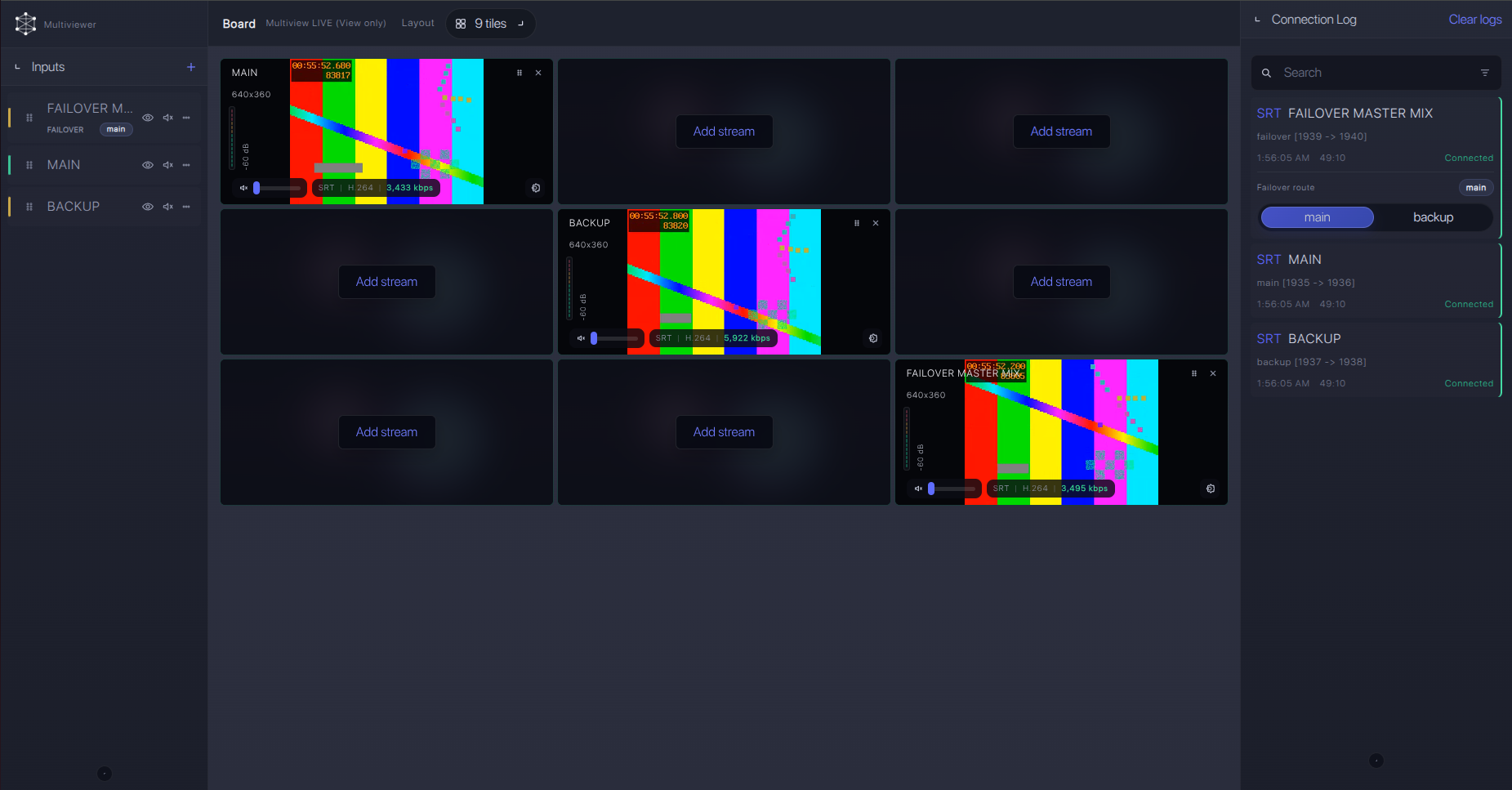
For production events, plan what happens if the main encoder, venue uplink, or primary contribution path fails. Callaba can be part of that continuity plan without changing the basic Panasonic HC-X2 ingest workflow.
Recording and playback
After the ingest is stable, enable recording in Callaba or create playback outputs as separate downstream tasks. Recording, browser preview, multiview, restreaming, and routing can all use the same received HC-X2 source without changing the camera setup.
Troubleshooting
| Symptom | Check in Callaba | Check on HC-X2 | Likely fix |
|---|---|---|---|
| No SRT connection | Server running, UDP port open, listener waiting | Destination host, port, and caller/client direction | Open firewall, fix address, or use outbound caller/client mode |
| SRT menu missing | None | Installed firmware and live streaming menu | Update using Panasonic instructions or use RTMPS/RTMP |
| Handshake fails after a few seconds | Rejected session, no stable uptime | Passphrase, Stream ID, and SRT version information if available | Remove optional security for first test, then re-add carefully; confirm compatible SRT versions from vendor support and Callaba build information |
| Picture breaks up | Packet loss, RTT, retransmits, incoming bitrate | Bitrate, resolution, Wi-Fi versus wired LAN | Use wired LAN, lower bitrate, or raise SRT latency |
| No audio | Audio meters and stream inspection | XLR source, gain, phantom power, mute state, AAC audio setting | Fix the camera audio path before changing cloud routing |
| NDI workflow expected | No NDI source appears from the camera | HC-X2 protocol list | Use SDI/HDMI capture or another documented NDI source |
Official references
These links are useful when confirming the exact firmware and streaming menu before a production day.
Vendor references
- Panasonic HC-X2 features and specifications
- Panasonic firmware update programs for HC-X2, HC-X20, HC-X2000, and HC-X1500
- Panasonic HC-X2 firmware updates and improvements
- Panasonic global HC-X2 / X20 firmware update service
Protocol references
Callaba resources
FAQ
Does the Panasonic HC-X2 send SRT directly to Callaba?
Use direct SRT only when the installed firmware and camera menu expose SRT streaming. Public HC-X2 sources are not perfectly consistent, so I would confirm the menu on the exact unit before the event.
Should the HC-X2 be the SRT caller or listener?
For cloud contribution, use the HC-X2 as the outbound caller/client if that role is available. Callaba should be the SRT listener/receiver. Reversing the roles can require public IP addressing, UDP forwarding, and firewall work at the venue.
What should I enter for HC-X2 SRT Stream ID or passphrase?
Enter those values only if the HC-X2 SRT menu exposes matching fields. Stream ID and passphrase are case-sensitive and whitespace-sensitive, so avoid copied line breaks and trailing spaces.
Can I use RTMPS instead of SRT?
Yes. RTMP and RTMPS are listed in the HC-X2 live streaming specifications and are the first fallback when SRT is not available on the installed firmware.
Can I use HC-X2 as an NDI source?
No. NDI is not listed for the HC-X2 in the checked official specifications. Use SDI, HDMI, RTMPS/RTMP, or RTSP/RTP with a bridge if needed.
Can the HC-X2 stream HEVC/H.265 live to Callaba?
The HC-X2 specifications confirm HEVC/H.265 for recording modes, while the live streaming section lists H.264 video and AAC audio. For built-in live IP output, plan H.264 unless Panasonic documents otherwise for your firmware.
Next steps
- Confirm the HC-X2 firmware and whether SRT appears in the live streaming menu.
- Build the Callaba SRT listener and test from the same network type you will use on site.
- Save an RTMPS/RTMP fallback profile in case the event unit does not expose SRT.
- During rehearsal, watch bitrate, RTT, packet loss, retransmits, preview, and audio meters before approving the feed.
