

A 24/7 YouTube live stream is a continuous broadcast that runs for many hours or days without stopping. Instead of uploading one video file and waiting for people to find it, you keep a live stream online and make the content available at any time.
This guide explains how to run a 24/7 live stream on YouTube with OBS Studio, what you need before you start, how to set up YouTube Live, how to loop video in OBS, and when a cloud workflow such as Callaba is a better fit than running everything from one local computer.
The basic workflow is:
video content → OBS Studio → YouTube Live
For a more reliable production workflow, you can also use:
video content → Callaba / cloud stream workflow → YouTube Live and other destinations
What is a 24/7 YouTube live stream?
A 24/7 YouTube live stream is a live broadcast that stays online continuously. It can show a looped video, a playlist, a live camera, generated content, a music stream, a weather feed, a church stream, a TV-style channel, or another long-running source.
Common examples include:
- music streams
- relaxing video loops
- church or worship channels
- news-style channels
- educational playlists
- event replays
- camera feeds
- branded video channels
The important difference is that a 24/7 stream is not just an uploaded video. It is a live session that needs stable software, stable internet, monitoring, and a clear content rights policy.
Why run a 24/7 stream on YouTube?
Creators and businesses use 24/7 live streams because they can keep content available without asking viewers to wait for a scheduled upload.
A continuous YouTube stream can help with:
- Always-on availability: viewers can join the stream at any time.
- Longer viewing sessions: long-running content can keep viewers watching when the topic is relevant.
- Live chat and engagement: viewers can interact around the live broadcast.
- Channel presence: a stream can act like a live channel around one topic.
- Content reuse: existing videos can be turned into a programmed live stream if you have the rights to use them.
- Multi-topic programming: different continuous streams can focus on different themes or audiences.
A 24/7 stream is not a shortcut around YouTube quality rules, copyright rules, or audience interest. The content still has to be useful, legal to stream, and stable enough for viewers to watch.
Before you start: what you need
To run a 24/7 YouTube stream from your own computer, you need:
- A YouTube channel with live streaming enabled.
- Streaming software, such as OBS Studio.
- A video source, such as a video file, playlist, camera, or generated feed.
- A stable upload connection.
- A computer that can run for long periods.
- Monitoring, so you know if the stream stops or degrades.
- Rights to the content, especially for music, clips, replays, or third-party video.
If the stream matters commercially, do not treat a home computer as a production server. A 24/7 stream needs uptime, restart logic, logging, and a backup plan.
Local OBS workflow vs cloud 24/7 streaming
There are two common ways to run a 24/7 YouTube stream.
Option 1: run OBS on your computer
This is the simplest way to start. OBS plays the video source and sends it to YouTube Live.
Use this when:
- you are testing the idea
- the stream is not mission-critical
- you can monitor the computer
- your internet connection is stable
- you accept that power, software, updates, and local network issues can stop the stream
Option 2: run the stream in the cloud
A cloud workflow is better when the stream should run continuously without depending on your laptop or office internet.
Use this when:
- the stream needs to run 24/7 for real
- you want cloud recording or monitoring
- you want to stream to more than YouTube
- you want restart control and fewer local risks
- you need multiple continuous channels
Callaba can be used as a cloud workflow layer for continuous streaming, restreaming, recording, routing, monitoring, and API-based control.
How to set up YouTube Live for a 24/7 stream
Step 1. Prepare your content
Prepare the video, playlist, camera feed, or other source you want to broadcast.
If you use existing videos, make sure you have the right to stream them. This is especially important for music, sports clips, movies, TV content, stock footage, and third-party recordings.
Also prepare a thumbnail for the stream. A common thumbnail size is:
1280 × 720
Step 2. Open YouTube Studio
Go to YouTube Studio and click Go Live.
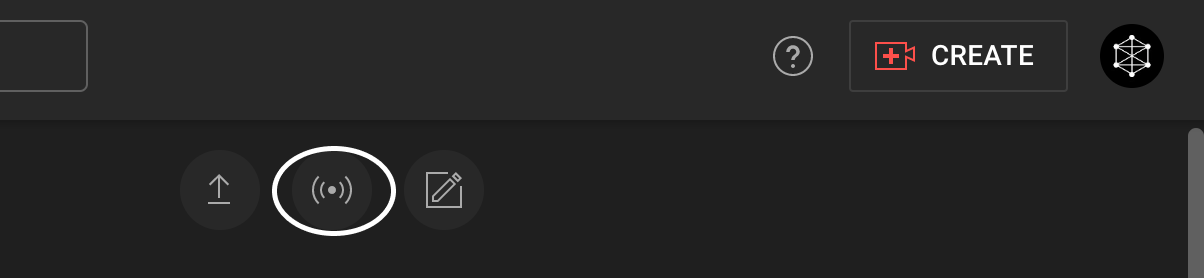
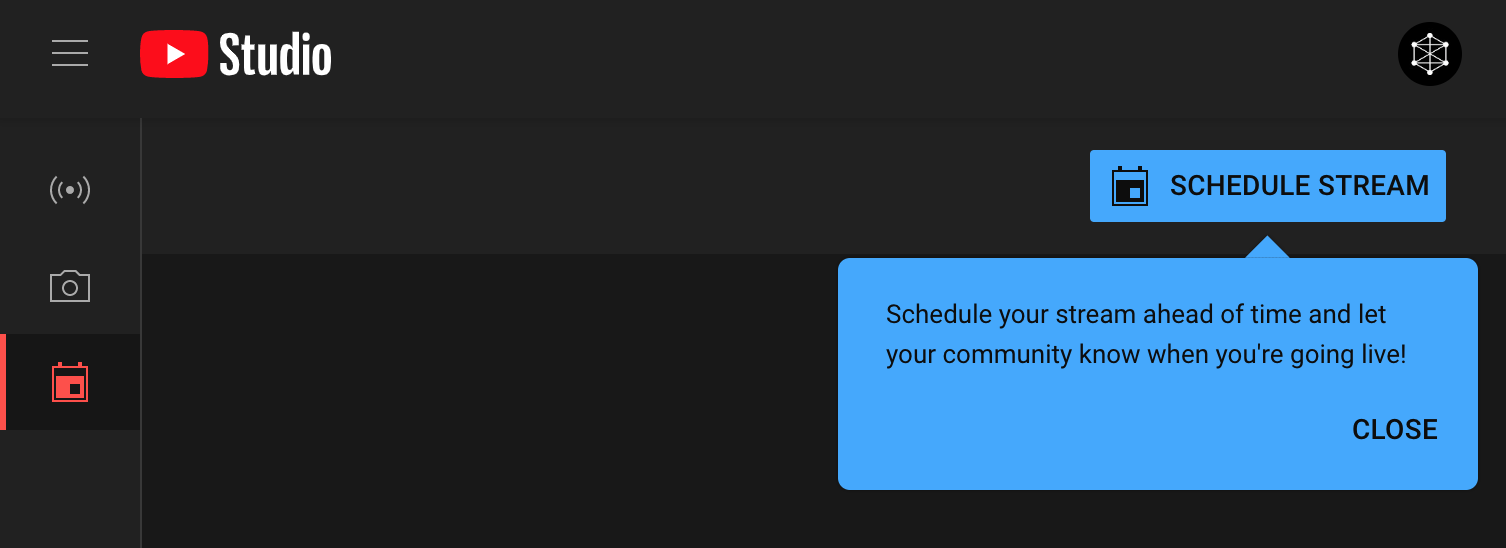
YouTube may ask whether you want to schedule a stream or start a stream now. For a 24/7 stream, you can schedule the broadcast in advance or configure the stream and start it when your encoder is ready.
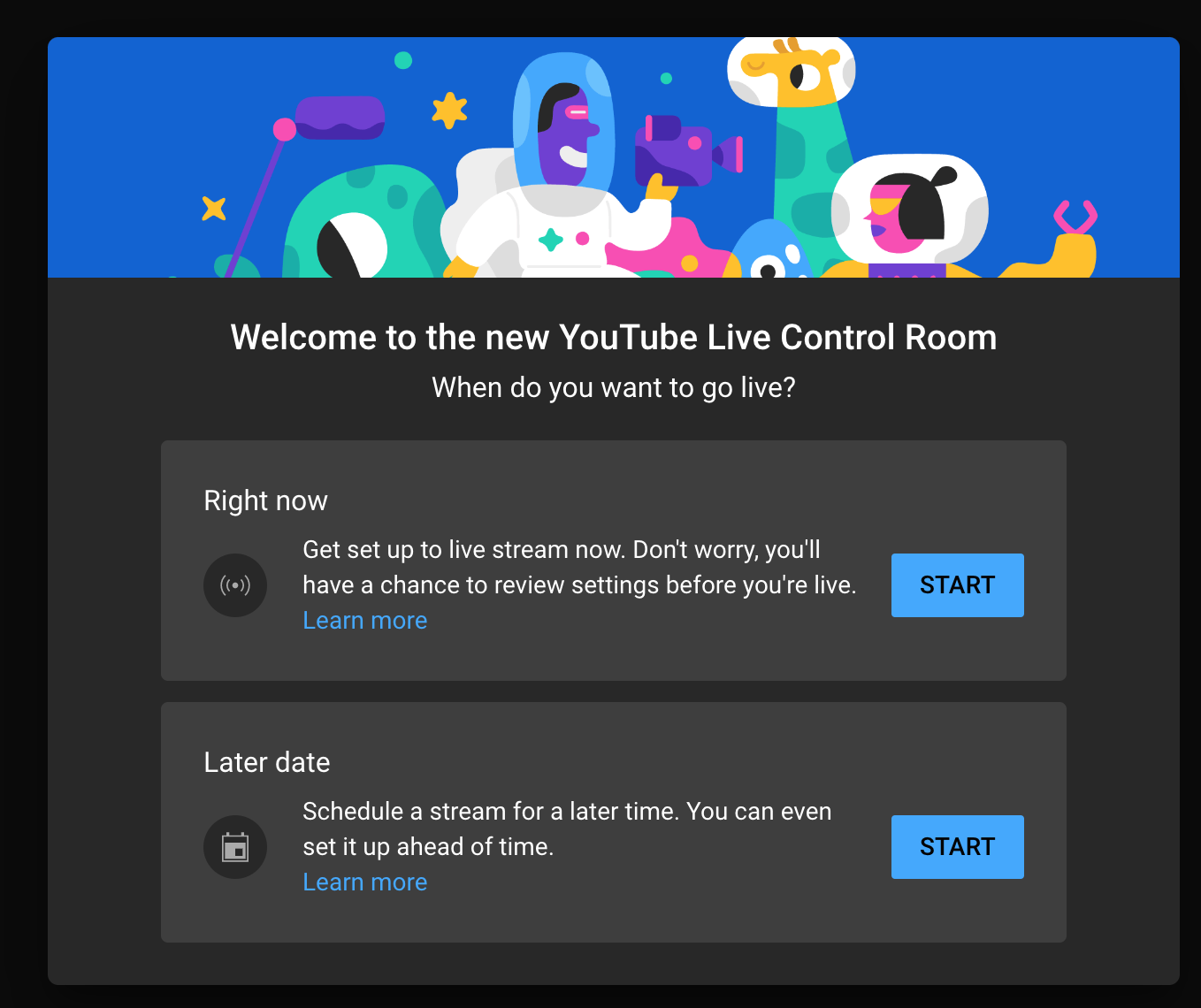
Step 3. Choose streaming software
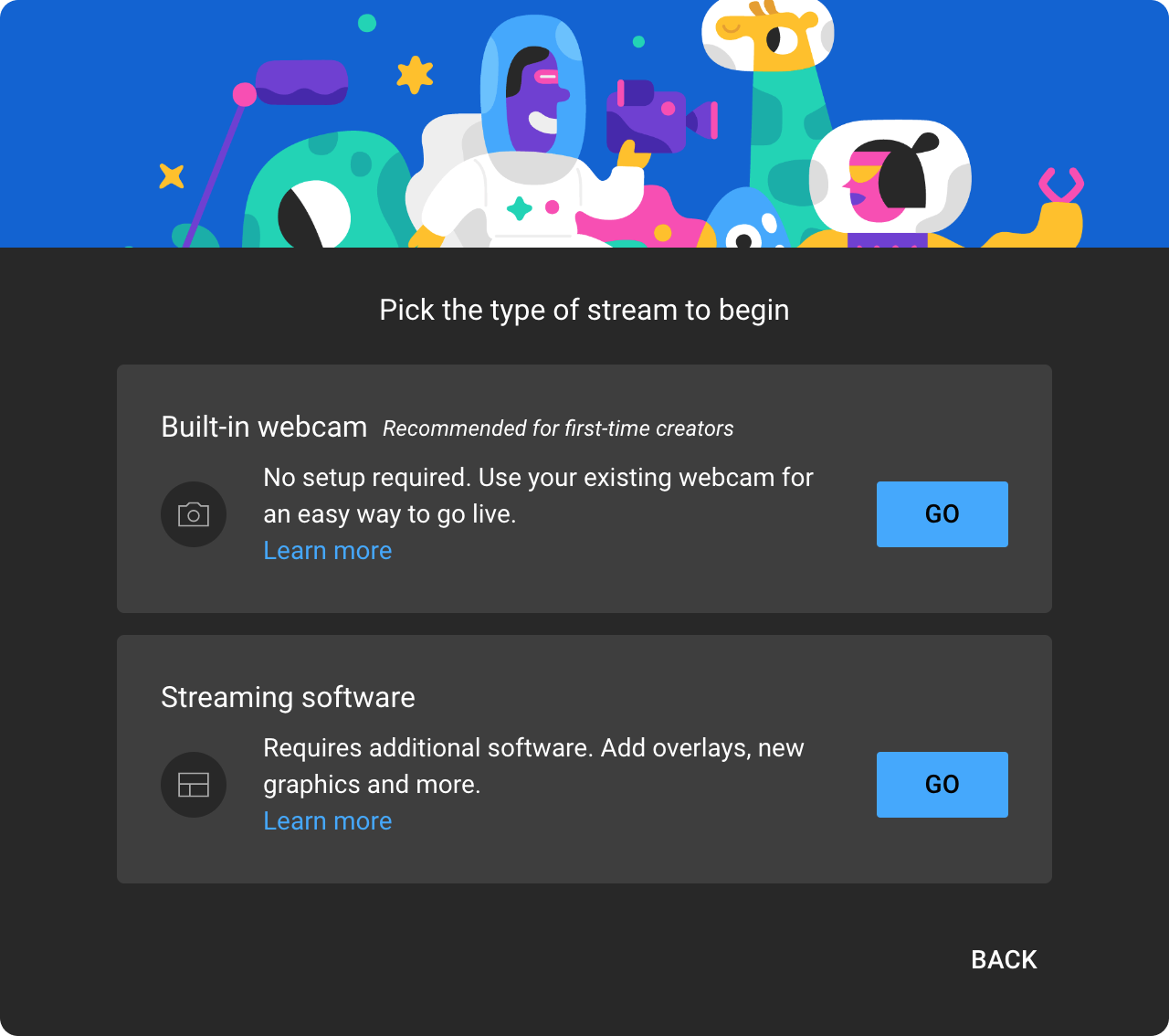
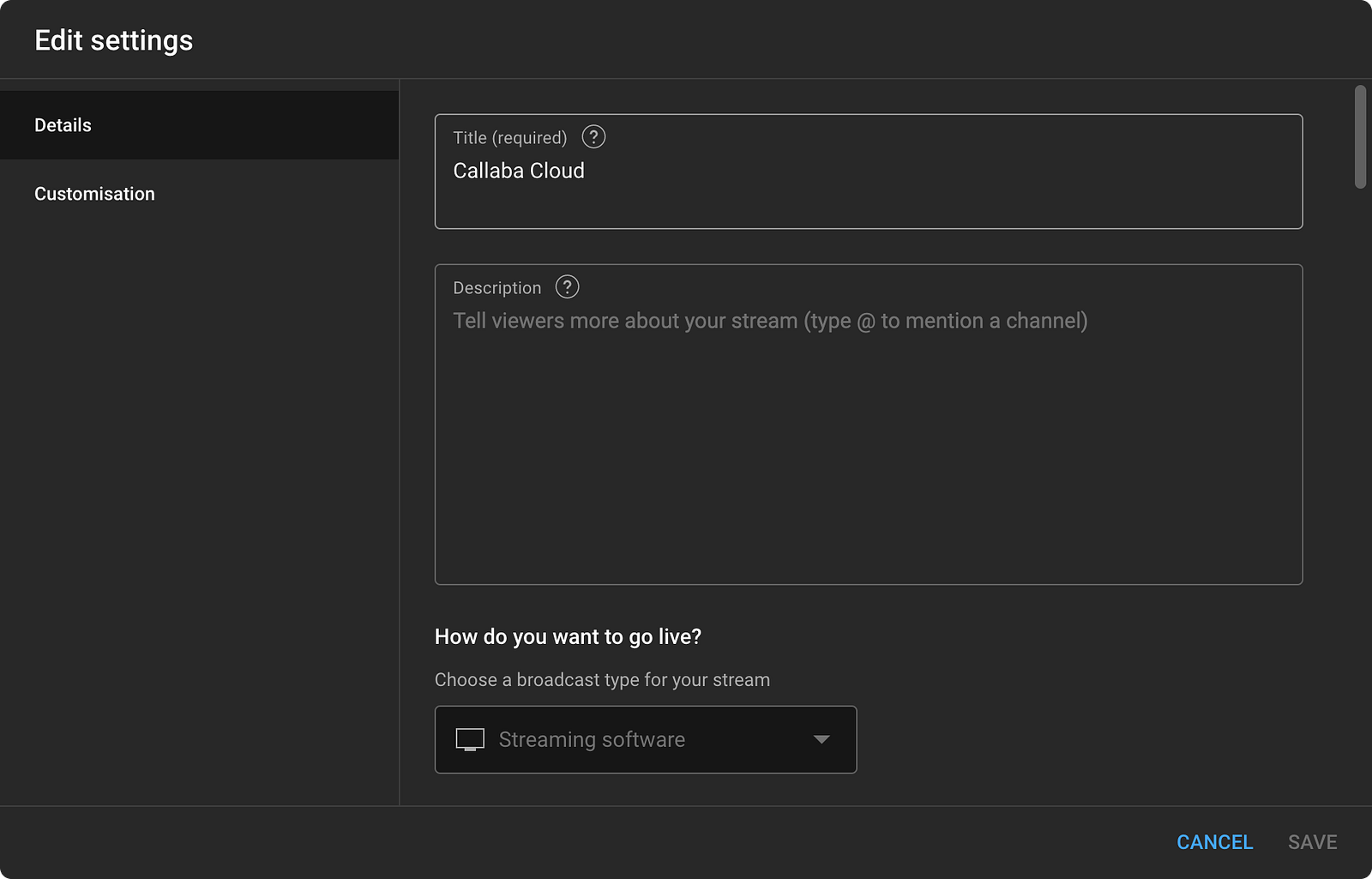
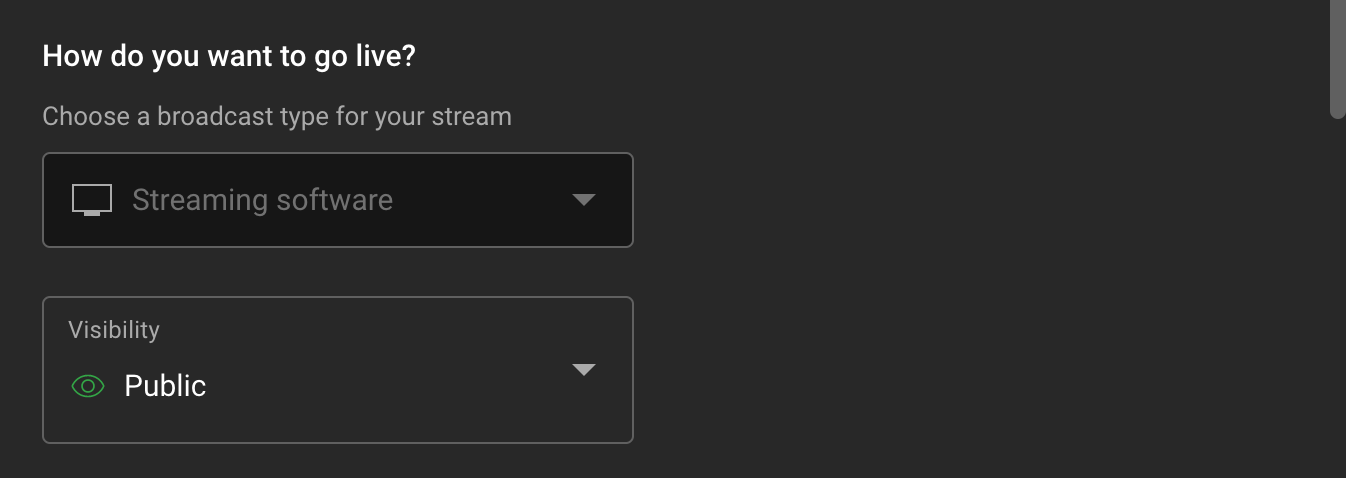
When YouTube asks how you want to go live, choose Streaming software.
This gives you a stream URL and stream key that OBS or another encoder can use.
Step 4. Fill in stream details
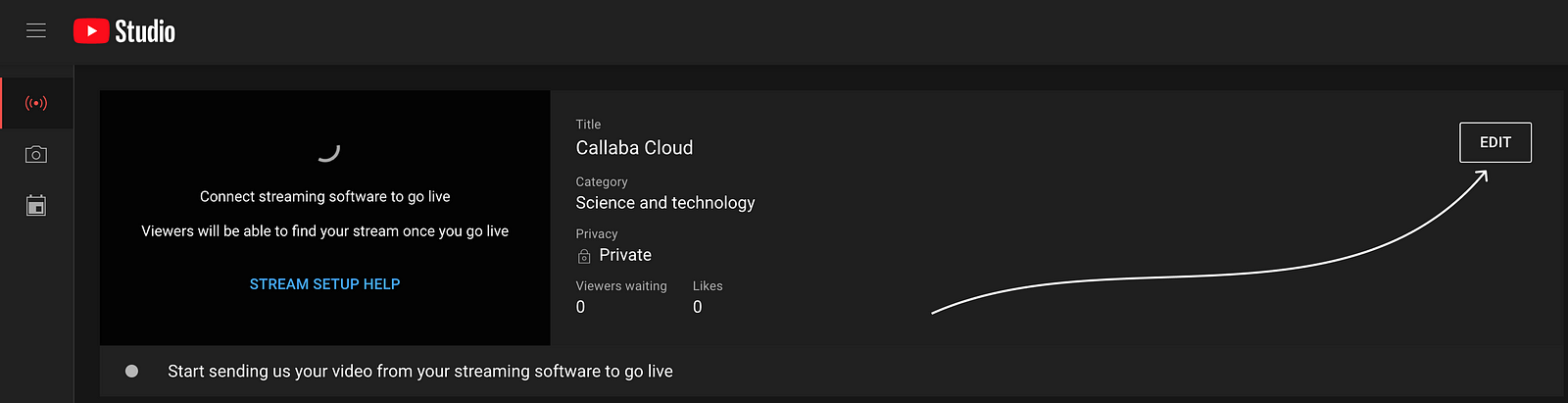
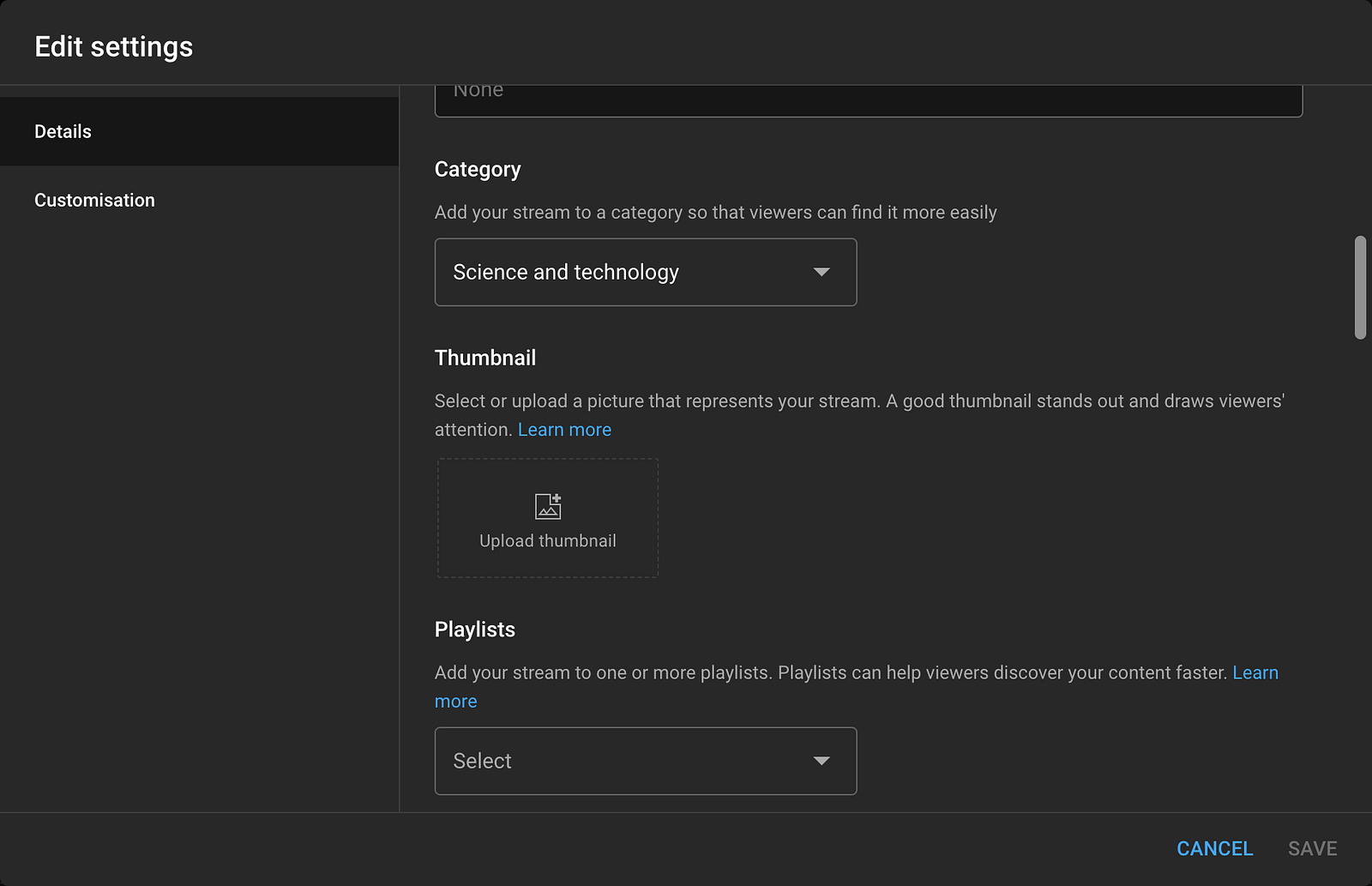
Click Edit and fill in the stream information:
- Title
- Description
- Category
- Thumbnail
- Playlist, if needed
- Audience setting, including whether the content is made for kids
- Visibility: public, unlisted, or private
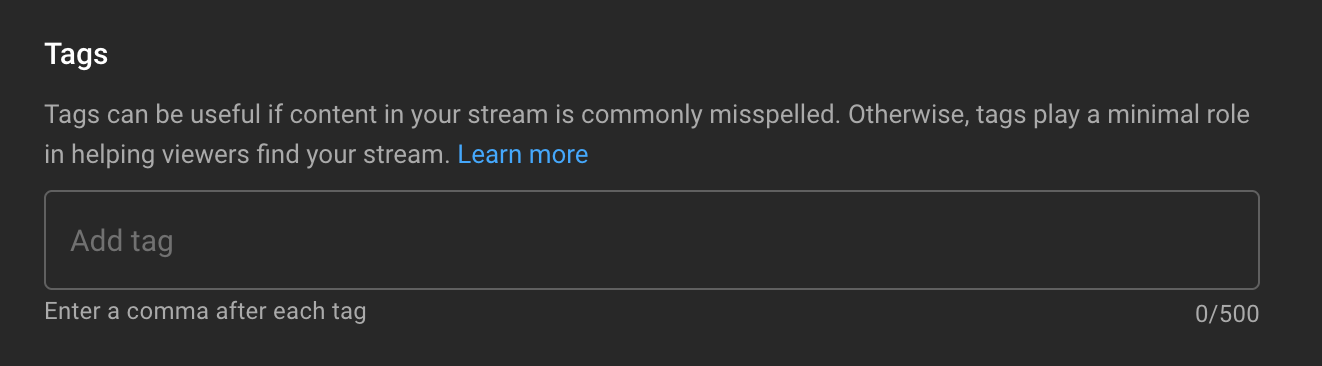
Tags can help describe the content, but they do not replace a clear title, useful description, and relevant stream topic.
Step 5. Set visibility and schedule
Choose whether the stream should be public, unlisted, or private.
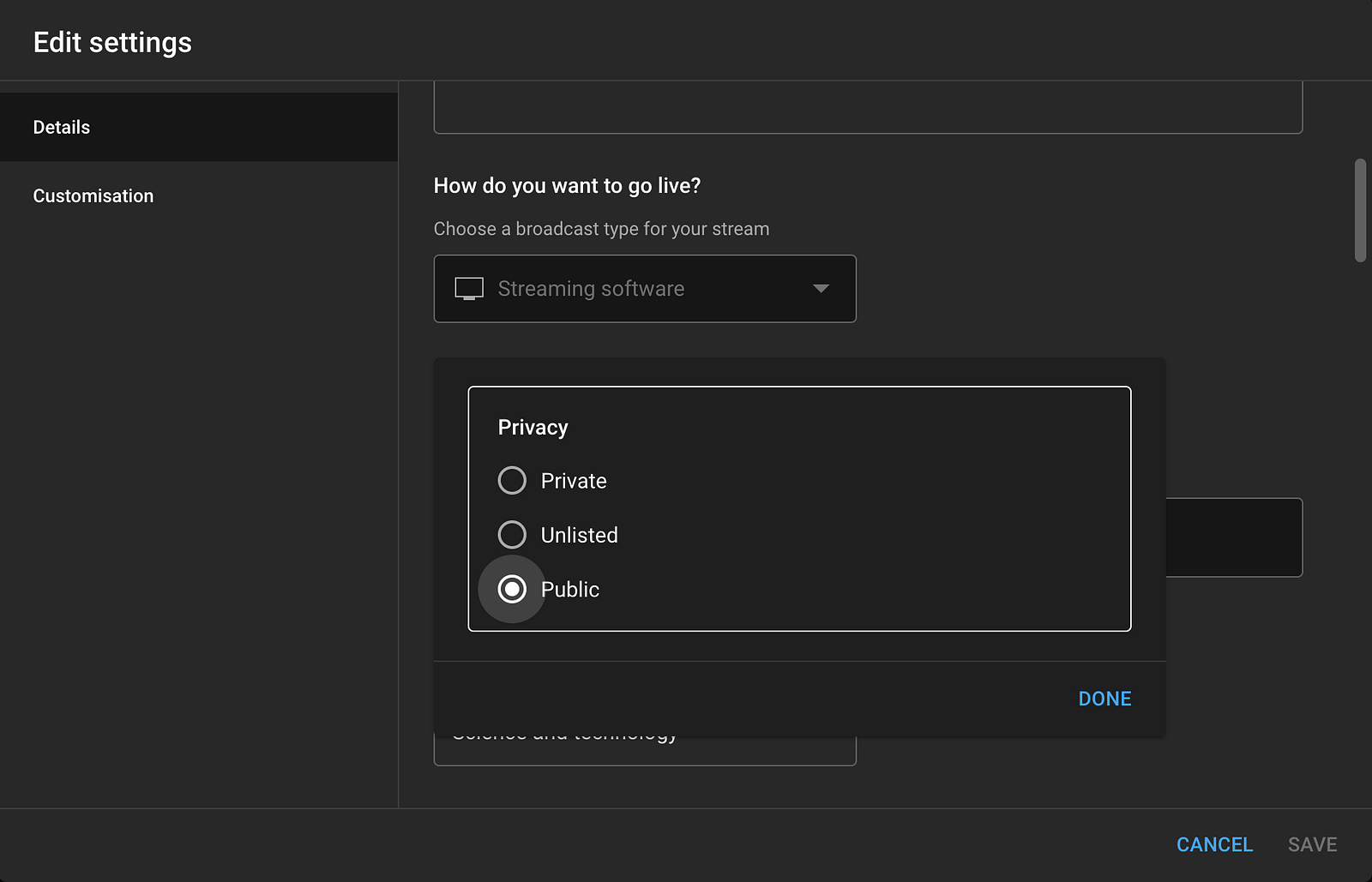
You can also schedule the stream so viewers can see the upcoming live page before the stream starts.
To share the stream page, click the Share icon and copy the link.

How to run a 24/7 YouTube stream with OBS Studio
Step 6. Install and open OBS Studio
OBS Studio is free streaming and recording software. You can use it to send a video file, camera, screen capture, or full scene to YouTube Live.
Step 7. Create a scene
In OBS, find the Scenes panel in the lower-left corner.
Click the + icon and create a new scene.
A scene contains the sources that will be shown in the live stream.
Step 8. Add your video source
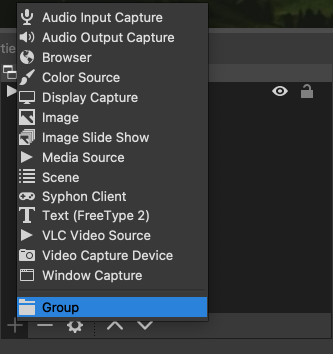
In the Sources panel, click the + icon and add the source you want to stream.
For a looped 24/7 video stream, add a media source and select your video file.
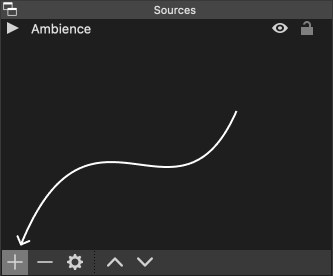
Name the source clearly.
If you want the file to play continuously, enable Loop or Repeat, depending on the OBS source settings available in your version.
Step 9. Add the YouTube stream key to OBS
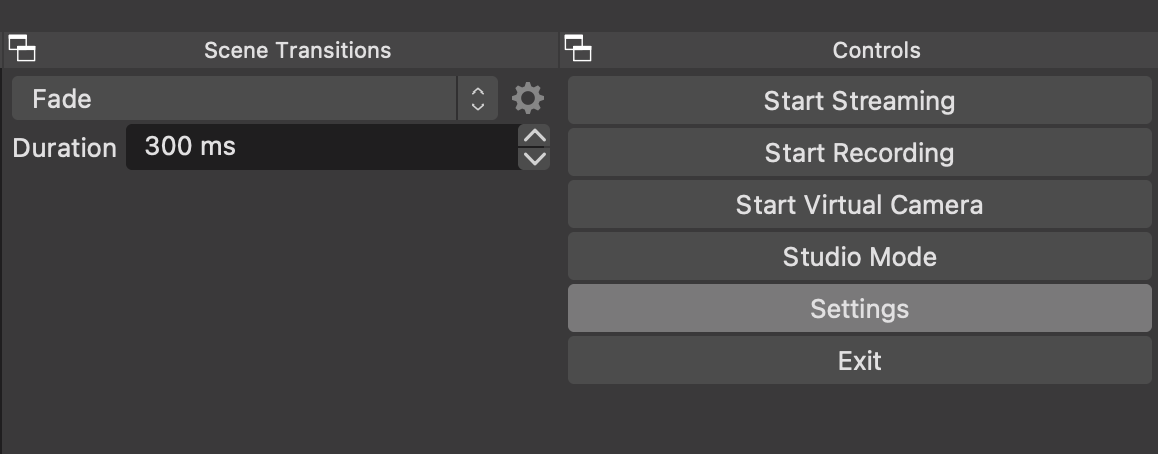
Open Settings in OBS.
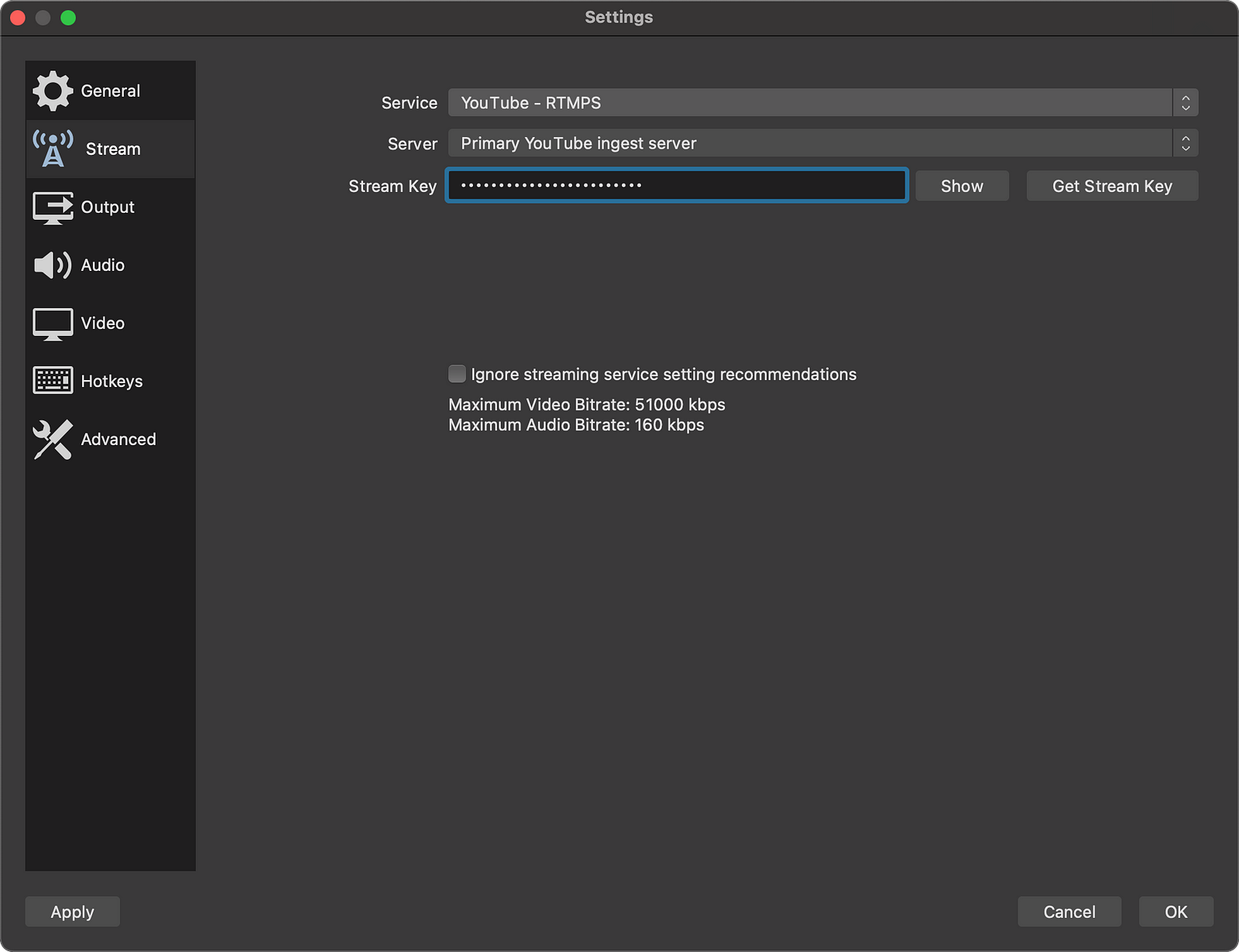
Go to the Stream tab.
Use these settings:
- Service: YouTube
- Server: Primary YouTube ingest server
- Stream key: paste the stream key from YouTube Studio
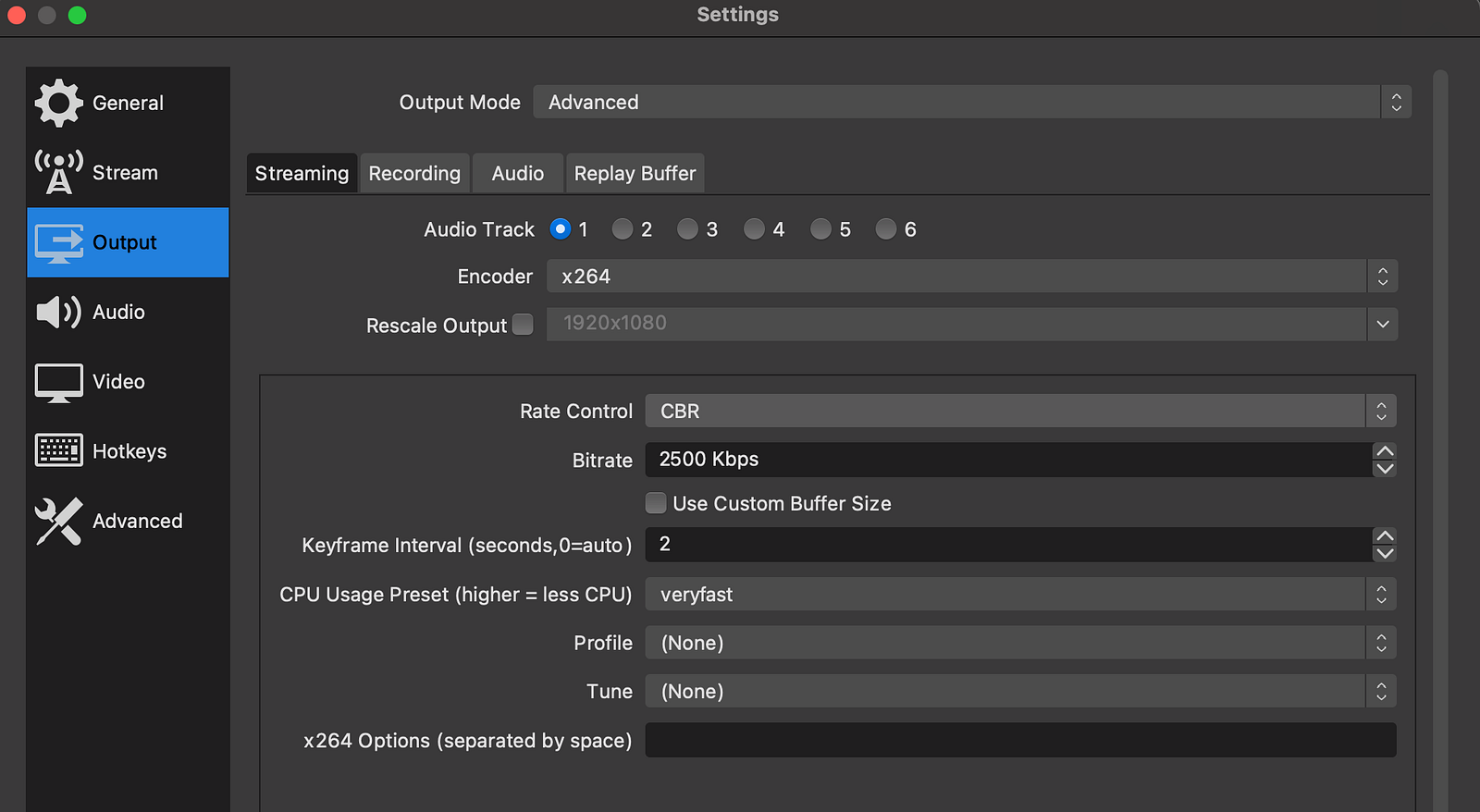
Step 10. Configure OBS output settings
Open the Output tab in OBS.
For a stable 24/7 stream, use conservative settings. Do not push the highest possible bitrate if your upload or computer cannot hold it for long periods.
Common settings:
- Rate control: CBR
- Video bitrate: choose based on resolution and upload capacity
- Encoder: hardware encoder if stable, or x264 if your CPU can handle it
- Keyframe interval: 2 seconds
- Audio: AAC, 48 kHz
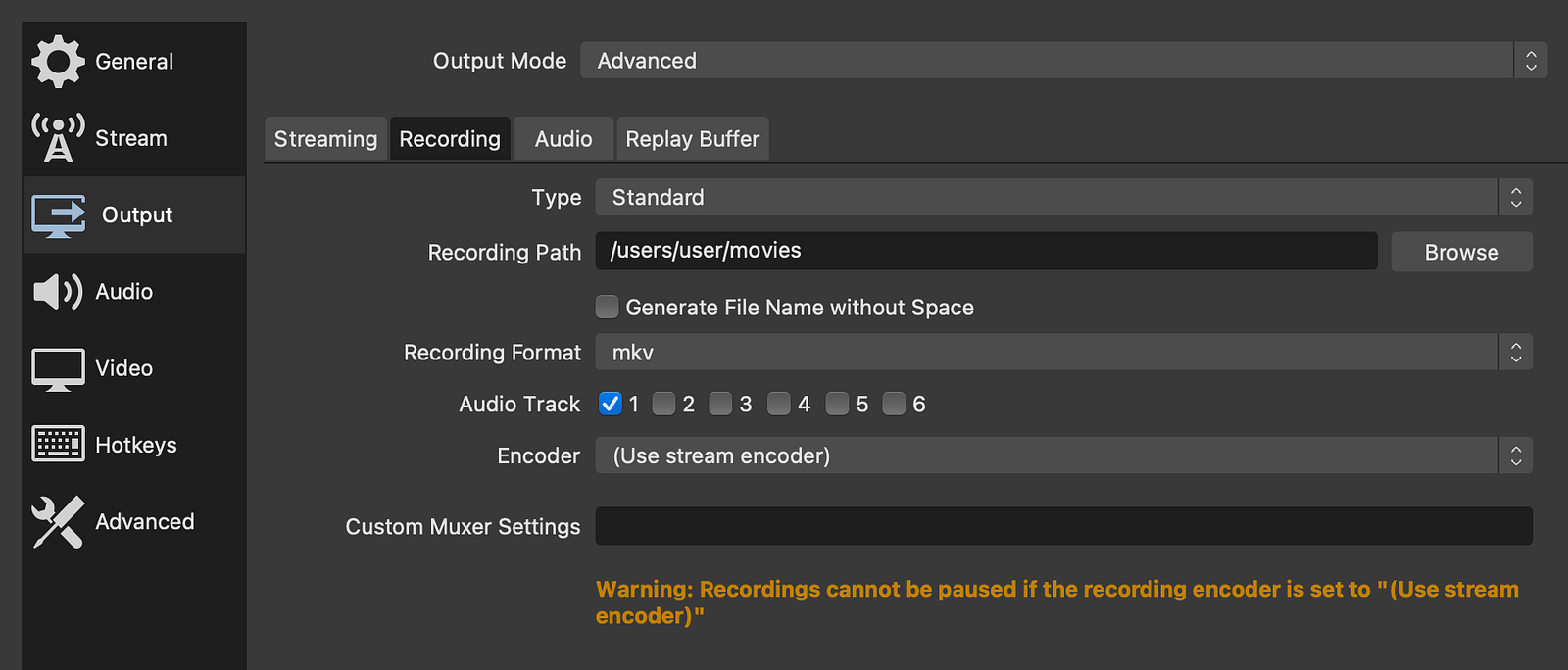
If you also record locally, choose a safe recording path and format. For long-running workflows, make sure your disk has enough space.
Step 11. Configure audio and video
In the Audio tab, choose the sample rate and channels. A common setting is 48 kHz.
In the Video tab, set:
- Base canvas resolution: for example 1920 × 1080 or 1280 × 720
- Output scaled resolution: the resolution you actually send to YouTube
- Common FPS values: choose the frame rate you can keep stable
For 24/7 streaming, stability is more important than maximum resolution. A stable 720p stream is better than an unstable 1080p stream.
Step 12. Start streaming
When everything is ready, click Start Streaming in OBS.
In the lower-right corner of OBS, watch the outgoing bitrate and dropped frames. In YouTube Studio, confirm that YouTube is receiving the stream.
If you want to stop the broadcast, click Stop Streaming in OBS.
How to make a YouTube stream run 24/7
To keep a stream running continuously, you need more than a looped video file.
Check these points:
- Loop your media source if you are streaming a file.
- Disable sleep mode on the computer.
- Prevent automatic restarts during the broadcast window.
- Use wired internet instead of Wi-Fi when possible.
- Monitor OBS stats for dropped frames and bitrate drops.
- Monitor YouTube Studio for ingest warnings.
- Use a UPS if power loss is a concern.
- Have a restart plan if OBS, the computer, or YouTube ingest fails.
This is where local 24/7 streaming becomes hard. A local machine can work for testing, but it is not the safest long-term production model.
Common 24/7 YouTube streaming problems
The stream stops after a few hours
Check computer sleep settings, automatic updates, network drops, OBS crashes, disk space, overheating, and YouTube ingest status.
The video loops with a black gap
Check the media source loop setting, file format, codec, and whether the source restarts cleanly. Test the full loop before going live.
YouTube receives no signal
Check the stream key, ingest server, OBS output status, firewall, internet connection, and whether the stream is started in YouTube Studio.
The stream buffers or drops quality
Lower bitrate, reduce resolution, use a wired connection, stop background uploads, and watch OBS dropped frames. Upload stability matters more than download speed.
The stream has no audio
Check the OBS audio mixer, source audio, mute status, sample rate, and whether YouTube is receiving audio in the live control room.
The stream is blocked because of copyright
Make sure you have permission to stream all videos, music, graphics, and third-party content used in the broadcast.
When to use Callaba for 24/7 YouTube streaming
OBS is a good way to start, but it is not always the best way to run a continuous channel.
Use Callaba when you need:
- continuous cloud streaming
- multi-streaming to YouTube, Twitch, Facebook, LinkedIn, or custom destinations
- recording in the cloud
- stream monitoring
- stream routing
- API control
- main/backup workflows
- less dependence on a local computer and home internet
Callaba is compatible with OBS Studio and other streaming tools. You can send one stream to Callaba, then route or restream it to multiple destinations.
Related product path:
FAQ
How do I live stream on YouTube?
To live stream on YouTube, open YouTube Studio, click Go Live, choose streaming software, copy the stream key, paste it into OBS or another encoder, configure video and audio settings, then start streaming.
How do I run a 24/7 live stream on YouTube?
To run a 24/7 YouTube stream, create a live stream in YouTube Studio, configure OBS or a cloud streaming workflow, loop your video source if needed, send the stream to YouTube, and monitor the broadcast continuously.
Can I stream 24/7 on YouTube with OBS?
Yes. OBS can run a 24/7 stream if your computer, internet connection, video source, and settings remain stable. For serious continuous streaming, a cloud workflow is often safer than running everything from one local computer.
How do I loop a video for a YouTube live stream?
In OBS, add the video as a media source and enable the loop or repeat option. Test the loop before going live to make sure there is no black gap, audio issue, or playback reset problem.
What do I need for a 24-hour live stream?
You need a YouTube channel with live streaming enabled, streaming software or a cloud streaming platform, a stable video source, stable upload connection, monitoring, and permission to use the content you are broadcasting.
Can I stream existing videos live on YouTube?
Yes, if you have the right to use and broadcast those videos. You can loop existing video files in OBS or use a cloud workflow to create a continuous live stream.
Why does my YouTube live stream stop?
Common causes include internet drops, OBS crash, computer sleep mode, automatic updates, overheating, wrong stream key, YouTube ingest issues, or local power problems.
Can I stream to YouTube, Twitch, and Facebook at the same time?
Yes. You can send one stream from OBS to Callaba and let Callaba restream it to YouTube, Twitch, Facebook, LinkedIn, and other destinations.
Is a cloud workflow better for 24/7 live streaming?
For long-running or business-critical streams, a cloud workflow is often better because it reduces dependence on a local computer, local power, and local internet. It also makes monitoring, routing, recording, and restreaming easier.
What bitrate should I use for a YouTube 24/7 stream?
Choose a bitrate your upload can hold continuously. Do not choose a bitrate only because the quality looks better in a short test. For 24/7 streaming, stable bitrate is more important than maximum bitrate.
Next steps
- Continuous streaming with Callaba
- Multi-streaming with Callaba
- How to start SRT streaming in OBS Studio
- How to multistream from OBS
- What is an SRT server?
- How to set up CloudFront on AWS
- Create a virtual events platform with CloudFront CDN
Product decision guide
Operate a 24/7 channel as a continuous product workflow
The Callaba Continuous Streaming product moves an always-on YouTube channel away from a laptop-bound OBS loop and into an observable playout workflow. The goal is not merely to repeat a file: operators need scheduling, output health and a recovery sequence that can run through nights and weekends.
What a reliable 24/7 live stream needs
- Content continuity: Build a playlist with compatible media, clean transitions and enough approved material to survive the planned operating window.
- Output supervision: Monitor both the Callaba output and the YouTube control room, because a healthy encoder does not guarantee a healthy public channel.
- Recovery ownership: Define alerts, an on-call action and a known restart point so a stalled item, expired stream key or destination rejection does not remain unnoticed.
Automation comes second. Create and observe the first schedule in Callaba before using API automation for playlist rotation or channel provisioning.
24/7 YouTube operations questions
Is cloud software better than OBS for a 24/7 YouTube stream?
Cloud or server-side playout removes dependence on one workstation and local internet connection. OBS can still be useful for live contribution, but an always-on channel needs independent monitoring and recovery.
How do I prevent gaps when looping videos on YouTube Live?
Normalize media formats, test every transition and let the playout workflow run longer than one full playlist cycle. Watch the destination output, not only the source timeline.
Can a 24/7 stream also publish to other platforms?
Yes, if each destination format and policy is supported. Add outputs one at a time, monitor them independently and keep YouTube recovery from depending on another platform.
Continue with the owned workflow
Run a full playlist-cycle acceptance test
Launch Continuous Streaming in Callaba, observe source and output in Multiview and select the deployment model that matches on-call ownership.
Launch Callaba in the cloud · Install Callaba on Linux · Open the live Multiview demo
