

This tutorial will guide you through the steps to take a specific participant's video from a Callaba Video Call and turn it into a discoverable NDI® device. It’s a simple and effective way to integrate video streams into your workflow. For production ingest and monitoring, see continuous streaming. For playback integration and analytics, use video api. Recommended product path: Ingest & route, Player & embed, Calls & webinars. For this workflow, Player & embed is the most direct fit., and scaling guide. For this workflow, Paywall & access is the most direct fit.
0. Before you begin
For this tutorial, you will need :
▶ Callaba software
⬇️ Get Callaba on AWS Marketplace | 📖 Guide: How to launch
⬇️ Get a self-hosted license | 📖 Guide: How to install self-hosted
▶ Domain name
▶ SSL Certificate (optional - you can use a free one by Let's Encrypt)
1. Create a Video Call Room
First, you need a video call room in Callaba. Here’s how to set it up:
Go to the Video Calls section.
Create a new conference room.
Give your room a name that makes sense for your project.
If you don’t need recording, disable it.
Save your room.
Note: To create WebRTC calls in Callaba, make sure you have a domain name with SSL already set up.
This is a requirement to ensure secure video calls, and we have a detailed guide on how to configure domain names and SSL.
You can do it all within the UI, no SSH or consoles are needed.
Guide : 📖 How to manage SSL certificates for video calls
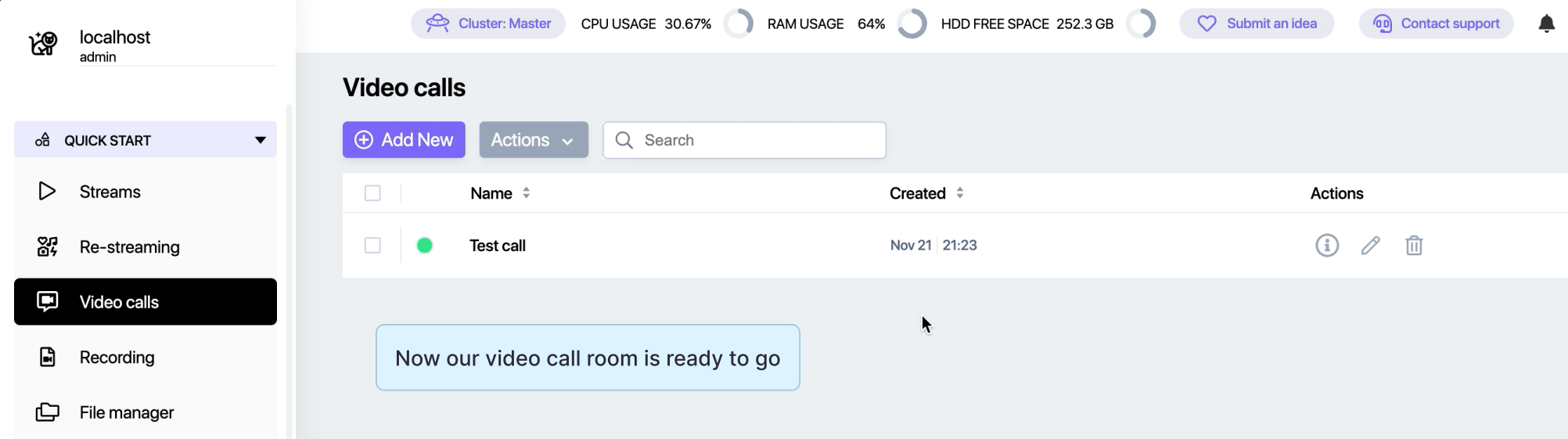
That’s it! Your video call room is ready.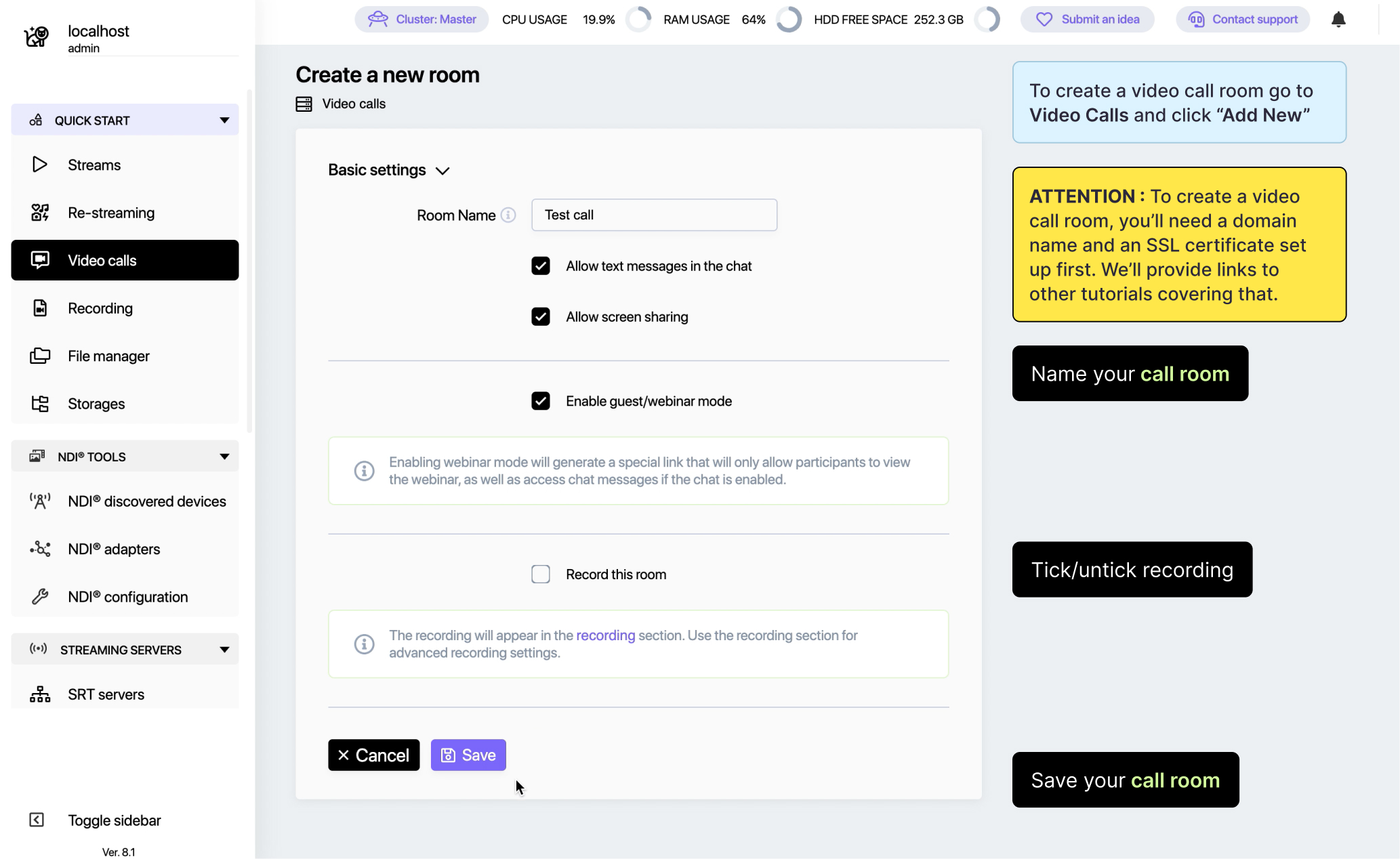
2. Create a Restream
Next, we’ll create a restream to separate the participant’s video and turn it into an NDI® device.
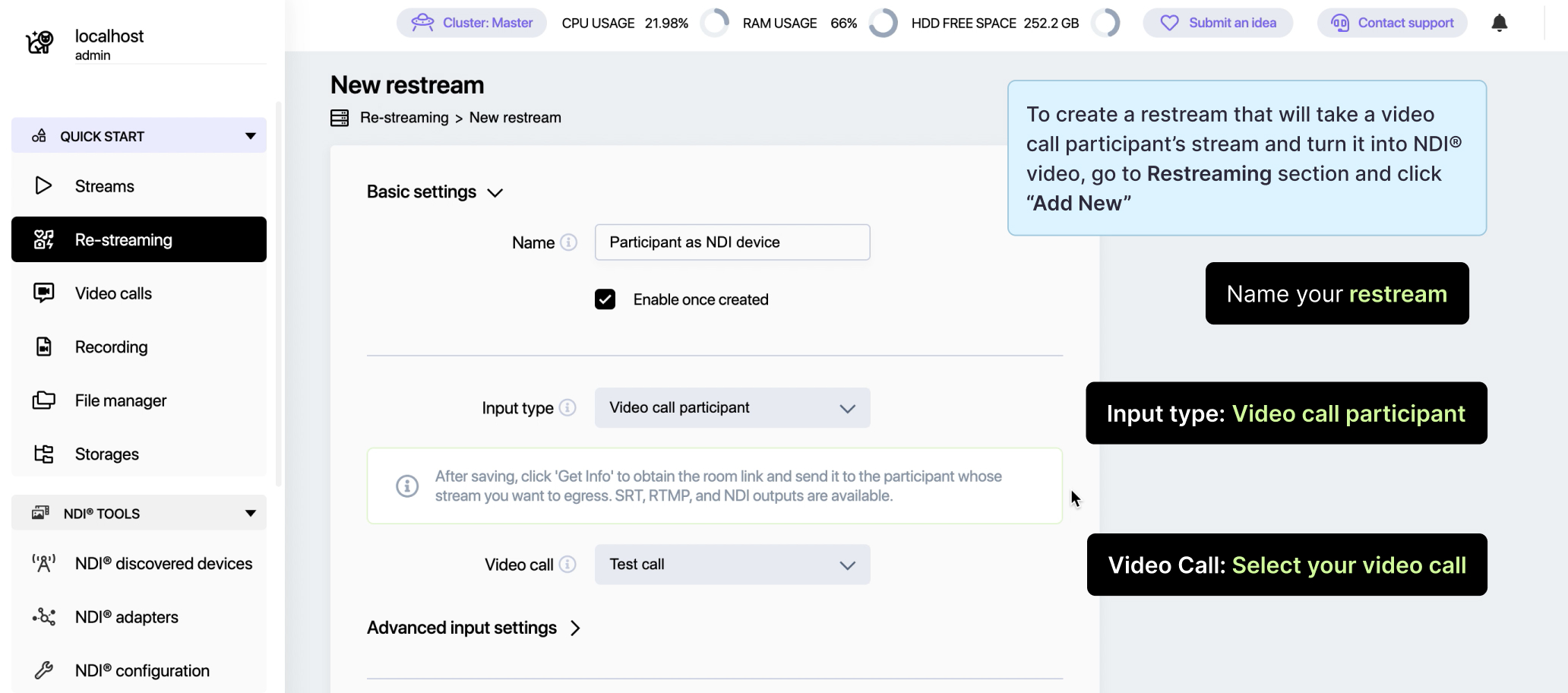
Go to the Restreaming section and add a new restream.
Name the restream so it’s easy to identify.
Input
Set the Input Type to Video Call Participant.
Select the video call room you just created from the list.
Destination
Now, let’s configure the destination for the restream.
Set the Stream Destination to NDI® Output Device.
Give your NDI® device a unique and recognizable name.
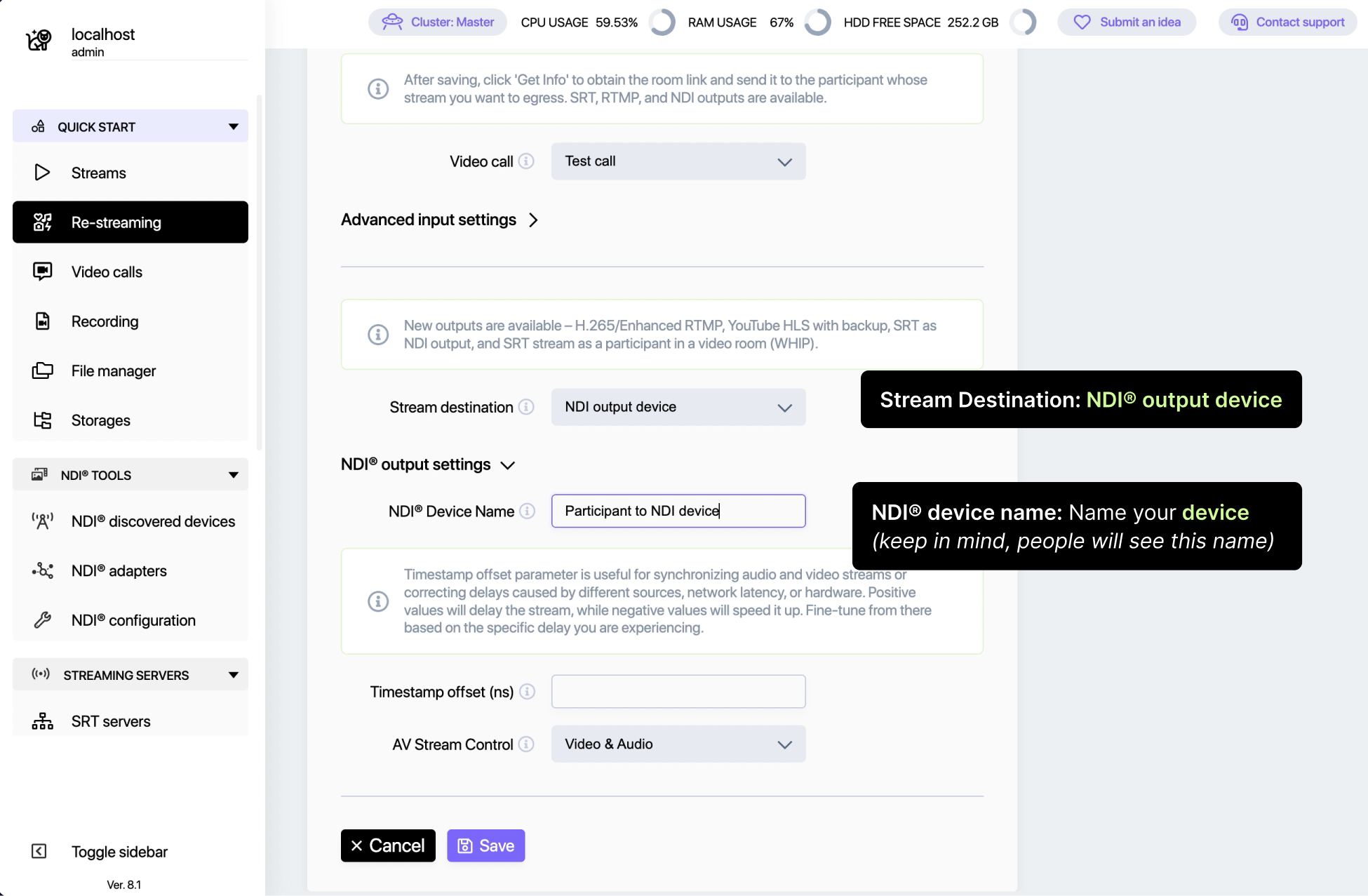
Save your restream.
Your restream is now set up to convert the participant’s video into an NDI® stream.
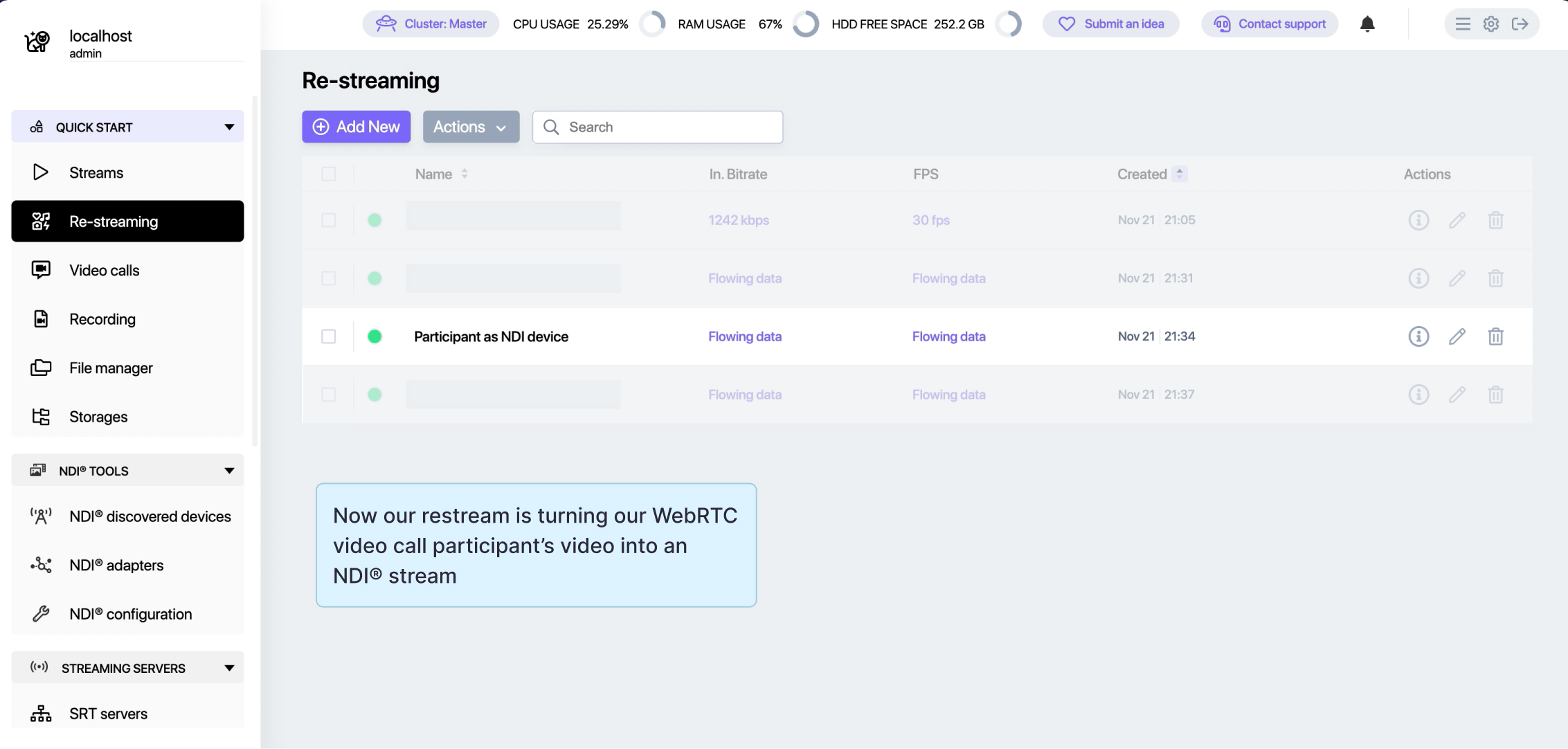
4. Send the participant a personalized Invite
To isolate the specific participant’s video, you’ll need to send them a personalized invite link.
Go back to your video call room and click Info.
Copy the Personalized Room URL.
Share this link with the designated participant.
When they join the call using this link, their video will automatically become available as an NDI® stream.
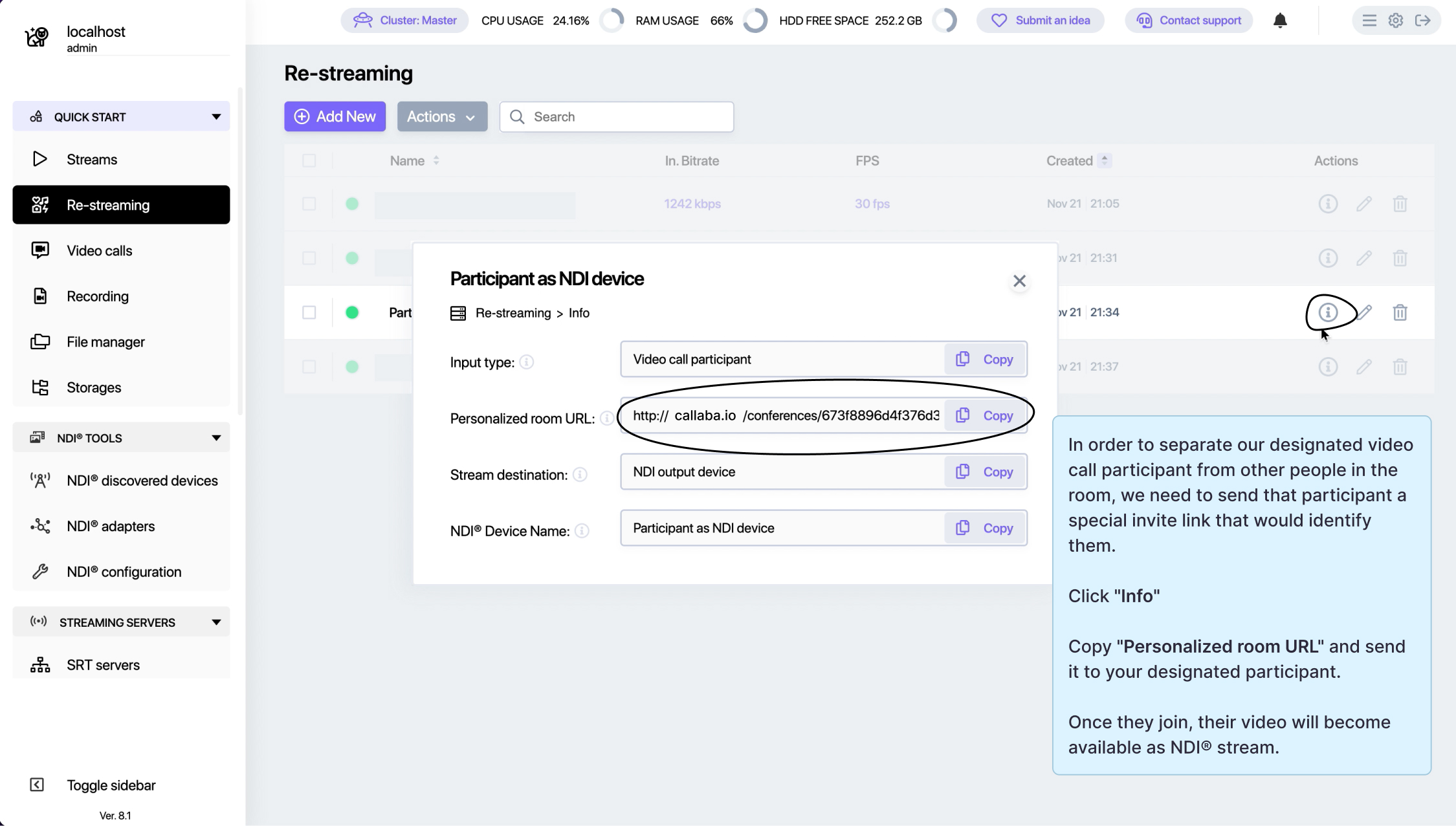
That’s all it takes to turn a video call participant into a discoverable NDI® device in Callaba.
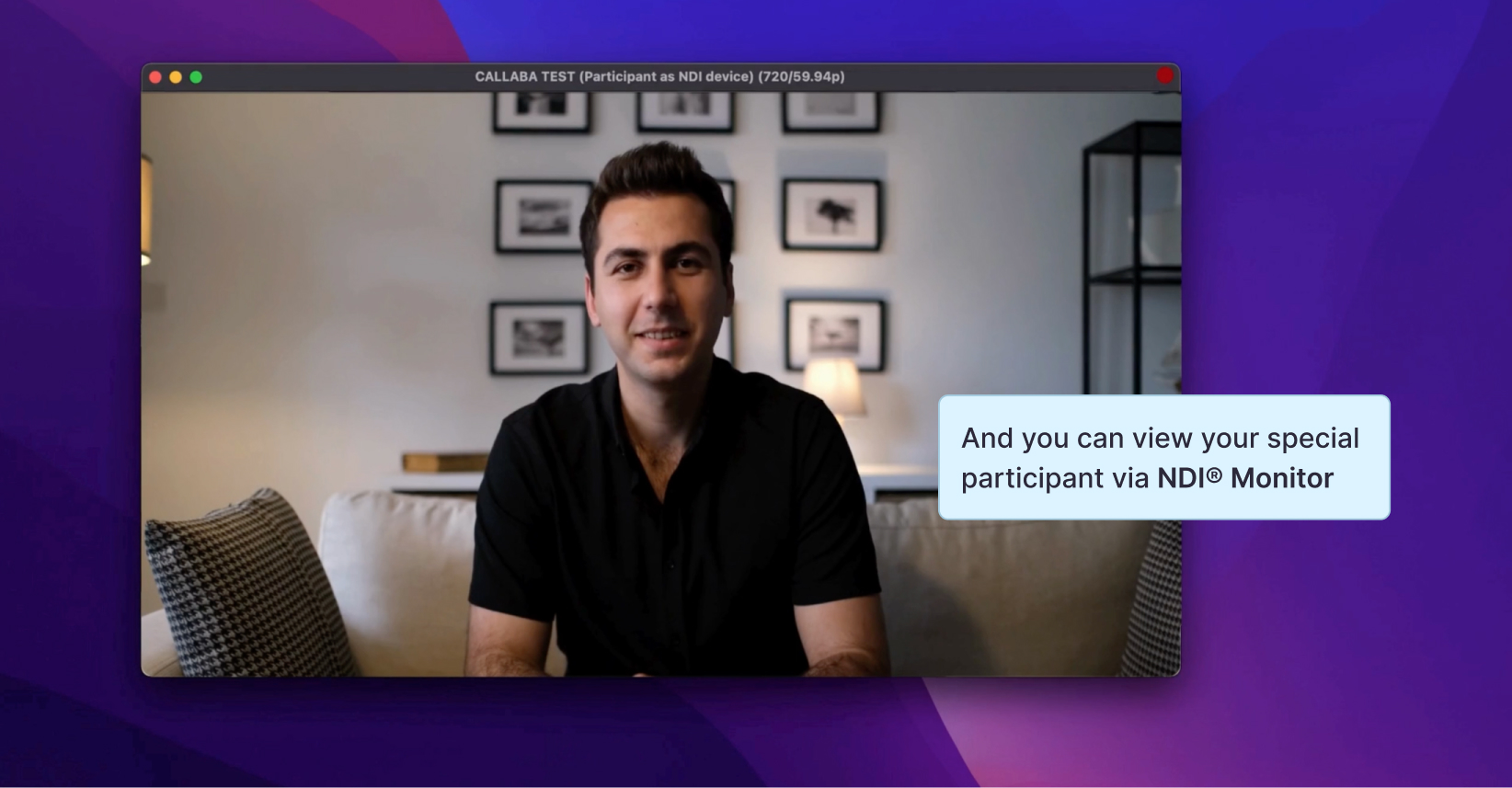
You can check your newly discovered NDI® device in the NDI® discovered devices section.
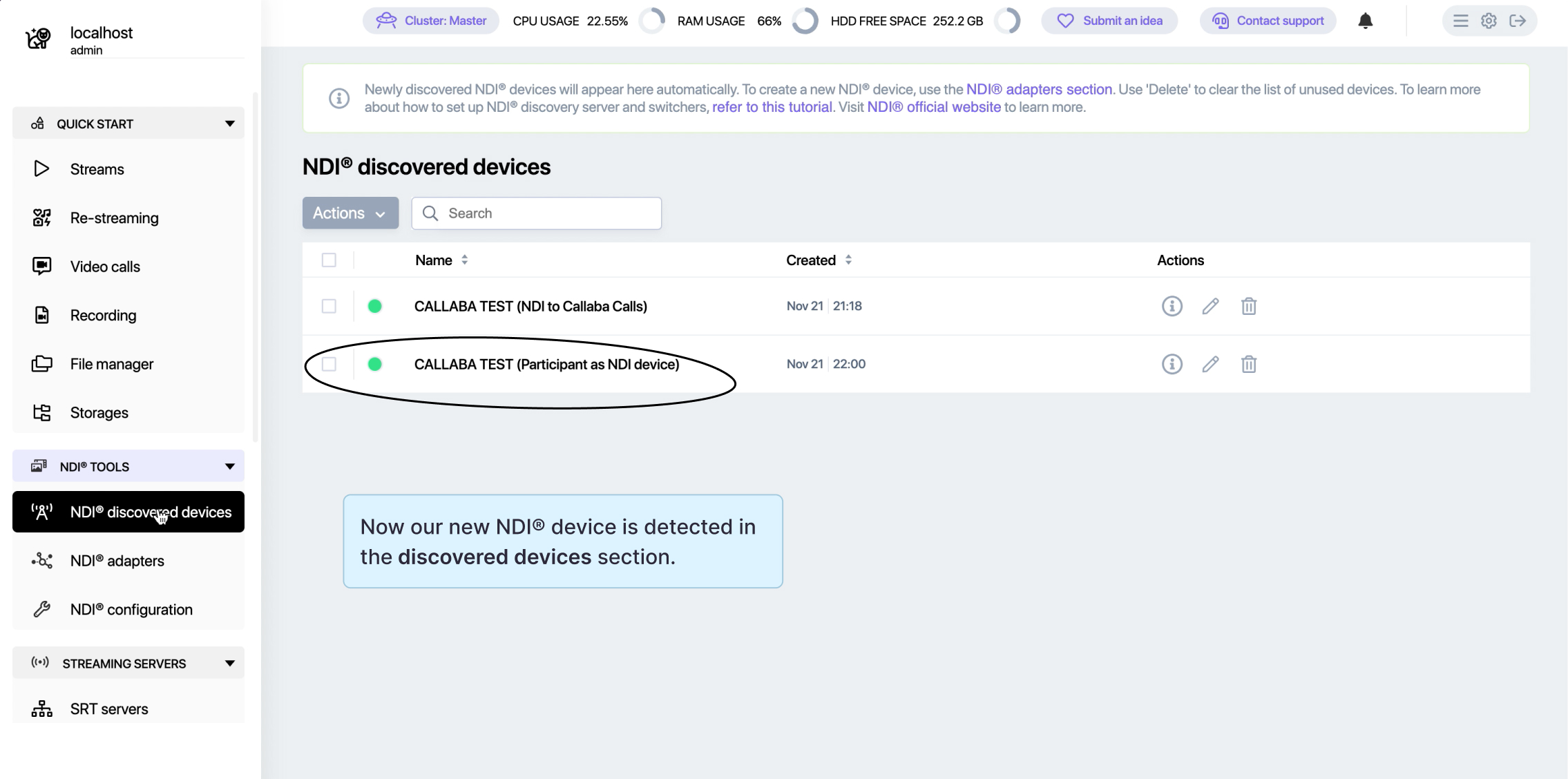
This setup is perfect for workflows where you need to mix in individual video streams from your talent.
Learn more
- How to launch Callaba on Amazon Web Services
- How to create a playlist of videos with Pay Per View monetization
- Multilingual Web Player
- Set up SRT backup stream in case of main stream interruption
Follow us on social media
LinkedIn • Reddit • Instagram • Facebook • Youtube • X (Twitter) • Discord
