

Related vendor hub
Browse all Panasonic SRT gateway workflows
Use the Panasonic hub to compare PTZ camera, camcorder, SRT, and RTMPS gateway setup paths.
Panasonic AW-UE80 SRT setup is a direct camera-to-cloud contribution workflow: configure the AW-UE80 to send SRT to a Callaba SRT Listener. Use this setup when AW-UE80 is at the venue and Callaba is the cloud SRT receiver for monitoring, recording, routing, multiview, or restreaming. The camera is normally the SRT Caller; Callaba is the receiver/listener.
Quick answer
To use Panasonic AW-UE80 with SRT, set AW-UE80 as the SRT Caller and send the stream to a cloud SRT Listener. In this guide, Callaba works as the SRT gateway, receiver, monitor, recorder, and routing layer. Before the event, confirm that the installed firmware exposes the expected SRT streaming modes and fields.
The camera sends one SRT contribution feed into Callaba. After ingest, Callaba can preview, record, route, multiview, and restream the same source in parallel.
- Panasonic AW-UE80SRT Caller
- Callaba GatewaySRT Listener
- Preview
- Record
- Route
- Multiview
- Restream
What this setup does
This workflow uses the AW-UE80 as a venue PTZ camera with built-in IP streaming. The camera sends SRT over UDP to Callaba in the cloud. Callaba then receives the feed, shows preview and stream statistics, records if needed, and routes the same source to downstream outputs. Those downstream uses are parallel options; you do not have to record before routing or preview before restreaming.
The AW-UE80 is not a bonded field transmitter and does not require a vendor receiver cloud for this path. The key production decision is SRT direction: for most internet contribution jobs, make the camera the Caller so the venue side opens an outbound UDP connection to the Callaba Listener.
What this model can and cannot do in this workflow
Panasonic documentation for the AW-UE80 confirms SRT, RTMP, RTMPS, RTP/RTCP over RTSP, MPEG2-TS over UDP, NDI High Bandwidth, and NDI|HX v2. For the SRT workflow, the operating instructions list Client(Caller) and Listener modes, Destination URI and port, Client(Caller) port, Stream ID, AES-128/AES-256 encryption, passphrase, and SRT streaming formats for H.264 and H.265.
- Use directly with Callaba: SRT(H.264) is the safest first test. SRT(H.265) is available, but confirm that every downstream decoder, player, or production tool supports HEVC before using it.
- Confirmed fallbacks: RTMP/RTMPS can be used for platform-style contribution, while RTSP or NDI can be bridged when the design is local-first or switcher-first.
- Local outputs: the model provides HDMI 2.0 for UHD/4K local output and 3G-SDI for HD output. IP modes should be checked against the exact streaming format you plan to use.
- Audio: the camera has a 3.5 mm mic/line input and AAC-LC audio support for streaming workflows.
- Do not plan it as: a native SMPTE ST 2110 camera, a bonded transmitter, or an SRT decoder return-feed device.
- NDI note: Panasonic lists NDI High Bandwidth and NDI|HX v2 for AW-UE80, but NDI output formats are HD/Full HD in the listed modes. Do not assume UHD over NDI without checking the exact menu and format.
Panasonic firmware notes also matter operationally: recent AW-UE80 firmware is listed by Panasonic, and an earlier update notes improved SRT distribution stability and High Bandwidth NDI stability. I recommend confirming firmware and visible SRT settings on the actual camera before a paid event. Panasonic also separates AW-UE83MC from other AW-UE80 units in an NDI standardization note, so confirm the exact suffix and firmware before copying NDI assumptions between units.
Recommended workflow
For Panasonic AW-UE80 SRT to cloud, use this order:
- Create an SRT Listener in Callaba and choose a UDP port.
- Set the AW-UE80 streaming format to SRT(H.264) for the first test.
- Set the camera SRT mode to Client(Caller).
- Enter the Callaba public address, UDP port, Stream ID if used, and matching encryption passphrase if enabled.
- Start the stream and verify incoming bitrate, uptime, preview, and audio meters in Callaba.
Use AW-UE80 Listener mode only when you deliberately want the receiver to call the camera. That reverses the network problem: the camera side must accept inbound UDP, usually requiring public IP addressing, firewall rules, or port forwarding at the venue.
When not to use this setup
- If the camera and production switcher are on the same LAN, local HDMI, 3G-SDI, or NDI may be simpler than sending SRT to the cloud.
- If the only destination is a public platform and you do not need gateway monitoring, recording, routing, or multiview, RTMP/RTMPS from the camera may be enough.
- If the production requires UHD local switching, use the AW-UE80 HDMI 2.0 path or confirm the exact IP streaming mode and format before promising UHD over IP.
- If the project requires SMPTE ST 2110, choose a camera or interface that is documented for that workflow. AW-UE80 specifications found for this model do not list native ST 2110.
Before you start
Prepare these items before opening the camera menu:
- AW-UE80 firmware version and confirmation that SRT settings are visible.
- Callaba public DNS name or IP address and an open UDP port.
- Decision on H.264 or H.265. Start with H.264 unless HEVC is required and tested end to end.
- Stream ID and passphrase, if used. Treat both as case-sensitive and whitespace-sensitive; a copied newline or trailing space can break the SRT handshake.
- Network uplink capacity. For a first internet test, try 1080p30 around 4-6 Mb/s or 1080p60 around 6-8 Mb/s, then adjust to the link and production requirement.
Create the Callaba ingest
In Callaba, create an SRT server/listener for the AW-UE80. Choose the UDP port, configure Stream ID and passphrase only if you want those checks enforced, and start with 250-500 ms SRT latency for an internet test. Lower latency only after packet loss, RTT, and retransmits are stable.
When the server is ready, Callaba should show that it is waiting for an incoming connection. Keep the server page open during the first camera test so you can see whether the camera reaches the listener, whether bitrate is stable, and whether audio arrives.
Configure the AW-UE80
Open the AW-UE80 web menu and go to the streaming or Video over IP configuration area. Select SRT(H.264) first. Set the SRT mode to Client(Caller), then enter the Callaba destination address and UDP port. If you enabled Stream ID or encryption in Callaba, enter the same Stream ID and AES passphrase on the camera.
For audio, verify the 3.5 mm input mode and level on the camera, then confirm AAC-LC audio and meters in Callaba. If the first test fails, remove optional complexity: use H.264, disable encryption and Stream ID temporarily on a private test path, confirm connection, then add security fields back one at a time.
Settings table
| Where | What to do / field to fill | First-test value | Why / check |
|---|---|---|---|
| Callaba | Create SRT server and choose UDP port | Any unused open UDP port, for example 10080 | Callaba waits as the SRT Listener. |
| Callaba | Stream ID | Simple value such as aw-ue80-main | Must match the camera exactly if enabled. |
| Callaba | Passphrase / encryption | Off for a controlled first test; AES-128 or AES-256 for production | Must match the AW-UE80 passphrase and encryption setting. |
| Callaba | SRT latency | 250-500 ms | Increase if RTT, loss, or retransmits are unstable. |
| AW-UE80 streaming area | Video over IP streaming format | SRT(H.264) | Use H.265 only after downstream HEVC support is confirmed. |
| AW-UE80 SRT settings | Client(Caller) / Listener mode | Client(Caller) | Outbound venue connection to the Callaba cloud listener. |
| AW-UE80 SRT settings | Destination URI and port | Callaba public address and UDP port | Callaba should show connection and incoming bitrate. |
| AW-UE80 SRT settings | Stream ID and passphrase | Exact Callaba values | Case, capitalization, and whitespace must match. |
Monitoring
After the camera starts streaming, check Callaba for incoming bitrate, connection uptime, RTT, packet loss, retransmits, preview video, and audio meters. On the AW-UE80, confirm that streaming is active and that the selected IP format still matches the production output you expect.
If monitoring looks unstable, do not immediately change every setting. First raise SRT latency, then reduce bitrate, then test a lower frame rate or resolution. If the stream connects but preview fails, check whether the stream is H.265 and whether the downstream preview or decoder path supports HEVC.
Failover and local ingest options
For production events, plan what happens if the main encoder, venue uplink, or primary contribution path fails. Callaba can be part of that continuity plan without changing the basic Panasonic AW-UE80 ingest workflow.
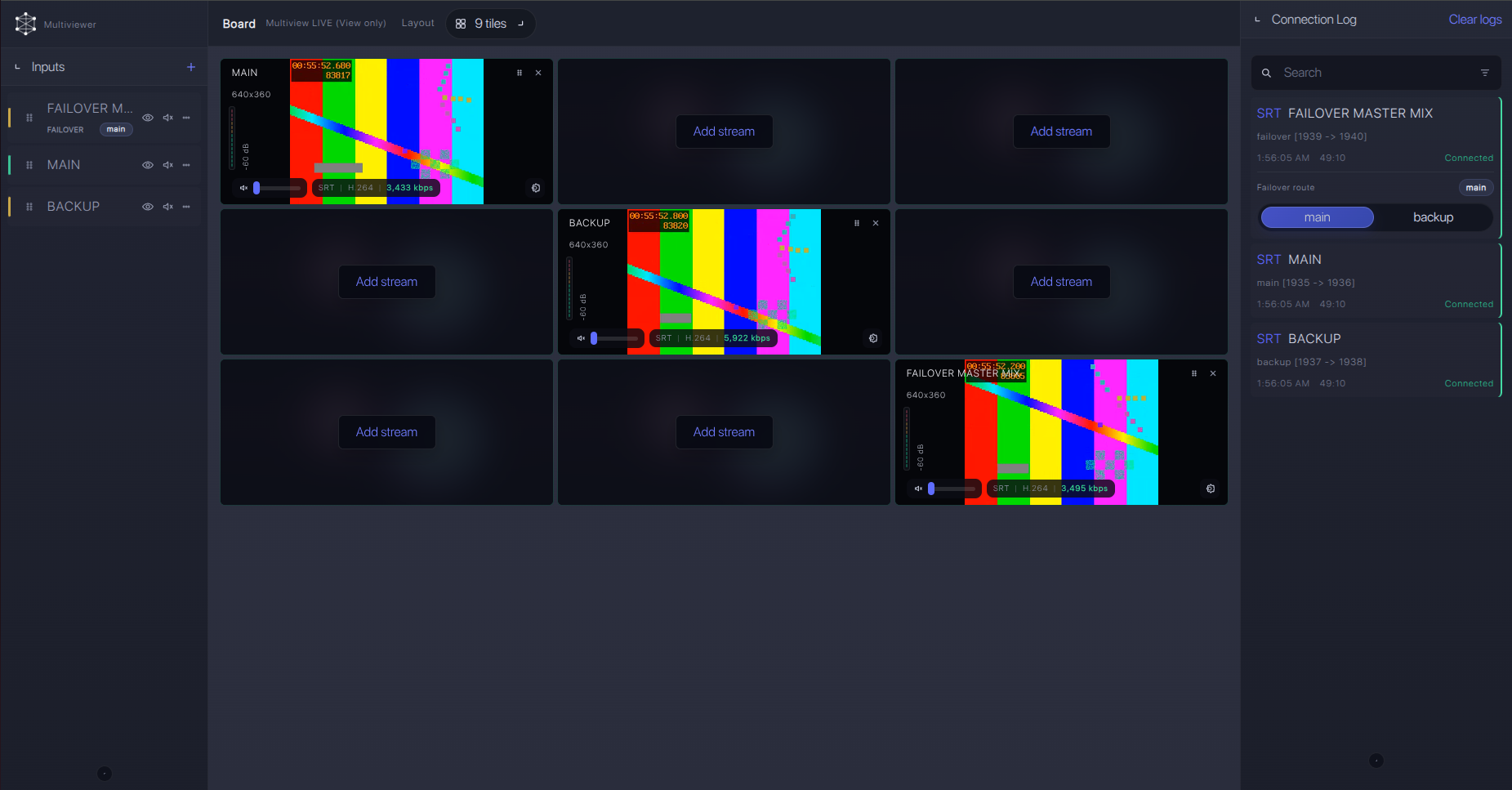
Recording and playback
Once ingest is stable, recording and playback are downstream choices in Callaba. You can record the AW-UE80 feed while also sending it to multiview, restreaming, or another route. For event work, I prefer a short pre-show recording test because it confirms video, audio, timestamp behavior, and file playback before the real program starts.
Troubleshooting
| Symptom | Check in Callaba | Check on AW-UE80 | Likely fix |
|---|---|---|---|
| No connection | SRT server is running and listening on the expected UDP port. | Mode is Client(Caller), destination address and port are correct. | Open UDP firewall/NAT path and confirm public address. |
| Handshake fails | Stream ID, passphrase, and encryption setting. | Same fields in the SRT settings. | Retype values manually; remove trailing spaces and copied newlines. |
| Connects then drops | RTT, packet loss, retransmits, connection uptime. | Firmware version and selected bitrate. | Raise latency, lower bitrate, and update firmware if the unit is old. |
| Video arrives without audio | Audio meters and recorded file audio. | 3.5 mm mic/line input mode, gain, mute, and AAC-LC settings. | Correct input level and confirm audio in a short recording. |
| Preview is black or unsupported | Codec shown for the incoming stream. | SRT(H.264) versus SRT(H.265). | Use H.264 for the first test; use H.265 only with confirmed HEVC support. |
| Expected UHD over IP but see HD | Received resolution and output route. | Selected IP mode; NDI mode if used. | Use HDMI 2.0 for local UHD or confirm the exact IP format before the show. |
If a handshake problem is hard to diagnose, also confirm SRT version compatibility from firmware notes, vendor support information, and Callaba support information. SRT Rendezvous mode is not listed in the AW-UE80 sources I found, so I would not design the event around Rendezvous unless Panasonic confirms it for the installed firmware.
Official references
These are useful references for confirming model capabilities and exact menu behavior before production.
Vendor references
- Panasonic North America AW-UE80 product page
- Panasonic Japan AW-UE80 specifications
- Panasonic AW-UE80 FAQ
- Panasonic AW-UE80 Operating Instructions
- Panasonic AW-UE80 firmware Ver.2.35 note
- Panasonic AW-UE80 firmware Ver.2.02 note
Protocol references
Callaba resources
FAQ
Does Panasonic AW-UE80 support SRT to cloud?
Yes. Panasonic sources for AW-UE80 list SRT, and the operating instructions describe SRT Client(Caller) and Listener settings. Confirm installed firmware and the visible SRT menu on the actual unit before the event.
Should AW-UE80 be the SRT Caller or Listener?
Use AW-UE80 as the SRT Caller for the normal cloud workflow. Callaba listens in the cloud. AW-UE80 Listener mode is available, but it requires the camera side to accept an inbound connection, which is usually harder on venue networks.
Is Callaba the Panasonic AW-UE80 SRT server?
In this workflow, Callaba is the cloud SRT Listener, receiver, and gateway. The camera is the sender. Operators sometimes call the listener side the SRT server; the important point is that the AW-UE80 sends to Callaba.
Can I use AW-UE80 SRT Stream ID and passphrase?
Yes. Panasonic documentation lists Stream ID, AES-128/AES-256 encryption, and passphrase fields for SRT. Match values exactly on both sides, including capitalization and whitespace.
Can I use RTMP, RTMPS, RTSP, or NDI instead?
Yes, those are documented for AW-UE80. RTMP/RTMPS is a practical fallback for simple platform delivery. RTSP or NDI is more useful when you are bridging from a local network or switcher workflow into Callaba.
Can AW-UE80 send 4K over every IP mode?
Do not assume that. Panasonic lists HDMI 2.0 for UHD/4K local output, while the listed NDI modes are HD/Full HD. For SRT or other IP modes, confirm the exact resolution, codec, and frame rate in the camera menu and downstream receiver before production.
Next steps
Start with a private test: AW-UE80 in SRT(H.264) Client(Caller) mode to a Callaba SRT Listener, no unnecessary security fields, and moderate bitrate. After the connection is stable, add Stream ID, passphrase, recording, multiview, and downstream routes one at a time. Keep a confirmed RTMPS or local HDMI/SDI/NDI plan available when the venue network does not allow the SRT path you intended.
