

Related vendor hub
Browse all Panasonic SRT gateway workflows
Use the Panasonic hub to compare PTZ camera, camcorder, SRT, and RTMPS gateway setup paths.
Panasonic AW-UE100 SRT setup is a direct camera-to-cloud contribution workflow: set the AW-UE100 to send SRT from the camera and receive it on a Callaba SRT Listener. Use this setup when AW-UE100 is at the venue and Callaba is the cloud SRT receiver for monitoring, recording, routing, multiview, or restreaming. The main path is direct SRT; before the event, confirm that the installed firmware exposes the expected SRT streaming modes and fields.
Quick answer
To use Panasonic AW-UE100 with SRT, set AW-UE100 as the SRT Caller and send the stream to a cloud SRT Listener. In this guide, Callaba works as the SRT gateway, receiver, monitor, recorder, and routing layer.
The Panasonic AW-UE100 sends SRT as a caller to Callaba Gateway as an SRT listener. After ingest, Callaba can preview, record, restream, route, and feed multiview in parallel.
- AW-UE100SRT Client or Caller
- Callaba GatewaySRT Listener
- Preview
- Record
- Route
- Restream
- Multiview
What this setup does
This workflow uses the AW-UE100 as the contribution source and Callaba as the cloud-side SRT receiver. In practical terms, the camera sends one SRT feed over the public internet to a Callaba SRT server. From there, the same received source can be monitored, recorded, routed, restreamed, or used in multiview without asking the camera to create separate feeds for every downstream destination.
For searched terms such as AW-UE100 SRT caller, AW-UE100 SRT listener, AW-UE100 SRT receiver, AW-UE100 SRT to cloud, or Panasonic AW-UE100 SRT server, the role split is important: the camera is normally the caller, while Callaba is the listener and receiver. AW-UE100 Listener mode is documented, but it is usually not my first choice over the internet because the venue side would need an inbound UDP path that is safe and tested.
What this model can and cannot do in this workflow
Panasonic documents the AW-UE100 as a 4K integrated PTZ camera with 12G-SDI, 3G-SDI, HDMI 2.0, LAN/IP video, genlock input, RS-422 control, a 3.5 mm mic/line audio input, PoE++ or DC 12 V power, and FreeD tracking data over IP/RS-422. For this article, the useful point is that the camera can contribute directly over IP without a mandatory vendor cloud or hardware receiver.
- Confirmed direct paths: SRT, RTMP, RTMPS, RTSP/RTP, MPEG2-TS over UDP, NDI High Bandwidth, and NDI|HX2 are listed for AW-UE100 in Panasonic documentation.
- SRT roles and fields: the full operating instructions document Client(Caller) and Listener modes, destination address and port, Stream ID, AES encryption, and passphrase.
- Codecs: Panasonic lists H.264/AVC, H.265/HEVC, JPEG/MJPEG, and AAC-LC audio for IP streaming contexts. Use H.264 for the first interoperability test unless your full downstream path is ready for HEVC.
- Format caveat: Panasonic notes that SRT H.264/H.265 modes are not available at 24/23.98 Hz system frequency, and UHD SRT modes have format and frame-rate limits. Check the camera output format before the event.
- NDI caveat: NDI|HX2 requires firmware 1.56 or later and Panasonic states that 4K image output is not supported in NDI|HX2 mode. NDI High Bandwidth is a separate local-network option.
- Not listed: do not plan this model as a native ST 2110 camera; AW-UE100 specifications used here do not list ST 2110 for this model.
I do not see a public AW-UE100 document that publishes the SRT library version. If a handshake fails after the obvious settings match, compare firmware notes or vendor support information for SRT version compatibility on both sides.
Recommended workflow
For remote production, I recommend this order: AW-UE100 in SRT Client(Caller) mode to a Callaba SRT Listener; RTMPS or RTMP only when the destination does not need SRT monitoring and routing; RTSP or NDI through a bridge only when the production design needs local capture or conversion.
The caller-to-listener direction avoids opening an inbound port to the camera network. Reversing the roles is possible only when the venue network can accept inbound UDP traffic to the camera, including firewall rules, port forwarding, and a tested public address or NAT plan.
When not to use this setup
- If the AW-UE100 and the switcher are on the same LAN or in the same room, 12G-SDI, 3G-SDI, HDMI, NDI High Bandwidth, or NDI|HX2 may be simpler than cloud contribution.
- If the only destination is a public platform and you do not need cloud monitoring, recording, routing, multiview, or SRT resilience, the camera’s confirmed RTMP/RTMPS output may be enough.
- If your production must stay at 24/23.98 Hz, do not assume the AW-UE100 SRT mode will be available in that system frequency. Use another output path or change the production format.
- If you need ST 2110 from the camera, choose a model and workflow where that protocol is explicitly documented.
Before you start
Update or confirm the installed AW-UE100 firmware, then open the camera streaming settings and verify that the SRT modes and fields you plan to use are visible. Also decide the production format, audio source, expected bitrate, and whether encryption is required.
For a first internet test, I normally start with H.264, AAC-LC audio, SRT latency around 250-500 ms, and a conservative bitrate matched to the uplink. Practical starting ranges are about 4-6 Mb/s for 1080p30 and 6-8 Mb/s for 1080p60, then adjust after checking RTT, packet loss, retransmits, preview stability, and recording quality.
Create the Callaba ingest
In Callaba, create an SRT server and set it to listen on a UDP port reachable from the venue. Copy the Callaba public address, UDP port, Stream ID if your ingest uses one, and passphrase if encryption is enabled. Keep these values in a plain text note for the operator, but avoid adding hidden spaces or line breaks.
Open the Callaba receiver view before starting the camera. Success should show connection uptime, incoming bitrate, video preview, and audio meters. If the receiver stays idle, check firewall and port reachability before changing camera codec settings.
Configure the AW-UE100
In the AW-UE100 web or streaming configuration area, choose an SRT streaming mode that matches your production format. Set the camera to Client(Caller), then enter the Callaba address and UDP port. If Callaba expects a Stream ID or encrypted SRT, enter the exact Stream ID and passphrase from Callaba.
Stream ID and passphrase are case-sensitive and whitespace-sensitive. A trailing space, copied newline, or changed capitalization can break the SRT handshake even when the address and port are correct. After starting the stream, confirm in Callaba that bitrate and audio are present before sending the feed to outputs.
Settings table
| Where | What to do / field to fill | First-test value | Why / check |
|---|---|---|---|
| Callaba | Create SRT server and choose UDP port | Use an open UDP port assigned for the event | Callaba must be listening before the camera calls out. |
| AW-UE100 SRT settings | Select Client(Caller) mode | Client(Caller) | This avoids an inbound internet connection to the camera site. |
| AW-UE100 SRT settings | Destination address | Callaba public DNS name or IP address | Use the address shown for your Callaba Gateway. |
| AW-UE100 SRT settings | Destination port | The Callaba SRT server UDP port | No incoming bitrate usually means port, firewall, or role mismatch. |
| AW-UE100 SRT settings | Stream ID | Exact Callaba Stream ID, when used | Match capitalization and remove copied whitespace. |
| AW-UE100 SRT settings | AES encryption and passphrase | On both sides with the same passphrase, or off on both sides | Encryption mismatch can look like a network failure. |
| AW-UE100 SRT settings | Latency | 250-500 ms for first internet test | Lower only after RTT, packet loss, and retransmits are stable. |
| AW-UE100 streaming mode | Video encoding mode | H.264 first; H.265 only when downstream supports it | HEVC can reduce bitrate, but every decoder and player must support it. |
Monitoring
Use Callaba monitoring as the first acceptance test. Check incoming bitrate, connection uptime, RTT, packet loss, retransmits, preview, and audio meters. Do this before you start restreaming or recording, because a stable receiver is easier to debug than a downstream platform report.
If the event uses multiple cameras, name the SRT server and recordings with the camera position, not only the model name. PTZ positions are often changed during rehearsal, so clear labels help the operator route the correct source.
Failover and local ingest options
For production events, plan what happens if the main encoder, venue uplink, or primary contribution path fails. Callaba can be part of that continuity plan without changing the basic Panasonic AW-UE100 ingest workflow.
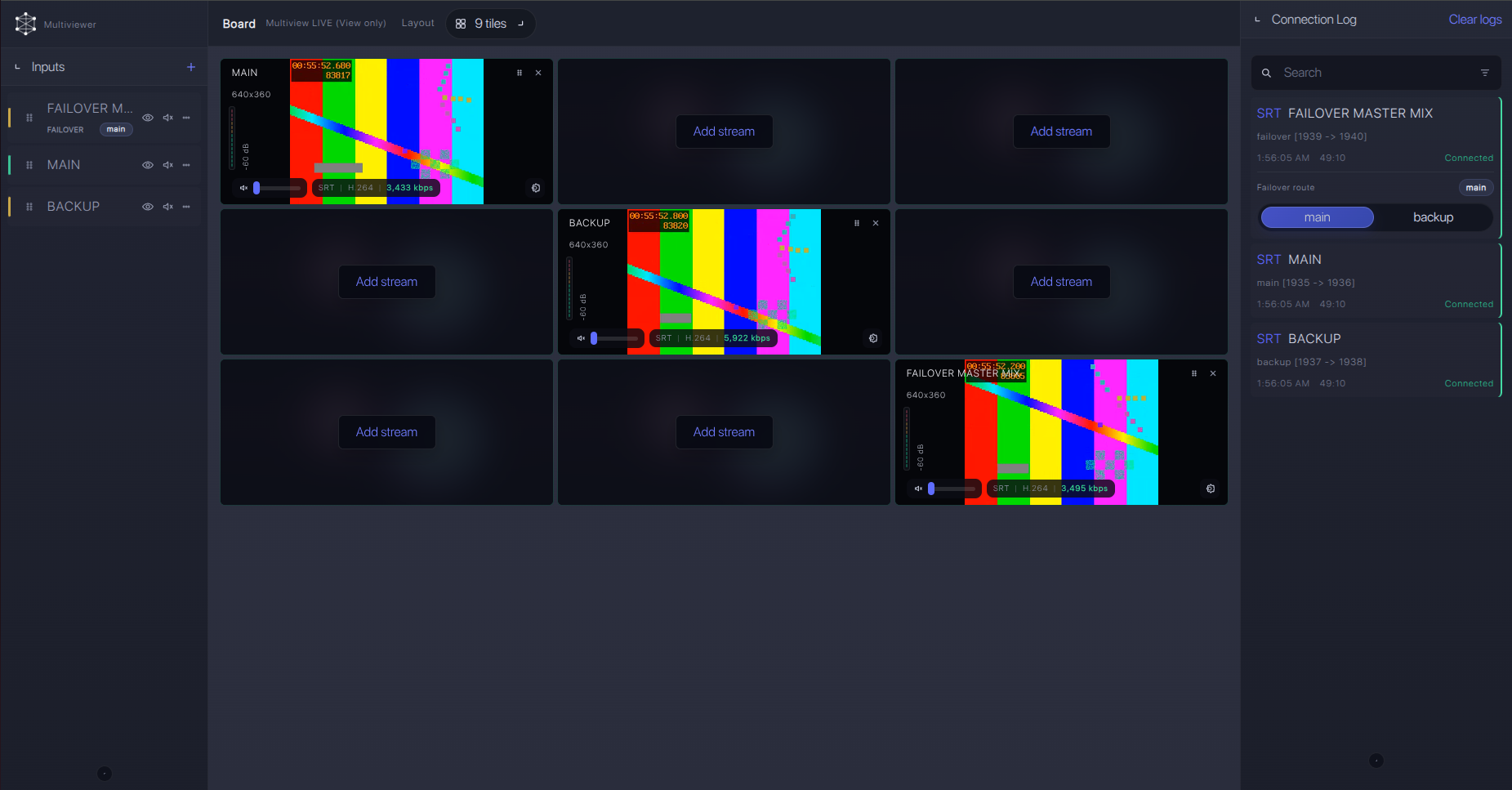
Recording and playback
After the AW-UE100 feed is stable in Callaba, recording and playback are downstream choices. They do not need to be set up in a fixed sequence with preview or routing. You can record the received source for archive, create a playback URL for review, send the feed to a production system, or restream it to platforms in parallel.
For HEVC tests, check playback support early. Some browser and device combinations are less predictable with H.265 than H.264, even when the camera and receiver accept the stream.
Troubleshooting
| Symptom | Check in Callaba | Check on AW-UE100 | Likely fix |
|---|---|---|---|
| No connection | No uptime and no incoming bitrate | Client(Caller), address, port, active streaming mode | Open the UDP port to Callaba, correct the destination, and confirm Callaba is listening. |
| Connects then drops | RTT, packet loss, retransmits, bitrate spikes | Bitrate, network uplink, SRT latency | Raise latency, reduce bitrate, or move the camera to a more stable uplink. |
| Handshake fails with encryption | Receiver logs or repeated connection attempts | AES setting, passphrase, Stream ID | Retype passphrase and Stream ID manually; remove trailing spaces and copied newlines. |
| Video missing or wrong format | Connected state but no usable preview | System frequency and SRT H.264/H.265 mode | Avoid 24/23.98 Hz for AW-UE100 SRT modes and choose a documented SRT format. |
| No audio | Audio meters stay silent | 3.5 mm mic/line input, audio source, AAC-LC stream audio | Confirm the physical input and camera audio configuration before changing SRT settings. |
| NDI fallback is not 4K | Bridge receives lower-than-expected format | NDI|HX2 firmware and NDI mode | Use NDI High Bandwidth, SDI/HDMI, or SRT UHD where appropriate; NDI|HX2 is not the AW-UE100 4K NDI path. |
Official references
Useful reader resources for confirming exact menus, firmware, and protocol behavior:
Vendor references
- Panasonic AW-UE100 product page
- Panasonic AW-UE100 specifications
- Panasonic AW-UE100 features
- Panasonic AW-UE100 full operating instructions
- Panasonic AW-UE100 operating instructions, simple PDF
Protocol references
Callaba resources
FAQ
Can Panasonic AW-UE100 send SRT directly to Callaba?
Yes. Panasonic documentation for AW-UE100 confirms SRT, including Client(Caller) and Listener modes. For cloud contribution, use the camera as the caller and Callaba as the listener.
Should I use AW-UE100 SRT Caller or AW-UE100 SRT Listener?
Use Caller for most venue-to-cloud workflows. Listener mode requires the camera side to accept inbound UDP traffic, which is harder to secure and test on many venue networks.
Does AW-UE100 support SRT Stream ID and passphrase?
Yes. The full operating instructions document Stream ID, AES encryption, and passphrase settings for SRT. Treat Stream ID and passphrase as exact strings.
What if the SRT menu is missing on the AW-UE100?
Confirm the installed firmware and the exact streaming mode in the camera UI. If the expected SRT settings are not visible, update firmware or use a confirmed fallback such as RTMPS/RTMP, NDI through a bridge, or RTSP through a bridge.
Can I use H.265 from AW-UE100 over SRT?
Panasonic lists H.265/HEVC streaming modes, including SRT H.265 variants, with format limitations. Use it only when your Callaba workflow, players, decoders, and downstream destinations can handle HEVC.
Is NDI a better choice than SRT for this camera?
On a controlled LAN, NDI High Bandwidth or NDI|HX2 may be convenient. Over the public internet, direct SRT to Callaba is usually the cleaner contribution path. Remember that NDI|HX2 requires firmware 1.56 or later and is not the AW-UE100 4K NDI path.
Next steps
- Create a Callaba SRT server and keep the receiver page open.
- Set AW-UE100 to SRT Client(Caller) and enter the Callaba address, port, Stream ID, and passphrase if used.
- Start with H.264 and conservative latency, then confirm bitrate, preview, audio, RTT, packet loss, and retransmits.
- After ingest is stable, add recording, playback, restreaming, routing, or multiview as parallel outputs.
