

Related vendor hub
Browse all JVC SRT gateway workflows
Use the JVC hub to compare GY-HC production cameras and KY-PZ PTZ SRT workflows.
JVC KY-PZ510 SRT setup is straightforward when the camera is the SRT Caller and Callaba is the cloud SRT Listener. Use this setup when KY-PZ510 is at the venue and Callaba is the cloud SRT receiver for monitoring, recording, routing, multiview, or restreaming. The main path is direct SRT over the LAN port; RTMPS, RTMP, and RTSP remain fallback paths if a production cannot use SRT.
Quick answer
To use JVC KY-PZ510 with SRT, set KY-PZ510 as the SRT Caller and send the stream to a cloud SRT Listener. In this guide, Callaba works as the SRT gateway, receiver, monitor, recorder, and routing layer. Before the event, confirm that the installed firmware exposes the expected SRT streaming fields.
The camera sends one SRT contribution feed into Callaba. After ingest, Callaba can preview, record, route, restream, and feed multiview in parallel; these are not mandatory sequential steps.
- KY-PZ510SRT Caller at venue
- Callaba GatewaySRT Listener in cloud
- Preview
- Record
- Route
- Restream
- Multiview
What this setup does
The KY-PZ510 contributes its camera feed over SRT to a Callaba SRT server. Callaba listens on a public UDP port, receives the stream, shows connection and media health, and can use the same received source for preview, recording, routing, WebRTC playback, multiview, or restreaming. No JVC receiver appliance or vendor cloud layer is required for this direct SRT path.
What this model can and cannot do in this workflow
JVC lists SRT, RTMP, RTMPS, and RTSP for the KY-PZ510. The KY-PZ510 instructions list SRT Caller, Listener, and Rendezvous modes, SRT Server, port, AES-128/192/256 encryption, password, latency, FEC, and Stream ID. For cloud contribution, Caller mode is normally the cleanest choice because the camera makes the outbound UDP connection to Callaba.
The camera supports H.264, H.265/HEVC, and Motion JPEG video compression with AAC audio. For a first internet test, I usually start with H.264 because it is easier to monitor and decode across mixed production tools; use HEVC only after confirming the downstream players and decoders accept it. JVC lists IP streaming bitrates from 1 to 60 Mb/s, so choose a bitrate that fits the venue uplink instead of pushing the upper limit by default.
Hardware matters here: KY-PZ510 is an integrated PTZ camera, not an external encoder. It has 3.5 mm LINE IN audio, RJ-45 LAN for IP streaming and PoE+, RS-232C and RS-485 control, HDMI output up to 2160/60p, and 3G-SDI output up to 1080p. The USB Type-C UVC output is for a local computer workflow, and the manual says network streaming does not take place while the camera is connected to a PC by USB.
Do not plan the standard KY-PZ510 as a native NDI source. JVC lists NDI|HX3 on KY-PZ510N variants, not as a general assumption for every KY-PZ510 label. I also would not plan ST 2110 from this model; the reviewed official KY-PZ510 material does not list it.
Recommended workflow
Keep the camera at the venue as the SRT Caller and make Callaba the cloud Listener. This avoids inbound firewall rules at the venue in most deployments. Use Listener or Rendezvous on the camera only when the network design specifically needs it; reversing the roles can require a public IP, UDP forwarding, and firewall changes on the camera side.
If SRT is blocked or the installed firmware does not expose the SRT menu, use RTMPS or RTMP as the first direct fallback. RTSP is better treated as a local pull or bridge workflow, not the first choice for public internet contribution to a cloud receiver.
When not to use this setup
If the camera and switcher are in the same room, HDMI or 3G-SDI may be simpler. If the only destination is a public platform and you do not need cloud monitoring, recording, routing, or multiview, RTMPS may be enough. If you specifically need NDI on the LAN, confirm that the label is a KY-PZ510N variant and that the NDI settings are visible; do not assume NDI on a standard KY-PZ510.
Before you start
- Confirm the installed firmware and verify that SRT fields are visible in the camera streaming menu.
- Disconnect USB UVC if you need network streaming.
- Prepare a public Callaba address, UDP port, optional Stream ID, and optional SRT encryption password.
- Check outbound UDP from the venue network.
- Confirm audio source and levels from the 3.5 mm LINE IN if external audio is used.
- If the SRT handshake is difficult to diagnose, confirm compatible SRT versions through firmware notes, vendor support, and Callaba server build information.
Create the Callaba ingest
In Callaba, create an SRT server for the KY-PZ510 feed and choose a UDP port that is open on the Callaba side. If your workflow uses Stream ID or encryption, define them before configuring the camera. Copy the public address, port, Stream ID, and passphrase exactly. A trailing space, copied newline, or changed capitalization can break the SRT handshake.
Success in Callaba looks like an active connection, incoming bitrate, connection uptime, preview video, and audio meters when audio is present.
Configure the KY-PZ510
Open the KY-PZ510 web setup or streaming configuration page described in the JVC instructions. Set SRT Mode to Caller. Fill the SRT Server field with the Callaba public DNS name or IP address and set the SRT port to the Callaba listener port. Match encryption, password, latency, and Stream ID. JVC documents Stream ID as editable in Caller mode, so use Caller mode when the Callaba ingest expects a Stream ID.
For a first signal test, use H.264 and a conservative bitrate: about 4 to 6 Mb/s for 1080p30 or 6 to 8 Mb/s for 1080p60, adjusted to the uplink. Increase quality after Callaba shows stable RTT, packet loss, and retransmit behavior.
Settings table
| Where | What to do / field to fill | First-test value | Why / check |
|---|---|---|---|
| Callaba | Create SRT server and choose UDP port | One dedicated port for this camera | Callaba must listen before the camera connects. |
| Callaba | Encryption and passphrase | Off for lab test, AES with passphrase for production | Must match the camera exactly. |
| KY-PZ510 | SRT Mode | Caller | Best default for venue-to-cloud contribution. |
| KY-PZ510 | SRT Server | Callaba public IP or DNS | This is the listener address. |
| KY-PZ510 | SRT Port | Callaba UDP port | Port mismatch gives no connection. |
| KY-PZ510 | Latency | 250 to 500 ms | Lower only after loss and RTT are stable. |
| KY-PZ510 | Password / passphrase | Exact Callaba value | Case-sensitive and whitespace-sensitive. |
| KY-PZ510 | Stream ID | Exact Callaba Stream ID, if used | Case-sensitive; JVC documents it as editable in Caller mode. |
Monitoring
After the camera connects, watch Callaba for incoming bitrate, uptime, RTT, packet loss, retransmits, preview, and audio meters. On the camera side, confirm that streaming is active and that the selected codec, bitrate, audio input, and SRT fields match the planned ingest. Treat monitoring, routing, recording, multiview, and restreaming as parallel uses of the same received source.
Failover and local ingest options
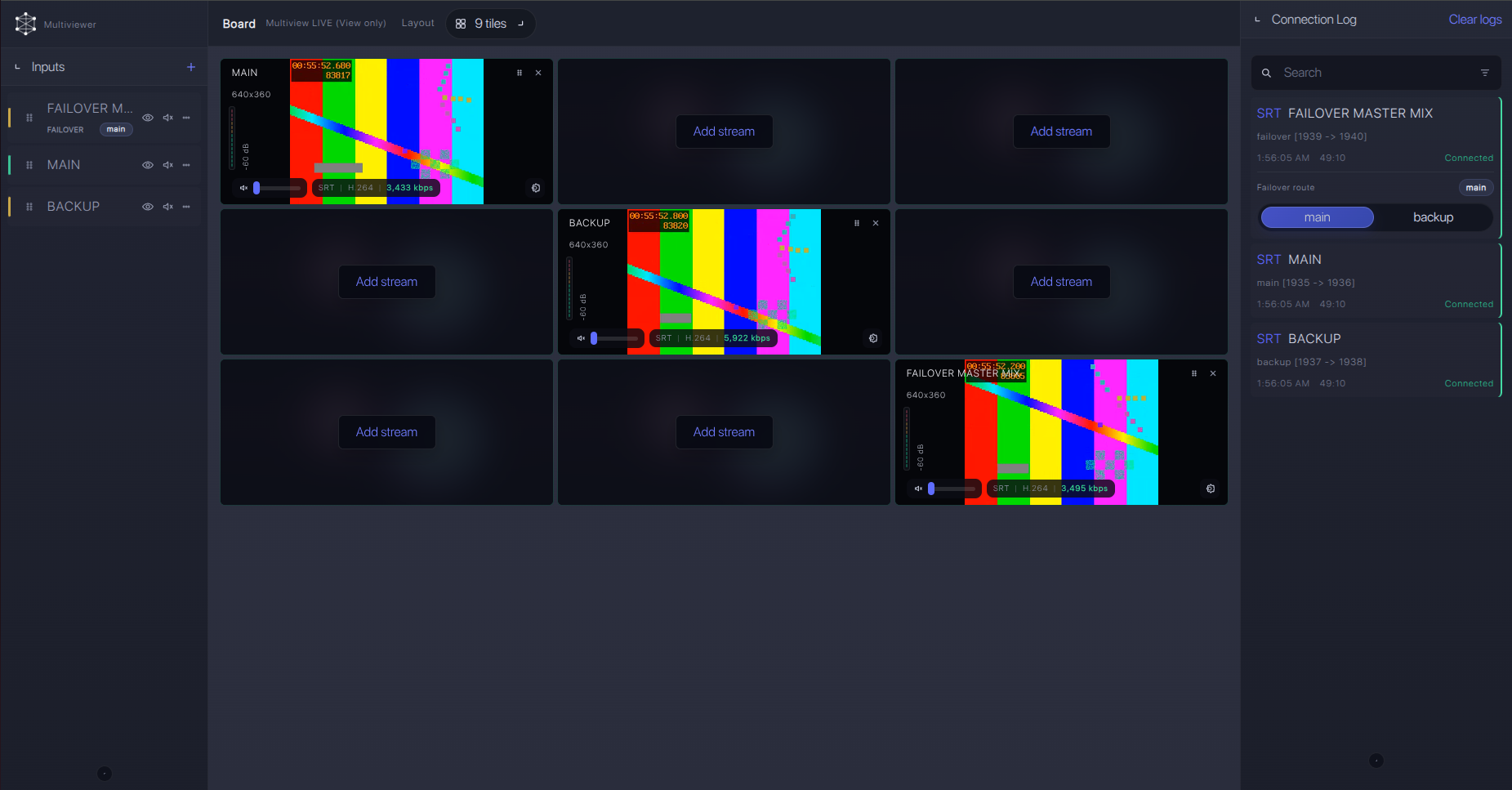
For production events, plan what happens if the main encoder, venue uplink, or primary contribution path fails. Callaba can be part of that continuity plan without changing the basic JVC KY-PZ510 ingest workflow.
Recording and playback after ingest
Once the SRT feed is stable, record in Callaba for archive or compliance, create playback for browser review, or route the feed to other production endpoints. If you use HEVC from the KY-PZ510, confirm that the chosen player, decoder, or downstream platform supports HEVC before relying on it for the event.
Troubleshooting
| Symptom | Check in Callaba | Check on KY-PZ510 | Likely fix |
|---|---|---|---|
| No connection | No uptime or incoming bitrate | SRT Mode, SRT Server, SRT Port | Use Caller mode, correct address and port, and allow outbound UDP. |
| Handshake fails | Listener receives attempts but no media | Password, AES mode, Stream ID | Remove trailing spaces and match capitalization exactly. |
| Connects but breaks up | High RTT, loss, or retransmits | Bitrate and latency | Raise latency, lower bitrate, or improve uplink quality. |
| Video but no audio | No audio meters | LINE IN source, mute, level, AAC audio | Send test tone, confirm input level, and recheck audio routing. |
| SRT menu missing | No stream expected yet | Firmware and visible streaming menu | Update firmware carefully or use confirmed RTMPS/RTMP fallback. |
| NDI workflow expected | No NDI ingest path from standard model | Exact model label and NDI settings | Use KY-PZ510N for NDI|HX3, or stay with SRT/RTMPS/RTSP on standard KY-PZ510. |
Official references
Useful reader resources for this setup:
Vendor references
- JVC KY-PZ510BU product page
- JVC KY-PZ510 series instructions
- JVC Professional Video firmware page
- JVC KY-PZ510NWU product page for the NDI variant distinction
Protocol references
Callaba resources
FAQ
Does the JVC KY-PZ510 support SRT to Callaba?
Yes. JVC lists SRT for KY-PZ510 and the instructions document SRT settings. I still recommend confirming firmware and visible SRT fields on the actual camera before the event.
Should KY-PZ510 be SRT Caller or SRT Listener?
Use Caller for most cloud contribution jobs. Listener and Rendezvous are documented, but Listener mode can require inbound UDP, public addressing, or port forwarding at the venue.
Where does KY-PZ510 SRT Stream ID matter?
Use Stream ID when the Callaba listener requires it or when you want deterministic ingest identification. It is case-sensitive and whitespace-sensitive.
Can I use RTMP or RTMPS instead?
Yes. JVC lists RTMP and RTMPS for this model. Use them as a direct fallback when SRT is blocked or not available on the installed firmware.
Does the standard KY-PZ510 have NDI?
No. Do not plan standard KY-PZ510 as a native NDI source. JVC lists NDI|HX3 on KY-PZ510N variants, so check the exact model label.
Can I use USB UVC and network streaming at the same time?
No for the workflow described in the manual. JVC states that network streaming does not take place while the camera is connected to a PC via USB.
Next steps
Build the SRT listener in Callaba, test the KY-PZ510 as Caller on the same network if possible, then repeat the test from the venue network. Save the exact address, port, Stream ID, passphrase, codec, bitrate, and latency values with the show documentation.
