

Related vendor hub
Browse all JVC SRT gateway workflows
Use the JVC hub to compare GY-HC production cameras and KY-PZ PTZ SRT workflows.
For a JVC GY-HC550SPCU SRT setup, do not start by pasting an SRT URL. Start by confirming the camera label, firmware, and streaming menu. I could not match GY-HC550SPCU to a public JVC product page; JVC documents GY-HC550U, GY-HC550UN, and GY-HC500SPCU instead. Use this setup when a camera supplied as GY-HC550SPCU is at the venue and Callaba is intended to be the cloud SRT receiver for monitoring, recording, routing, multiview, or restreaming, but only use SRT when the installed firmware exposes the SRT settings.
Quick answer
To use JVC GY-HC550SPCU with SRT, first confirm the exact camera label, firmware, and that the live streaming menu exposes SRT Caller, Listener, or Rendezvous settings. When those settings are present, keep the camera at the venue as the SRT Caller and send the stream to a cloud SRT Listener. In this guide, Callaba works as the SRT gateway, receiver, monitor, recorder, and routing layer. If SRT is absent, use only the protocols the unit actually shows, such as RTMPS, RTMP, or RTSP/RTP through a bridge.
The camera sends one contribution feed into Callaba only when its installed menu exposes SRT. After ingest, Callaba can preview, record, route, and restream the same source in parallel.
- JVC cameraSRT Caller if menu exists
- Callaba GatewaySRT Listener / receiver
- Preview
- Record
- Route
- Restream
What this setup does
The goal is a practical GY-HC550SPCU gateway workflow: one camera contribution feed reaches Callaba in the cloud, then Callaba can monitor, record, route, play back, or restream it as separate downstream actions. Callaba is not a required vendor receiver layer for JVC; it is the receiver/gateway you choose when you want cloud ingest and operational visibility.
Because the requested GY-HC550SPCU label is not clearly documented by JVC public pages, treat the setup as verification-first. If the unit is actually a GY-HC550U or GY-HC550UN-family camera and the SRT menu is present, use SRT. If the SRT menu is missing, do not assume hidden support.
What this model can and cannot do in this workflow
- Exact label: public JVC pages I found document GY-HC550U, GY-HC550UN, and GY-HC500SPCU, not GY-HC550SPCU as a clear public SKU.
- SRT, RTMP, RTMPS, and RTSP/RTP: JVC’s current mobile guide lists these live streaming Type options for covered GY-HC550U/E and GY-HC500SPCU models. That is useful family guidance, but it is not proof for a unit labeled GY-HC550SPCU.
- SRT fields: the covered JVC guide defines Caller, Listener, Rendezvous, Stream ID, AES encryption, and passphrase settings. Match these exactly with Callaba when they are visible on the camera.
- Firmware caveat: JVC notes that SRT on GY-HC550-family units may require a protocol update or activation and is exclusive with an alternate vendor-specific contribution protocol package. Check the installed menu, not only the brochure.
- Network interfaces: documented GY-HC550-family models support IP streaming over LAN, Wi-Fi, or supported LTE USB adapters.
- Video outputs: documented GY-HC550-family models include 3G-SDI and HDMI outputs, useful when the same camera is also feeding a local switcher.
- Audio: documented family hardware includes two XLR mic/line inputs and a 3.5 mm AUX input; verify the selected audio source before judging the cloud feed.
- NDI: do not plan a camera labeled GY-HC550SPCU as a native NDI source. JVC identifies GY-HC550UN and JVC-modified GY-HC550U units for NDI HX, and says NDI mode is live-source mode without recording.
- HEVC: JVC’s guide says H.265/HEVC streaming is possible with optional KA-EN200 on covered models. For a first Callaba test, H.264/AAC is the safer baseline, and the exact GY-HC550SPCU label still needs verification.
Recommended workflow
Use this order for a real production test. First, if the camera menu exposes SRT, set the JVC unit as SRT Caller and make Callaba the cloud SRT Listener. This avoids inbound UDP requirements at the venue and is usually the cleanest internet contribution direction.
Second, if SRT is absent but RTMPS or RTMP is visible, use that as a direct fallback to Callaba or to the required destination. Third, if only RTSP/RTP is available, receive it on a local bridge and forward SRT or RTMP to Callaba. Use NDI only when the actual camera is a GY-HC550UN or JVC-modified GY-HC550U, not because the requested label looks similar.
When not to use this setup
If the camera and switcher are in the same room, SDI or HDMI from a documented GY-HC550-family unit may be simpler than cloud contribution. If the only destination is a public platform and no cloud monitoring, recording, multiview, or routing is needed, RTMPS or RTMP may be enough when the camera menu confirms it. If the unit does not show SRT and the job depends on SRT resilience, update or activate the appropriate JVC protocol package before the event, or use a separate encoder that is already confirmed for SRT.
Before you start
- Read the label on the camera body and the firmware page. Confirm whether it is GY-HC550U, GY-HC550UN, GY-HC500SPCU, or another regional variant.
- Open the live streaming menu and confirm which Type options are actually visible.
- For SRT, confirm mode direction, Stream ID, passphrase, AES setting, latency, codec, and audio source.
- Allow outbound UDP from the venue to the Callaba server port. Only use camera Listener mode if the venue can accept inbound UDP with tested NAT/firewall rules.
- If handshake failures are hard to diagnose, ask JVC support or check firmware release notes for the camera-side SRT library generation, then compare with Callaba server build information.
Create the Callaba ingest
In Callaba, create an SRT server and choose a UDP port that is open on the cloud firewall. For a first test, leave Stream ID and encryption off until you see a stable signal; then enable Stream ID and passphrase if the production requires them. Success in Callaba is not only a green connection state. Check incoming bitrate, connection uptime, packet loss, retransmits, RTT, preview, and audio meters.
Configure the camera
On the JVC unit, open the live streaming configuration area. If Type includes SRT, choose SRT and set the camera to Caller for the first internet test. Enter the Callaba public IP address or DNS name and the UDP port from the SRT server. If Stream ID or passphrase is enabled in Callaba, enter it exactly on the camera. Both values are case-sensitive and whitespace-sensitive; a copied newline or trailing space can break the handshake.
Use H.264 with AAC audio for the first lock. As starting points, try 720p at about 2.5-4 Mb/s, 1080p30 at about 4-6 Mb/s, or 1080p60 at about 6-8 Mb/s, adjusted to the real uplink and production needs. If a GOP/keyframe control is exposed, two seconds is a practical first test.
Settings table
| Where | What to do / field to fill | First-test value | Why / check |
|---|---|---|---|
| Callaba | Create SRT server and choose listening UDP port | Any allowed high UDP port | Callaba must be reachable from the venue network. |
| Callaba | Stream ID field | Empty first, then exact production value | Must match the camera exactly when used. |
| Callaba | Passphrase / encryption | Off first, then AES with passphrase | Enable after basic video is stable; match case and spacing. |
| JVC live streaming Type menu | Select SRT only if it is visible | SRT | If absent, use the confirmed visible fallback instead. |
| JVC SRT connection mode | Select Caller when available | Caller | Venue sends outbound UDP to Callaba. |
| JVC destination address field | Enter Callaba public IP or DNS name | Your Callaba host | A typo here gives no incoming packets. |
| JVC destination port field | Enter the Callaba SRT server UDP port | Same port as Callaba | Must match the cloud listener port. |
| JVC SRT latency setting | Set latency in milliseconds if exposed | 250-500 ms | Lower only after RTT, loss, and retransmits are stable. |
Monitoring
After the camera starts streaming, watch the Callaba ingest page before routing the feed. A healthy first test shows stable bitrate, increasing connection uptime, low packet loss, controlled retransmits, reasonable RTT, moving preview video, and audio meters. If Callaba shows no packets at all, troubleshoot address, port, firewall, and Caller/Listener direction before changing codec settings.
Failover and local ingest options
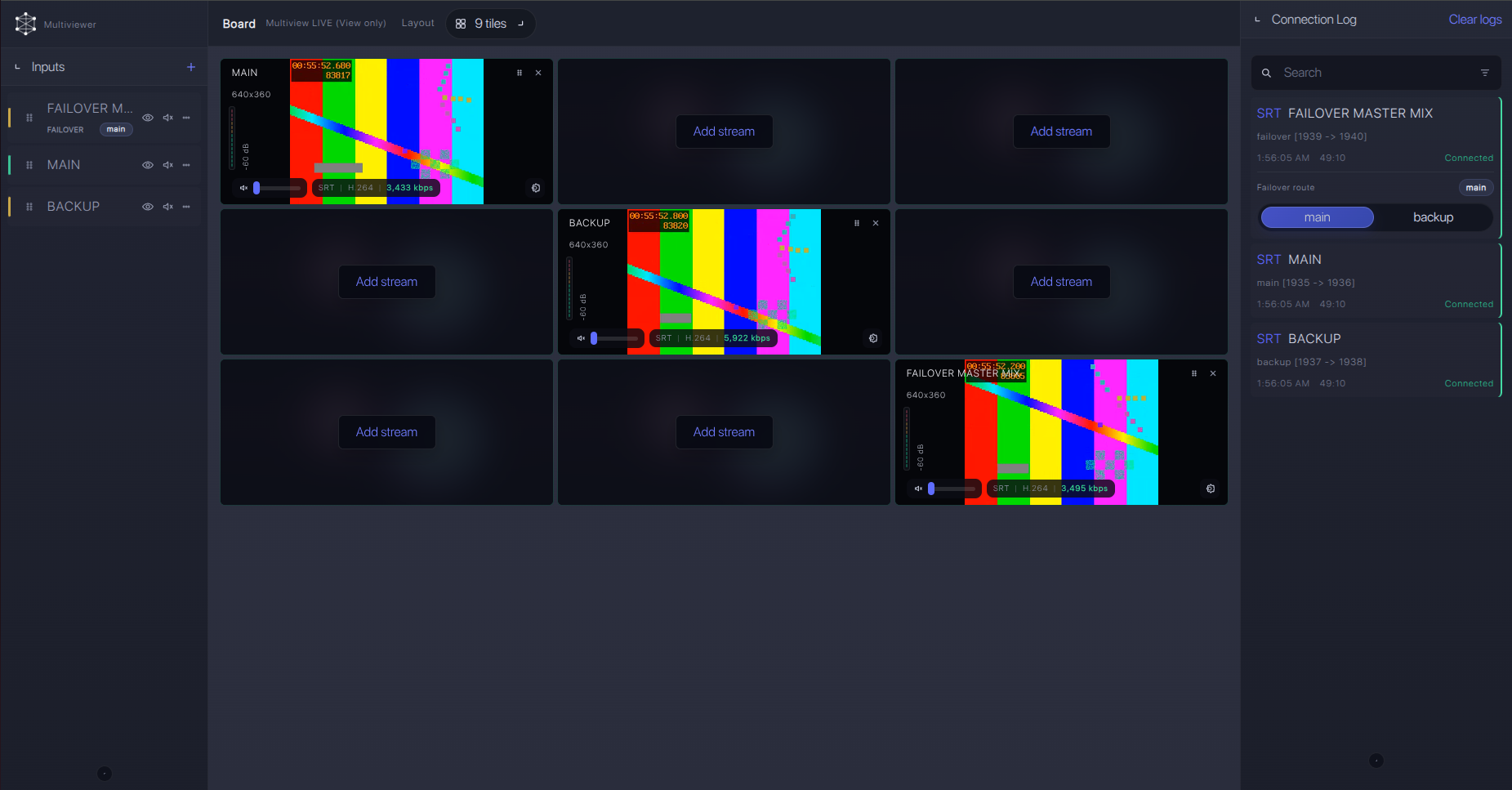
For production events, plan what happens if the main encoder, venue uplink, or primary contribution path fails. Callaba can be part of that continuity plan without changing the basic JVC GY-HC550SPCU ingest workflow.
Recording and playback
Once ingest is stable, recording and playback are parallel Callaba actions, not setup prerequisites. You can record the received feed, create web playback, send restream outputs, or place the source in a multiview. Keep the first recording test short and check that audio, time length, and file playback match the production expectation.
Troubleshooting
| Symptom | Check in Callaba | Check on device | Likely fix |
|---|---|---|---|
| No connection | No incoming packets on the SRT server | Address, UDP port, SRT Caller mode, live streaming start state | Open outbound UDP and match host/port. |
| Handshake fails | Connection attempts but no stable uptime | Stream ID, passphrase, AES setting, copied whitespace | Retype values manually and test without encryption once. |
| Connects then drops | Packet loss, retransmits, RTT spikes | Uplink bandwidth, LTE/Wi-Fi quality, SRT latency | Increase latency, lower bitrate, or use a better network path. |
| Video but no audio | Audio meters and recording playback | XLR/AUX source, mute, input level, audio codec | Select the intended input and confirm AAC audio in the stream profile. |
| SRT menu is missing | No matching SRT ingest receives traffic | Exact model label, firmware, protocol activation | Update or activate the correct package, or use visible RTMPS/RTMP/RTSP paths. |
| NDI plan does not work | No NDI source is expected in Callaba from this label | Whether the camera is GY-HC550UN or modified GY-HC550U | Do not use NDI for GY-HC550SPCU unless the actual model is the NDI variant. |
Official references
Vendor references
- JVC GY-HC550U product page
- JVC mobile user guide: live streaming item
- JVC GY-HC500SPCU product page for SKU distinction
- JVC GY-HC550UN page for NDI model distinction
Protocol references
Callaba resources
FAQ
Is JVC GY-HC550SPCU confirmed as an SRT camera?
Not from the exact public label I could match. JVC documents SRT for covered GY-HC550U/E-family guidance, but a unit supplied as GY-HC550SPCU should be checked on the body label, firmware page, and live streaming menu.
What if the SRT menu is missing?
Do not force an SRT workflow. Confirm firmware and protocol activation with JVC, then use RTMPS, RTMP, or RTSP/RTP only if those options are visible on the unit.
Should the camera be SRT Caller or Listener?
Use Caller for the first internet test. Camera Listener mode requires the venue side to accept inbound UDP, which may need public IP addressing, port forwarding, and firewall work.
Can I use RTMP or RTMPS instead of SRT?
Yes, if the actual camera menu exposes those types. They can be useful for simple platform delivery, but SRT is usually preferred for monitored contribution when the camera supports it.
Does GY-HC550SPCU support NDI?
Do not plan it as an NDI source. JVC lists NDI HX for GY-HC550UN or JVC-modified GY-HC550U units, which is a model distinction, not proof for GY-HC550SPCU.
Can I send H.265/HEVC to Callaba?
JVC’s guide says H.265/HEVC streaming is possible with optional KA-EN200 on covered models. For this requested label, verify the accessory and menu first, and confirm downstream decoder/player support before using HEVC in production.
Next steps
Before the event, run a short end-to-end test from the actual camera, not a similar model. Confirm the exact SKU, firmware, protocol menu, SRT direction, Stream ID, passphrase, codec, audio source, and Callaba statistics. Save a known-good preset only after the cloud preview and a test recording are correct.
