

Related vendor hub
Browse all JVC SRT gateway workflows
Use the JVC hub to compare GY-HC production cameras and KY-PZ PTZ SRT workflows.
For a JVC GY-HC500SPCU SRT setup, use the camcorder at the venue as the contribution encoder and send SRT to a cloud listener. Use this setup when GY-HC500SPCU is at the venue and Callaba is the cloud SRT receiver for monitoring, recording, routing, multiview, or restreaming. The main path is direct SRT, with a practical pre-event check: confirm that the installed firmware has the SRT activation applied and that the camera’s Live Streaming Type menu exposes SRT.
Quick answer
To use JVC GY-HC500SPCU with SRT, set GY-HC500SPCU as the SRT Caller and send the stream to a cloud SRT Listener. In this guide, Callaba works as the SRT gateway, receiver, monitor, recorder, and routing layer. Before the event, confirm firmware, SRT activation, Stream ID, passphrase, latency, and caller/listener direction on the actual camera.
The JVC camera sends one SRT contribution feed into Callaba. After ingest, Callaba can preview, record, route, restream, and feed multiview in parallel, not as mandatory sequential steps.
- GY-HC500SPCUSRT Caller at venue
- Callaba GatewaySRT Listener in cloud
- Preview
- Record
- Route
- Restream
- Multiview
What this setup does
This workflow turns the GY-HC500SPCU into a venue-side SRT source. Callaba listens on a public cloud endpoint, receives the SRT feed, and then lets you use the same incoming stream for engineering preview, confidence monitoring, recording, restreaming, routing, or multiview. The camera does not need a vendor receiver or separate cloud relay for this SRT path.
What this model can and cannot do in this workflow
- Confirmed direct protocols: JVC lists SRT, RTMP, RTMPS, RTSP/RTP, and MPEG2-TS over UDP, TCP, and RTP for the GY-HC500SPCU family documentation.
- SRT roles and fields: the JVC mobile guide lists Caller, Listener, and Rendezvous modes, plus Stream ID, AES encryption, passphrase, latency, and bandwidth overhead settings.
- Main codec choice: use H.264/AVC for the first Callaba ingest test. JVC also documents HEVC/H.265 streaming through the optional KA-EN200G adapter, so do not assume HEVC is available on every base camera chain.
- Audio: the model has two XLR MIC/LINE inputs with phantom power and supports AAC live audio, which is the practical choice for cloud contribution checks.
- Physical outputs: 3G-HD-SDI output is listed up to 1080/60p or 50p with 10-bit 4:2:2, and HDMI output is listed up to UHD. These are useful local outputs, not inputs into the camera.
- Network paths: IP streaming can use Ethernet or supported USB network adapters. For critical SRT contribution, I would start with wired Ethernet whenever possible.
- NDI distinction: do not plan GY-HC500SPCU as a native NDI source. JVC separates the NDI HX sports SKU as GY-HC500SPCN; this guide is for GY-HC500SPCU.
- Firmware package caveat: JVC’s firmware area lists an SRT activation package for this model line and notes that the SRT package is mutually exclusive with a vendor-specific contribution protocol package. Choose the SRT package for this Callaba workflow.
- Not documented for this model: I did not find official exact-model support for ST 2110.
Recommended workflow
Keep the GY-HC500SPCU at the venue as the SRT Caller. Create a Callaba SRT server as Listener in the cloud. This avoids inbound connections to the venue and usually works better through hotel, school, stadium, and mobile-router networks.
Use Listener or Rendezvous mode on the camera only when the network design requires it and you have tested public IP, UDP firewall rules, NAT traversal, or port forwarding. For most remote contribution jobs, camera Caller to Callaba Listener is the cleanest first setup.
When not to use this setup
- If the camera and switcher are in the same room, local SDI or HDMI may be simpler than a cloud round trip.
- If the only destination is a public platform and you do not need cloud monitoring, recording, routing, or multiview, the confirmed RTMPS or RTMP output may be enough.
- If the SRT menu is missing, update or activate the correct firmware package first. For a same-day fallback, use RTMPS/RTMP to Callaba if the destination supports your production requirements, or use RTSP/RTP through a separate bridge only when that bridge has been tested.
- If you need a native NDI camera source, use the JVC variant that is officially sold for that role rather than assuming this SPCU unit will expose NDI settings.
Before you start
Confirm the installed firmware, SRT activation, and visible streaming menu on the real camera. Also confirm the uplink, UDP egress, SRT major-version compatibility, Stream ID policy, passphrase, and codec support before the event.
For a first internet test, use H.264, AAC audio, and a conservative bitrate: around 4-6 Mb/s for 1080p30 or 6-8 Mb/s for 1080p60 if the uplink is stable. Start SRT latency around 250-500 ms, then lower it only after RTT, packet loss, retransmits, and audio/video stability look good.
Create the Callaba ingest
- In Callaba, create a new SRT server and set it to listen on a UDP port that is open to the camera.
- Copy the public host name or IP address, UDP port, Stream ID if used, and passphrase if encryption is enabled.
- Start the server and leave the status page open. Before the camera connects, the useful state is listening or waiting for caller.
- After the camera starts streaming, check incoming bitrate, connection uptime, preview, and audio meters.
Configure the camera
- Connect the GY-HC500SPCU to the production network, preferably by Ethernet for the first test.
- In the camera’s live streaming settings, set Live Streaming Type to SRT.
- Set the SRT connection mode to Caller for the standard cloud receiver workflow.
- Enter the Callaba listener host and UDP port.
- Enter the Stream ID exactly if your Callaba ingest requires it.
- Enable encryption only when both sides are configured the same way, then enter the passphrase exactly.
- Start streaming and confirm the connection in Callaba before you rely on the feed for program output.
Settings table
| Where | What to do / field to fill | First-test value | Why / check |
|---|---|---|---|
| Callaba | Create SRT server and choose UDP port | Any open production port | Server should show listening before the camera starts. |
| JVC live streaming settings | Live Streaming Type | SRT | If SRT is absent, check firmware and activation. |
| JVC SRT settings | Connection mode | Caller | Callaba listens in the cloud; the venue sends outbound UDP. |
| JVC SRT destination settings | Destination host | Callaba public host/IP | A wrong host gives no connection attempt at the listener. |
| JVC SRT destination settings | Destination port | Callaba UDP port | Port must match the listener and firewall rule. |
| JVC SRT settings | Stream ID | Copy from Callaba if used | Case, spaces, and copied newlines matter. |
| JVC SRT settings | Passphrase | Match Callaba exactly | A trailing space or changed capitalization can break the handshake. |
| JVC SRT settings | Latency | 250-500 ms | Raise it if RTT, loss, or retransmits are high. |
Monitoring
In Callaba, watch incoming bitrate, connection uptime, RTT, packet loss, retransmits, preview, and audio meters. On the camera side, check that live streaming is actually running and that the selected audio inputs are metering. A stable SRT connection should show continuous bitrate and clean preview, not only a momentary connect event.
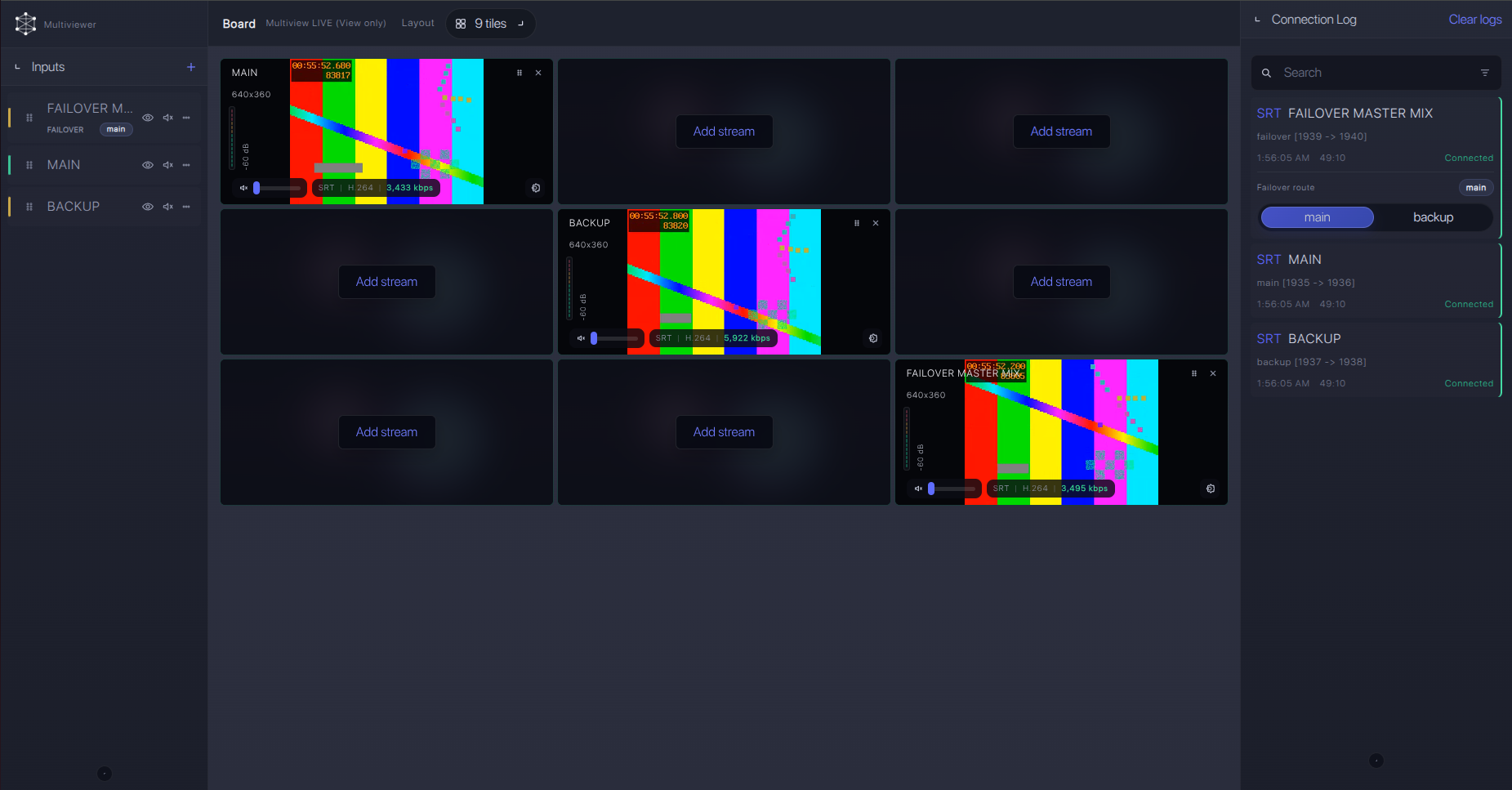
Failover and local ingest options
For production events, plan what happens if the main encoder, venue uplink, or primary contribution path fails. Callaba can be part of that continuity plan without changing the basic JVC GY-HC500SPCU ingest workflow.
Recording and playback
Once ingest is stable, recording and playback are downstream choices in Callaba. You can record the received SRT stream for compliance or replay, publish a web preview for producers, restream to another destination, or route the same source to production tools. These are parallel uses of the received feed; you do not need to record before you can preview or route.
Troubleshooting
| Symptom | Check in Callaba | Check on GY-HC500SPCU | Likely fix |
|---|---|---|---|
| No connection | Server is listening; UDP port is open. | Caller mode, host, and port. | Correct address/port or allow outbound UDP. |
| Handshake fails | Stream ID and encryption settings. | Stream ID, AES/passphrase, firmware notes. | Remove hidden spaces and confirm compatible SRT versions. |
| Connected but unstable | RTT, loss, retransmits, bitrate graph. | Network adapter and stream bitrate. | Increase latency, lower bitrate, or use wired Ethernet. |
| Video but no audio | Audio meters on received stream. | XLR input selection, levels, phantom power, AAC audio. | Fix camera audio routing before changing cloud routing. |
| Expected NDI source missing | Do not search for an NDI ingest from this SKU. | Model label: GY-HC500SPCU vs GY-HC500SPCN. | Use SRT, SDI/HDMI capture, or the NDI-capable sibling model. |
Official references
These are useful resources to keep near the engineering checklist.
Vendor references
- JVC GY-HC500SPCU product page
- JVC Professional Video firmware downloads
- JVC mobile user guide PDF for GY-HC550/GY-HC500/GY-HC500SPCU
- JVC GY-HC500SPCU/SPCN sports production brochure
Protocol references
Callaba resources
FAQ
Can the JVC GY-HC500SPCU send SRT directly to Callaba?
Yes, use direct SRT when the SRT activation and menu are present. Set the camera as Caller and Callaba as the cloud Listener.
Should I use GY-HC500SPCU SRT Caller or Listener mode?
Use Caller for the normal internet workflow. Camera Listener mode requires the venue side to accept inbound UDP, which may mean public IP, firewall rules, or port forwarding.
Does GY-HC500SPCU support SRT Stream ID and passphrase?
JVC documentation lists Stream ID, AES encryption, and passphrase settings. Treat Stream ID and passphrase as case-sensitive and whitespace-sensitive.
Can I use this camera as a native NDI source?
No. Do not plan GY-HC500SPCU as a native NDI source. JVC identifies GY-HC500SPCN as the NDI HX sports variant.
What if the SRT menu is missing?
Confirm firmware and the SRT activation package first. If you cannot change the camera before the event, use confirmed RTMPS/RTMP as the direct fallback, or RTSP/RTP through a tested bridge if needed.
Should I use H.265/HEVC for the Callaba ingest?
Start with H.264 unless the full chain has been tested. JVC ties HEVC/H.265 streaming to the optional KA-EN200G adapter, and downstream decoders or web players must also support HEVC.
Next steps
Build the ingest at least a day before the event, save the camera profile, and run a full-duration test with the same network path and bitrate you will use on air. After Callaba shows stable SRT statistics and clean audio/video, add recording, routing, multiview, restreaming, or API automation as needed.
