

Related vendor hub
Browse all Magewell SRT gateway workflows
Use the Magewell hub to compare Pro Convert, Ultra Encode, and Ultra Stream SRT or RTMPS workflows.
Magewell Ultra Stream SDI RTMPS setup means configuring the encoder to send its SDI input to an RTMPS ingest URL in Callaba Gateway. Use this setup when Ultra Stream SDI is at the venue and Callaba is the cloud gateway for receiver monitoring, recording, routing, multiview, or restreaming. This guide is for live production operators who need a practical contribution path from a compact SDI encoder, not for unsupported NDI or SRT operation on this exact model.
Quick answer
To use Magewell Ultra Stream SDI with RTMPS, create an RTMP/RTMPS ingest in Callaba, copy the RTMPS URL and stream key, then add that URL as an RTMPS streaming server in the Ultra Stream Web GUI or app. If RTMPS is not available on the installed firmware, update firmware first or use RTMP as a fallback. Use RTSP only when Callaba or a bridge can reach the device on the network.
The Magewell encoder sends one RTMPS contribution feed into Callaba. After ingest, Callaba can preview, record, route, restream, and feed multiview as parallel downstream uses, not mandatory sequential steps.
- Ultra Stream SDISDI encoder, RTMPS sender
- Callaba GatewayRTMPS ingest
- Preview
- Record
- Route
- Restream
- Multiview
What this setup does
The Ultra Stream SDI takes an SDI signal, encodes it, and publishes it to a Callaba RTMPS ingest endpoint. Callaba then becomes the cloud receiving layer for production tasks: preview, recording, routing, restreaming, multiview, and playback can all use the same received source in parallel.
This is useful when the encoder is in the field and the production team needs a central cloud point instead of sending the Magewell stream directly to only one social platform.
What this model can and cannot do in this workflow
For this exact model, the official Magewell product, specification, support, and manual sources point to an RTMP/RTMPS/RTSP encoder workflow.
- Confirmed contribution protocols: RTMP, RTMPS, and RTSP are listed for Ultra Stream SDI.
- Video input: SD/HD/3G-SDI over BNC, with input support listed up to 2048x1080 at 60 fps.
- Loop output: the unit includes SDI loop-through, which is helpful when the same camera or program feed also goes to a local monitor or switcher.
- Codecs: Magewell lists H.264/AVC and H.265/HEVC video encoding with AAC audio. For the first Callaba test, I normally start with H.264 because it is easier to preview and restream broadly.
- Audio: the specs list embedded SDI audio, a 3.5 mm microphone input, and headphone monitoring. The published audio encoding is AAC, 2-channel, 48 kHz, 16-bit.
- Local recording: Ultra Stream can record MP4 or MOV to internal storage, USB storage, or a paired mobile device. Treat that as a local safety copy, separate from Callaba cloud recording.
- Not confirmed for this model: the exact-model docs used for this guide do not document SRT caller/listener modes, Stream ID, passphrase, encryption fields, NDI, or ST 2110.
- Firmware caveat: Magewell’s Ultra Stream support notes say RTMPS may require updating to the latest firmware.
- Session caveat: Magewell notes that at 8 Mbps only one RTMP or RTSP stream can be streamed, so do not design a multi-destination test at the maximum bitrate without checking the unit.
Do not copy protocol expectations from Magewell Ultra Encode SDI or Ultra Encode SDI Plus pages into this setup. Those are different Magewell encoder lines; this article is for Ultra Stream SDI.
Recommended workflow
Use RTMPS from Ultra Stream SDI to Callaba as the main cloud ingest path. RTMPS gives you a push workflow from the venue side, so the encoder only needs to reach the Callaba endpoint over the network. If the installed firmware does not expose RTMPS or the event network blocks it, use RTMP as the first fallback.
Use RTSP when the network design allows Callaba or an intermediate bridge to pull from the encoder. That is usually a LAN, VPN, or controlled network design, not a simple public-internet contribution setup from an unknown venue.
When not to use this setup
- If the only destination is one public platform and you do not need cloud monitoring, recording, routing, or multiview, the Magewell encoder can publish directly to that platform’s supported RTMP or RTMPS endpoint.
- If the encoder and production switcher are in the same rack, the SDI loop-through may be simpler than routing video through the cloud.
- If the job requires SRT-specific fields such as Stream ID or passphrase, use another encoder or a separate protocol converter. Ultra Stream SDI documentation for this exact model does not provide those settings.
- Do not plan Ultra Stream SDI as a native NDI source. NDI is not listed for this exact model in the sources used for this workflow.
Before you start
- Update the Ultra Stream SDI firmware before relying on RTMPS for an event.
- Confirm the venue network allows outbound access to the Callaba host and port shown in your ingest URL.
- Start with H.264 video and AAC audio for the first test, then move to HEVC only if every downstream viewer, recorder, and restream target supports it.
- Prepare the full RTMPS URL carefully. A changed path, missing stream key, copied newline, or extra space can stop publishing.
- Keep one known-good SDI source and headphones available so you can separate signal problems from network problems.
Create the Callaba ingest
In Callaba Gateway, create an RTMP/RTMPS ingest for the event. Copy the generated server URL and stream key exactly as Callaba provides them. If your Callaba deployment separates server address, application name, and stream key, combine them in the format expected by the Magewell RTMP/RTMPS server entry.
Before going live, keep the Callaba receiver page open and watch for incoming bitrate, connection uptime, preview video, and audio meters. A stable first test should show a continuous incoming stream and matching audio activity.
Configure Ultra Stream SDI
Open the Ultra Stream Web GUI or the Ultra Stream app, go to the streaming server configuration area, and add a custom RTMPS destination. Paste the Callaba RTMPS URL. Select the SDI input, choose H.264 for the first test, set a bitrate that fits the uplink, and start streaming.
If RTMPS is not accepted by the unit, do not spend the whole setup window guessing. Confirm firmware first. If the event must proceed immediately, switch the Callaba ingest and Magewell destination to RTMP, then schedule a firmware update and RTMPS retest later.
Settings table
| Where | What to do / field to fill | First-test value | Why / check |
|---|---|---|---|
| Callaba RTMP/RTMPS ingest | Create a new ingest endpoint for the event. | RTMPS ingest if available. | Gives the Magewell encoder a cloud destination. |
| Callaba ingest details | Copy the full server URL and stream name or key. | Use the exact generated value. | Whitespace, wrong path, or capitalization errors can break publishing. |
| Ultra Stream Streaming Server area | Add an RTMP/RTMPS server and paste the Callaba URL. | rtmps://... from Callaba. | The Magewell manual documents rtmp(s) server URLs for this area. |
| Ultra Stream video encoding area | Choose the video codec. | H.264/AVC. | HEVC is listed, but H.264 is safer for preview, playback, and restream testing. |
| Ultra Stream bitrate setting | Set video bitrate. | 1080p30: 4-6 Mb/s; 1080p60: 6-8 Mb/s. | Match uplink capacity. At 8 Mb/s, Magewell notes a one-stream RTMP or RTSP limit. |
| Ultra Stream audio source | Choose embedded SDI audio or microphone input. | Embedded SDI for program feed. | Confirm audio meters in both the device and Callaba. |
| Ultra Stream RTSP settings | Enable RTSP only for a reachable LAN/VPN pull workflow. | Leave off for the main RTMPS test. | RTSP is useful, but it changes the network direction. |
| Magewell firmware/downloads | Check and update firmware before RTMPS work. | Current release for your unit. | Magewell support notes tie RTMPS availability to firmware updates. |
Monitoring
In Callaba, check four things before you trust the feed: incoming bitrate, video preview, audio meters, and connection uptime. If any of these is unstable, reduce bitrate first and retest with a simple H.264/AAC profile. On the Magewell side, confirm the SDI input is locked, the encoder is actively streaming, and local audio monitoring matches the program feed.
Failover and local ingest options
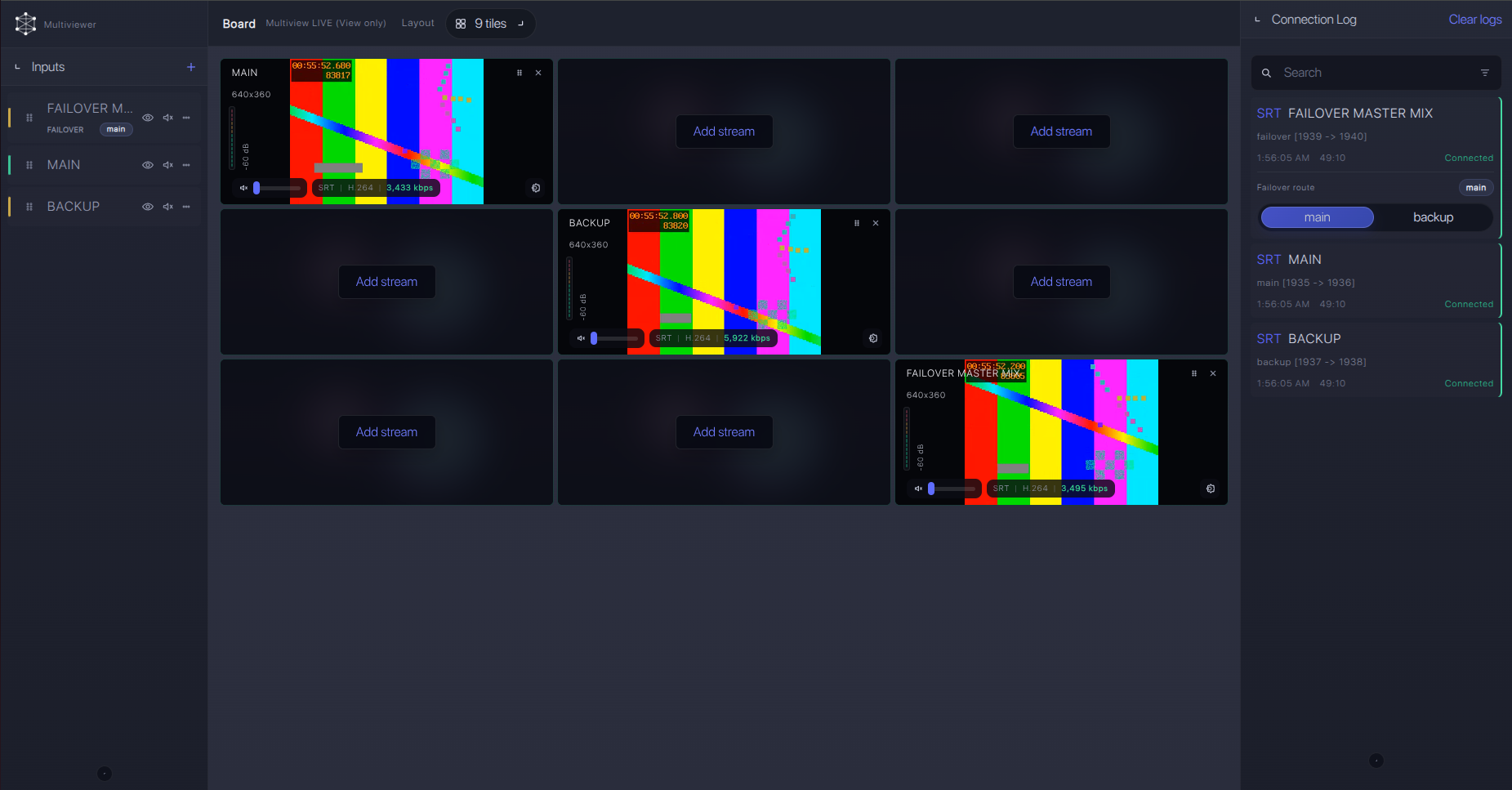
For production events, plan what happens if the main encoder, venue uplink, or primary contribution path fails. Callaba can be part of that continuity plan without changing the basic Magewell Ultra Stream SDI ingest workflow.
Recording and playback
Ultra Stream SDI can make a local MP4 or MOV recording, but Callaba recording captures the contribution after network ingest. I treat these as complementary records: the Magewell copy helps with local backup, while the Callaba copy proves what actually reached the cloud gateway.
For playback or web review, use a Callaba web player or downstream output after the ingest is stable. Do not make playback troubleshooting your first step; confirm ingest health first.
Troubleshooting
| Symptom | Check in Callaba | Check on Ultra Stream SDI | Likely fix |
|---|---|---|---|
| No connection | No incoming publisher or zero bitrate. | RTMPS URL, stream key, and firmware. | Update firmware, repaste the URL, or test RTMP fallback. |
| Connects, then drops | Connection uptime resets or bitrate falls to zero. | Venue uplink and bitrate setting. | Lower bitrate and avoid running multiple sessions at the maximum rate. |
| Video but no audio | Preview has no meter activity. | Embedded SDI audio vs mic selection and headphone monitor. | Select the correct source and retest with known program audio. |
| HEVC preview or restream fails | Incoming video is present but downstream playback is unreliable. | Codec set to H.265/HEVC. | Switch first test to H.264. Also note Magewell’s support note that H.265 4:2:2 is not supported. |
| RTSP pull fails | Callaba cannot reach the RTSP URL. | RTSP service, port, key, and device IP. | Use VPN/LAN routing, port rules, or switch back to RTMPS push. |
Official references
Useful vendor and Callaba resources for this exact workflow:
Vendor references
- Magewell Ultra Stream SDI product page
- Magewell Ultra Stream SDI technical specifications
- Magewell Ultra Stream Web GUI user manual
- Magewell Ultra Stream support FAQ
- Magewell Ultra Stream downloads
Callaba resources
FAQ
Does Magewell Ultra Stream SDI support RTMPS to Callaba?
Yes. Magewell’s exact-model sources list RTMPS, and the support FAQ says RTMPS may require updating to the latest firmware. Update and test the unit before the event.
Can I use SRT from Ultra Stream SDI?
The exact-model docs used for this guide list RTMP, RTMPS, and RTSP, but they do not document SRT modes, Stream ID, passphrase, or encryption settings. Use RTMPS/RTMP, or add a separate converter if the production requires SRT.
Is Ultra Stream SDI an NDI source?
No. Do not plan this model as a native NDI source; NDI is not listed for Ultra Stream SDI in the official sources used here.
Should I choose RTMPS or RTSP for cloud ingest?
Use RTMPS for a venue-to-cloud push workflow. Use RTSP only when the Callaba side, or a bridge near Callaba, can reach the encoder over LAN, VPN, or controlled routing.
Should I use H.264 or H.265?
Ultra Stream SDI lists both H.264 and H.265, but I recommend H.264 for the first Callaba test. Move to H.265 only when the downstream decoder, player, and restream targets support it.
Can Ultra Stream SDI record while Callaba records?
Yes, the device supports MP4/MOV recording to local storage options, and Callaba can record the received cloud feed separately. Test storage and duration limits before relying on either recording.
Next steps
- Update the Magewell firmware and confirm RTMPS is available.
- Create the Callaba RTMP/RTMPS ingest and copy the exact URL.
- Publish from Ultra Stream SDI using H.264/AAC at a conservative bitrate.
- Verify Callaba preview, audio meters, incoming bitrate, and connection uptime.
- Only after ingest is stable, enable recording, restreaming, routing, multiview, or playback outputs.
Try Callaba Gateway with Magewell Ultra Stream SDI RTMPS
Create an RTMPS or RTMP ingest in Callaba, send the Ultra Stream SDI feed to the gateway, and check the received stream. After ingest is stable, use Callaba outputs for preview, recording, restreaming, multiview, playback, routing, or API workflows as parallel downstream options.
