

Related vendor hub
Browse all Magewell SRT gateway workflows
Use the Magewell hub to compare Pro Convert, Ultra Encode, and Ultra Stream SRT or RTMPS workflows.
The Magewell Ultra Stream HDMI RTMPS setup is a direct RTMPS or RTMP contribution workflow: create an ingest in Callaba Gateway, paste the ingest URL and stream key into the Ultra Stream HDMI Streaming Server settings, then start the encoder. Use this setup when Ultra Stream HDMI is at the venue and Callaba is the cloud gateway for monitoring, recording, routing, multiview, or restreaming. This guide is for live operators who need a hardware HDMI encoder feeding a cloud receiver.
Quick answer
To use Magewell Ultra Stream HDMI with RTMPS, add a custom RTMPS server in the encoder, paste the Callaba RTMP/RTMPS ingest URL and stream key, and start streaming. Official Ultra Stream HDMI sources list RTMP, RTMPS, and RTSP. They do not list SRT caller/listener settings, SRT Stream ID, SRT passphrase, or NDI for this exact model.
The Magewell encoder sends one RTMPS contribution feed into Callaba Gateway. After ingest, Callaba can preview, record, route, restream, and feed multiview in parallel. These are downstream options, not mandatory sequential steps.
- Ultra Stream HDMIRTMPS or RTMP encoder
- Callaba GatewayCloud RTMP/RTMPS ingest
- Preview
- Record
- Route
- Restream
- Multiview
What this setup does
In this workflow, Ultra Stream HDMI is the field encoder. Callaba Gateway is the cloud ingest point. The encoder sends RTMPS when the installed firmware exposes that option, or RTMP when you deliberately choose a non-TLS path. Once Callaba receives the feed, monitoring, recording, routing, multiview, playback, and restreaming are parallel downstream uses of the same source.
This is most useful when the encoder is remote, the production team needs a cloud receiver, and the feed must be visible and usable beyond a single public platform destination.
What this model can and cannot do in this workflow
Magewell documents Ultra Stream HDMI as an HDMI streaming encoder with HDMI input, HDMI loop-through, HDMI embedded audio, a 3.5 mm microphone input, Ethernet, Wi-Fi, and optional USB 3G/4G modem connectivity. The exact-model specifications list H.264 and H.265/HEVC video encoding with AAC two-channel 48 kHz audio. They list RTMP, RTMPS, and RTSP as streaming protocols.
- Confirmed direct cloud path: RTMPS or RTMP from Ultra Stream HDMI to a Callaba RTMP/RTMPS ingest.
- Confirmed fallback: RTSP can be used on controlled networks or through a receiver/bridge that can reach the encoder RTSP URL.
- Not documented for this model: SRT caller/listener/rendezvous modes, SRT Stream ID, SRT passphrase, SRT encryption fields, and NDI.
- Codec decision: use H.264 for the first test. Use HEVC only when every downstream decoder, player, and restream destination supports it.
- Resolution caution: do not infer 4K cloud streaming from HDMI input or loop-through language. The documented streaming outputs are HD/SD class, and the main stream bitrate limit is 8 Mb/s.
- Recording: the unit can record to internal 32 GB storage, a USB flash drive, or a paired mobile device. Treat that as local backup, not as proof that the cloud ingest is healthy.
- Firmware caveat: Magewell’s support material says RTMPS support can require updating to the latest firmware. Confirm the visible RTMPS option before the event.
Do not copy protocol assumptions from Magewell Ultra Encode HDMI or Ultra Encode HDMI Plus guides. Those are different Magewell encoder models with different protocol positioning.
Recommended workflow
For an Ultra Stream HDMI RTMPS gateway workflow, I would use this order: RTMPS to Callaba first, RTMP only when RTMPS is unavailable or not required by policy, and RTSP only as a controlled-network pull or bridge path. Keep the first test simple: H.264, a conservative bitrate, AAC audio, and one Callaba ingest.
When not to use this setup
- If the encoder and switcher are in the same rack, HDMI loop-through or a local capture path may be simpler than cloud contribution.
- If the only destination is a public platform and you do not need cloud monitoring, routing, or recording, Ultra Stream HDMI can stream directly by RTMP/RTMPS to that platform.
- If the job requires SRT contribution, choose an encoder with documented SRT support or use a deliberate RTMP/RTSP-to-SRT bridge. Do not plan Ultra Stream HDMI itself as the SRT endpoint.
- Do not plan Ultra Stream HDMI as a native NDI source. NDI is not listed for this exact model in the official product, specification, or manual sources used for this guide.
Before you start
- Update the Ultra Stream HDMI firmware if the RTMPS option is missing.
- Confirm the HDMI source format, embedded audio or microphone input, and headphone monitoring before going live.
- Use wired Ethernet for the first production test when possible. Wi-Fi and USB modem paths are useful, but harder to troubleshoot under load.
- Create the Callaba ingest before configuring the encoder so you can copy the exact URL and stream key.
Create the Callaba ingest
In Callaba Gateway, create an RTMP server or RTMP/RTMPS ingest for this source. Copy the ingest URL and stream key exactly as shown. Keep the stream key short enough to paste cleanly, and avoid hidden spaces at the beginning or end. Open the Callaba monitoring view before you press Live on the Magewell unit, so you can see the connection, bitrate, preview, and audio as soon as the encoder starts.
Configure Ultra Stream HDMI
In the Ultra Stream HDMI web interface, open Settings > Streaming Server > Add Server. Magewell’s operating instructions show RTMP server setup with URL, stream key, optional authentication, testing, and live start controls. Use RTMPS when the firmware exposes it. If the menu only shows RTMP on an older unit, update firmware before assuming the unit cannot do RTMPS.
Paste the Callaba ingest URL into the URL field and paste the stream key into the stream key field. If your Callaba ingest requires username and password authentication, enable authentication and enter those credentials; otherwise leave it off for the first test.
Settings table
| Where | What to do / field to fill | First-test value | Why / check |
|---|---|---|---|
| Callaba | Create an RTMP/RTMPS ingest | One ingest for this encoder | Gives the venue a single receiver target. |
| Callaba | Copy ingest URL | Use the RTMPS URL when available | The URL must match the Callaba server and application path. |
| Callaba | Copy stream key | Paste exactly | Keys are case-sensitive and whitespace-sensitive. |
| Ultra Stream HDMI | Settings > Streaming Server > Add Server | Select RTMPS, or RTMP if deliberately used | If RTMPS is absent, check firmware. |
| Ultra Stream HDMI | URL field | Callaba ingest URL | Wrong scheme or path usually means no connection. |
| Ultra Stream HDMI | Stream key field | Callaba stream key | A copied newline or trailing space can break ingest. |
| Ultra Stream HDMI encoding settings | Video codec | H.264 for first test | HEVC is supported by the encoder, but downstream compatibility must be confirmed. |
| Ultra Stream HDMI audio settings | Audio source and AAC audio | HDMI embedded audio or mic input, confirmed on meters | Prevents a clean video feed with silent audio. |
Monitoring
When Ultra Stream HDMI goes live, check Callaba for incoming bitrate, connection uptime, preview, and audio meters. On the encoder side, use the web UI status, the app if you operate it that way, and the headphone output for local audio confidence. For a first internet test, keep H.264 bitrate conservative: around 2.5–4 Mb/s for 720p, 4–6 Mb/s for 1080p30, and 6–8 Mb/s for 1080p60 if the uplink is stable.
Failover and local ingest options
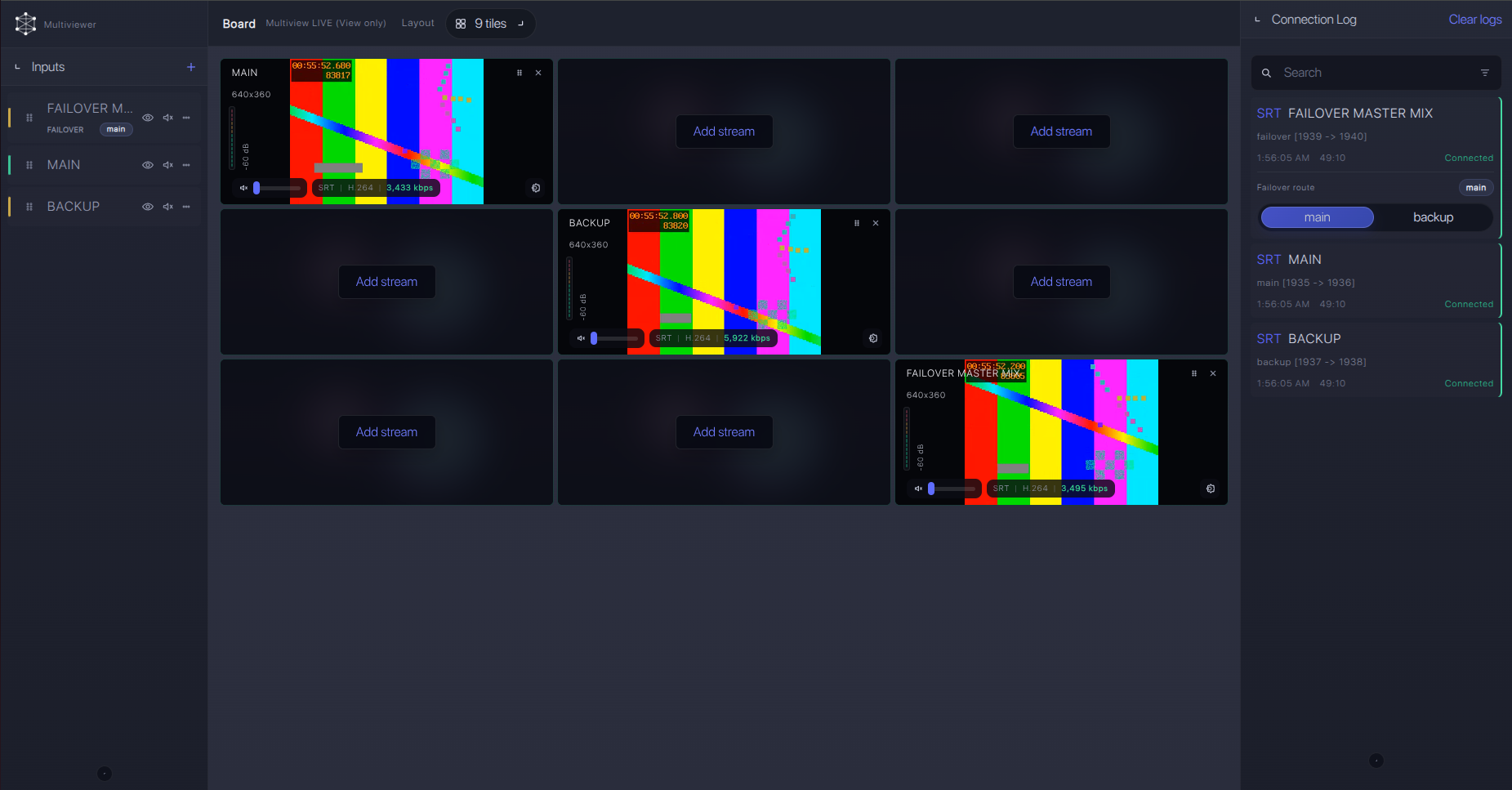
For production events, plan what happens if the main encoder, venue uplink, or primary contribution path fails. Callaba can be part of that continuity plan without changing the basic Magewell Ultra Stream HDMI ingest workflow.
Recording and playback
Callaba can record the received cloud feed while also making it available for preview, routing, restreaming, multiview, or playback. Ultra Stream HDMI local recording is still useful as a venue-side backup, especially when the network is unknown. Treat the two recordings as independent checks: the local file proves the HDMI source and encoder were alive; the Callaba recording proves the cloud ingest path worked.
Troubleshooting
| Symptom | Check in Callaba | Check on Ultra Stream HDMI | Likely fix |
|---|---|---|---|
| No connection | Ingest is running; URL and key are the current ones | URL scheme, stream key, Live state | Re-paste URL/key, remove hidden spaces, confirm outbound firewall access. |
| RTMPS option missing | RTMP ingest can still be created if policy allows | Firmware version and Streaming Server menu | Update firmware, then confirm the RTMPS server option is visible. |
| Connection drops | Incoming bitrate stability and disconnect times | Network type, bitrate, encoder status | Use Ethernet, reduce bitrate, avoid exceeding uplink capacity. |
| Video but no audio | Audio meters and recording playback | HDMI embedded audio, mic input, headphone output | Select the intended audio source and confirm AAC audio. |
| HEVC preview or playback fails | Player and restream destination compatibility | Video codec setting | Switch the first contribution test to H.264. |
| Need SRT or NDI | No SRT or NDI ingest should be expected from this model | No documented SRT/NDI fields for Ultra Stream HDMI | Use confirmed RTMPS/RTMP, an RTSP bridge, or a different encoder with documented support. |
Official references
These links are useful when preparing a show file or checking firmware and menu behavior.
Vendor references
- Magewell Ultra Stream HDMI product page
- Magewell Ultra Stream HDMI technical specifications
- Magewell Ultra Stream web GUI user manual
- Magewell RTMP setup article for Ultra Stream encoders
- Magewell Ultra Stream download center
Protocol references
Callaba resources
FAQ
Does Magewell Ultra Stream HDMI support RTMPS to Callaba?
Yes, RTMPS is listed for Ultra Stream HDMI in Magewell’s exact-model materials, with a practical firmware caveat: if the RTMPS option is not visible, update firmware and check the Streaming Server menu again.
Can Ultra Stream HDMI send SRT to Callaba?
Do not plan it that way. The official sources used for this guide list RTMP, RTMPS, and RTSP for Ultra Stream HDMI, but not SRT caller/listener settings, Stream ID, passphrase, or rendezvous mode.
Is Ultra Stream HDMI an NDI source?
No. NDI is not listed for this exact model in the official product page, specifications, or manual. Use RTMPS/RTMP for cloud contribution, RTSP as a fallback, or a different device if the production requires NDI.
Should I use H.264 or H.265 for the first RTMPS test?
Use H.264 first. Ultra Stream HDMI supports H.265/HEVC, but HEVC must also be supported by the downstream player, decoder, recorder, and restream destination.
What is RTSP useful for on this model?
RTSP is useful when a receiver or bridge can reach the encoder on a controlled network. It is usually not the first choice for a venue-to-cloud workflow behind NAT or restrictive firewalls.
Can Callaba record and restream the same Ultra Stream HDMI feed?
Yes. After the RTMPS or RTMP ingest is stable, Callaba can use the same received source for preview, recording, routing, playback, multiview, and restreaming as parallel outputs.
Next steps
Before the event, run one full rehearsal from the same network path you will use on show day. Confirm firmware, RTMPS visibility, URL, stream key, selected audio source, bitrate, Callaba preview, recording, and the final destination output.
Try Callaba Gateway with Magewell Ultra Stream HDMI RTMPS
Create an RTMP/RTMPS ingest in Callaba, send the device feed to the gateway, and check the received stream. After ingest is stable, use Callaba outputs for preview, recording, restreaming, multiview, playback, routing, or API workflows as parallel downstream options.
