

Related vendor hub
Browse all Lumens SRT gateway workflows
Use the Lumens hub to compare VC-A camera SRT workflows before choosing the exact setup.
The Lumens VC-A71PN SRT setup is a direct camera-to-cloud contribution workflow when the installed firmware exposes the SRT menu. Use this setup when VC-A71PN is at the venue and Callaba is the cloud SRT receiver for monitoring, recording, routing, multiview, or restreaming. The important preflight item is firmware: current Lumens materials list SRT, RTMP, RTMPS, RTSP, MPEG-TS, and NDI HX2, while older exact-model documentation did not expose the same streaming menus.
Quick answer
To use Lumens VC-A71PN with SRT, set VC-A71PN as the SRT Caller and send the stream to a cloud SRT Listener. In this guide, Callaba works as the SRT gateway, receiver, monitor, recorder, and routing layer. Confirm firmware first; if the SRT menu is missing, use RTMPS/RTMP or an RTSP/NDI bridge path instead.
The Lumens VC-A71PN sends one SRT Caller feed into Callaba Gateway as the SRT Listener. Preview, recording, routing, multiview, and restreaming are parallel downstream uses after ingest, not mandatory sequential steps.
- Lumens VC-A71PNSRT Caller, NDI HX Off
- Callaba GatewaySRT Listener / receiver
- Preview
- Record
- Route
- Restream
What this setup does
This workflow keeps the VC-A71PN at the venue as the encoder and sends one contribution feed over SRT to Callaba in the cloud. Callaba receives the stream, shows preview and stream statistics, and can use the same source for recording, restreaming, multiview, playback, or routing.
For most internet contribution jobs, the camera should call out to Callaba. That avoids asking the venue network to accept inbound UDP to the camera.
What this model can and cannot do in this workflow
- Current Lumens VC-A71PN product and manual materials list SRT, RTMP, RTMPS, RTSP, MPEG-TS, and NDI HX2 over Ethernet.
- The current manual shows SRT fields for Enable SRT Streaming, Stream Source, Connection Mode, URL, Port, Stream ID, Latency, Encryption, and Passphrase.
- The SRT connection mode shown in the available manual is Caller. I would not plan a VC-A71PN SRT Listener or Rendezvous workflow unless your exact firmware clearly exposes it.
- Lumens documentation says NDI HX On is for NDI, while RTSP, RTMP, RTMPS, MPEG-TS, and SRT require NDI HX Off.
- Firmware release notes for this exact model add SRT Stream ID and domain-name URL support, so update firmware when Stream ID is required.
- The camera lists H.264 and HEVC/H.265 IP compression, with AAC, G.711, and PCM audio options. Downstream decoders and players still need to support the chosen codec.
- The exact VC-A71PN sources reviewed support HDMI 2.0 and Ethernet/IP outputs. Do not assume SDI, USB/UVC, ST 2110, or bonded cellular on this model.
- VC-A71P is a close non-NDI sibling in the same manual family; this page is for VC-A71PN, the NDI HX2 model.
Recommended workflow
Use direct SRT first when the SRT settings are visible. Create a Callaba SRT Listener, copy its public address, UDP port, Stream ID, and passphrase policy into the VC-A71PN SRT page, then start streaming from the camera.
If that menu is missing on the installed firmware, the practical fallback order is RTMPS or RTMP to Callaba when you need simple cloud ingest, then RTSP or NDI through a local bridge when your production design already includes a bridge host.
When not to use this setup
If the camera and switcher are on the same LAN, HDMI or local NDI HX2 may be simpler than sending SRT to the cloud. If the only destination is a public platform and you do not need cloud monitoring, recording, routing, or multiview, RTMPS/RTMP may be enough. Use the Callaba SRT gateway path when the feed needs to travel over the public internet and still be observable and reusable downstream.
Before you start
- Confirm the installed firmware and that the camera exposes SRT settings.
- Turn NDI HX Off before testing SRT, RTMP, RTMPS, RTSP, or MPEG-TS.
- Open outbound UDP from the venue to the Callaba SRT port.
- Choose H.264 for the first test unless the full chain is ready for HEVC/H.265.
- Start SRT latency at 250-500 ms for internet contribution, then lower it only after RTT, packet loss, and retransmits are stable.
Create the Callaba ingest
In Callaba, create an SRT server and set it as the listener. Choose a UDP port reachable from the venue. If you use Stream ID or encryption, copy those values exactly; SRT Stream ID and passphrase are case-sensitive and whitespace-sensitive. A trailing space or copied newline can break the handshake.
Success in Callaba means the SRT server shows an active connection, incoming bitrate, connection uptime, and preview once the camera starts sending.
Configure the VC-A71PN
Open the VC-A71PN web interface, disable NDI HX for this workflow, and go to the streaming network settings. Enable SRT Streaming, set Connection Mode to Caller, enter the Callaba address in the URL field, enter the Callaba UDP port, then fill Stream ID, Latency, Encryption, and Passphrase to match your Callaba ingest.
If handshake problems continue after settings look correct, confirm SRT version compatibility from Lumens firmware notes or vendor support and compare it with the Callaba server build information or support details.
Settings table
| Where | What to do / field to fill | First-test value | Why / check |
|---|---|---|---|
| Callaba | Create SRT server and choose UDP port | Any open UDP port, for example 10080 | Callaba listens for the camera Caller. |
| VC-A71PN admin | NDI HX | Off | Required by Lumens docs for SRT/RTMP/RTSP modes. |
| VC-A71PN SRT settings | Enable SRT Streaming | Enabled | The menu must exist on the installed firmware. |
| VC-A71PN SRT settings | Connection Mode | Caller | Matches Callaba Listener. |
| VC-A71PN SRT settings | URL | Callaba public IP or hostname | Firmware notes add domain-name URL support. |
| VC-A71PN SRT settings | Port | Callaba SRT UDP port | Must match the listener port. |
| VC-A71PN SRT settings | Stream ID | Copy from Callaba | Case and whitespace must match exactly. |
| VC-A71PN SRT settings | Passphrase | Match Callaba, or leave off on both sides | Use only with matching encryption settings. |
Monitoring
Watch Callaba for incoming bitrate, preview, audio meters, RTT, packet loss, retransmits, and connection uptime. On the camera side, confirm that streaming is enabled and that the selected video codec, resolution, audio source, and bitrate fit the available uplink.
Failover and local ingest options
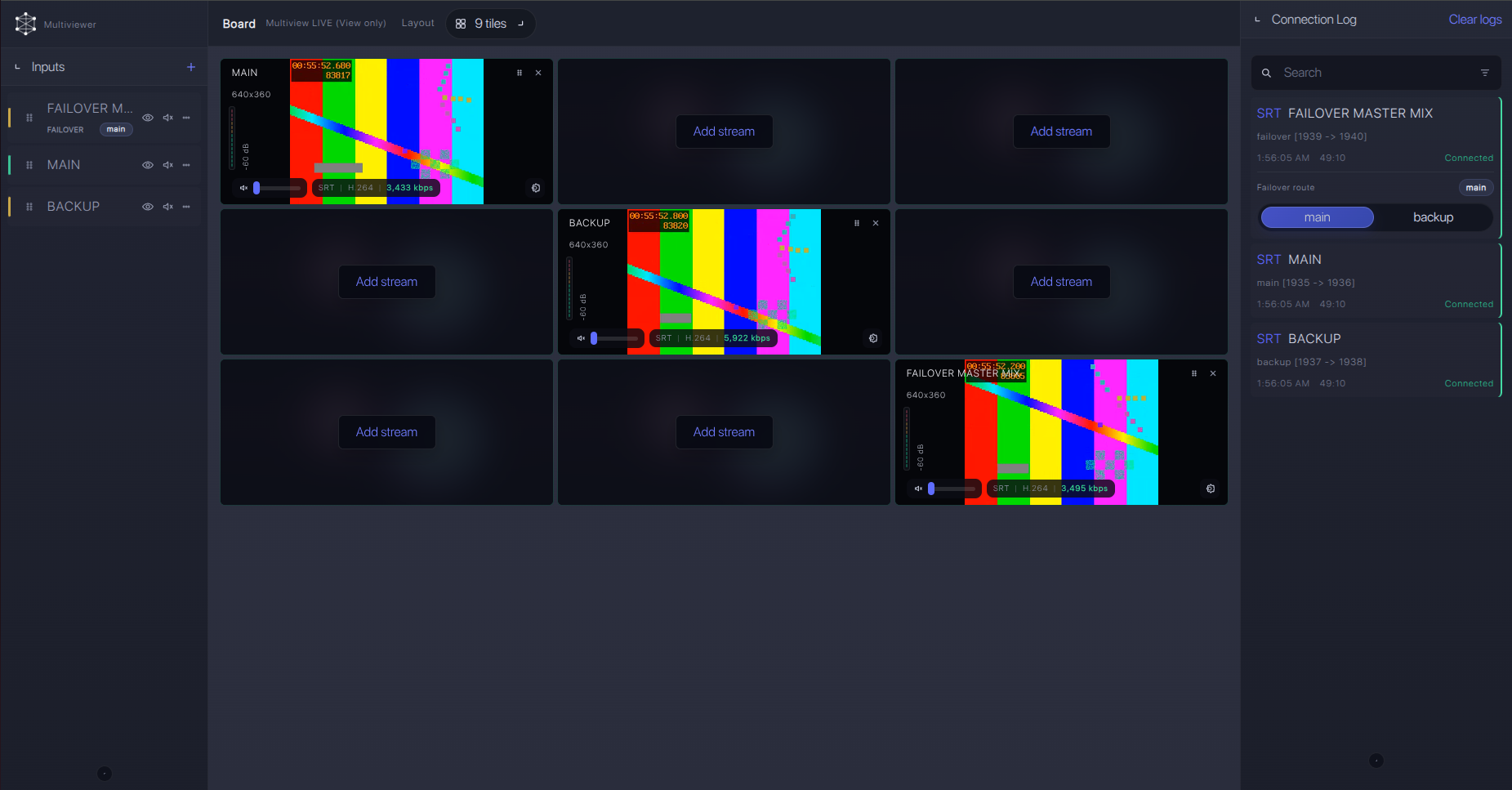
For production events, plan what happens if the main encoder, venue uplink, or primary contribution path fails. Callaba can be part of that continuity plan without changing the basic Lumens VC-A71PN ingest workflow.
Recording and playback
After ingest is stable, use recording and playback as downstream Callaba actions. They do not need to sit in series between ingest and routing. For wider compatibility, test H.264 first; use HEVC/H.265 only when your monitoring, player, and decoder path support it.
Troubleshooting
| Symptom | Check in Callaba | Check on VC-A71PN | Likely fix |
|---|---|---|---|
| No connection | Listener port, firewall, Stream ID requirement | SRT enabled, Caller mode, URL, port | Open outbound UDP and correct address/port. |
| Handshake fails | Passphrase and encryption policy | Passphrase spelling, copied spaces, firmware | Make Stream ID/passphrase exact; confirm SRT compatibility. |
| Connects, then drops | RTT, packet loss, retransmits | Latency field and bitrate | Raise latency or lower bitrate. |
| No audio | Audio meters and selected track | Line/MIC input and audio codec | Select the correct audio input and supported codec. |
| SRT menu missing | Use RTMP/RTMPS ingest or bridge path | Firmware version and NDI HX state | Update firmware; if still absent, use fallback. |
Official references
Useful resources for confirming the exact model and firmware:
Vendor references
- Lumens VC-A71PN product page
- Lumens VC-A71P/VC-A71PN user manual
- Lumens VC-A71PN firmware release note
- Lumens VC-A71PN datasheet
Protocol references
Callaba resources
FAQ
Can the Lumens VC-A71PN send SRT directly to Callaba?
Yes, when the installed firmware exposes the SRT settings. Current Lumens materials and firmware notes support that path, but older exact-model documentation conflicts, so confirm firmware and menu visibility before the event.
Should VC-A71PN be the SRT Caller or Listener?
Use VC-A71PN as the SRT Caller and Callaba as the cloud Listener. The public manual view I found confirms Caller; I would not plan Listener or Rendezvous unless your unit clearly shows those modes.
What if the SRT menu is missing on VC-A71PN?
Update firmware first. If the menu is still absent, use the confirmed RTMPS/RTMP fallback or pull RTSP/NDI through a bridge host.
Can I use NDI HX2 and SRT at the same time?
Do not plan on that. Lumens documentation separates NDI HX On for NDI from NDI HX Off for SRT, RTSP, RTMP, RTMPS, and MPEG-TS.
Does VC-A71PN support HEVC/H.265?
Lumens lists HEVC/H.265 and H.264 IP compression. For first tests, H.264 is usually easier across browsers, decoders, and monitoring tools.
Why does Stream ID or passphrase fail?
Stream ID and passphrase matching is exact. Check capitalization, spaces, copied line breaks, encryption state, and SRT version compatibility.
Next steps
Build the SRT ingest, test one stable camera feed, then add recording, multiview, restreaming, or routing only after the Callaba receiver shows clean statistics. Keep an RTMPS/RTMP fallback profile ready for older firmware or venue firewall issues.
