

Related vendor hub
Browse all Lumens SRT gateway workflows
Use the Lumens hub to compare VC-A camera SRT workflows before choosing the exact setup.
The practical Lumens VC-A71P SRT setup is to enable SRT streaming on the camera, set the VC-A71P as Caller, and send the feed to a Callaba SRT listener. Use this setup when VC-A71P is at the venue and Callaba is the cloud SRT receiver for monitoring, recording, routing, multiview, or restreaming. This guide is for operators who need a working contribution path, not a general camera overview.
Quick answer
To use Lumens VC-A71P with SRT, set VC-A71P as the SRT Caller and send the stream to a cloud SRT Listener. In this guide, Callaba works as the SRT gateway, receiver, monitor, recorder, and routing layer.
The camera sends one contribution feed into Callaba. After ingest, Callaba can preview, record, route, restream, and feed multiview in parallel, not as mandatory sequential setup steps.
- Lumens VC-A71PSRT caller
- Callaba GatewaySRT listener
- Preview
- Record
- Route
- Restream
- Multiview
What this setup does
The VC-A71P is an IP PTZ camera with built-in streaming output. In this workflow, it contributes one encoded SRT feed over the public internet to Callaba. Callaba receives the stream, shows signal health, and can use the same source for preview, recording, routing, multiview, playback, or restreaming as parallel downstream actions.
You do not need a vendor receiver or cloud layer for this direct SRT path. The camera is the sender; Callaba is the public SRT receiver.
What this model can and cannot do in this workflow
- Confirmed for VC-A71P: SRT, RTMP, RTMPS, RTSP and MPEG-TS over IP are listed for the exact model.
- SRT fields shown in the manual: Enable SRT Streaming, stream source, Connection Mode, URL, port, Stream ID, latency, encryption and passphrase.
- Default role for this guide: the manual screenshot shows Caller. Public documentation does not clearly confirm Listener or Rendezvous mode for the exact VC-A71P firmware.
- Codecs: IP streaming includes HEVC/H.265 and H.264. Lumens documentation describes Streaming 1 as H.265 and Streaming 2 and 3 as H.264.
- Resolution notes: the datasheet lists IP profiles up to HEVC/H.265 4K59.94, H.264 1080p59.94, and a lower H.264 third stream. Verify the actual profile labels in your firmware.
- Physical outputs: the camera also has 12G-SDI, HDMI 2.0, Ethernet/IP and USB 3.0/UVC output. It has a 3.5 mm Line In/Mic In for audio.
- Do not plan VC-A71P as a native NDI source. Lumens separates NDI behavior under related variants such as VC-A71PN or VC-A71P-HN. This article is for the exact VC-A71P SRT path.
- ST 2110 is not listed in the official VC-A71P material I used for this workflow.
Recommended workflow
For remote contribution, run Callaba on a reachable cloud server, create an SRT listener, open the selected UDP port, then point the VC-A71P URL and port fields at that listener. Use Stream ID and passphrase only when both sides are set exactly the same.
If your production needs 4K contribution and downstream systems can decode HEVC, test the H.265 stream. If compatibility matters more than bitrate efficiency, start with an H.264 profile.
When not to use this setup
- If the camera and switcher are in the same room, 12G-SDI or HDMI may be simpler and lower latency.
- If the only destination is a public platform and you do not need cloud monitoring, recording or routing, RTMP or RTMPS may be enough.
- If a local application only pulls camera feeds on a LAN, RTSP can be practical, but I would not use RTSP alone as the main public internet contribution path.
- If someone asks for a VC-A71P NDI workflow, confirm the model label. The exact VC-A71P is not the NDI variant.
Before you start
Update and test the camera firmware before the event. Confirm that the installed web UI still exposes the SRT fields listed above. Also confirm whether the latency value is entered in milliseconds in your UI; one manual text description and the UI label are not perfectly aligned.
On the network side, allow inbound UDP traffic to the Callaba SRT port. On the camera side, confirm uplink speed, DNS, gateway, and audio input level. Stream ID and passphrase are case-sensitive and whitespace-sensitive; a trailing space, copied newline, or capitalization change can break the handshake.
Create the Callaba ingest
In Callaba, create an SRT server that listens on a public UDP port. For a first test, keep the receiving side simple: one listener, one VC-A71P source, one chosen port, and a clear Stream ID such as vc-a71p-main if your access policy requires it.
After creating the listener, note the public hostname or IP address, UDP port, Stream ID, and passphrase or encryption setting. These are the values you will copy into the VC-A71P web UI.
Configure the VC-A71P
Open the VC-A71P web interface and go to the network streaming area for SRT. Enable SRT Streaming. Set Connection Mode to Caller. In URL, enter the Callaba public hostname or IP address. In port, enter the Callaba SRT listener UDP port.
If you use Stream ID, paste the exact same value configured in Callaba. If you use encryption, set the camera encryption and passphrase to match Callaba. For an internet first test, start with 250 to 500 ms latency, then lower it only after RTT, packet loss and retransmits are stable.
Settings table
| Where | What to do / field to fill | First-test value | Why / check |
|---|---|---|---|
| Callaba | Create SRT server and choose UDP port | Use an open port such as 10080 | Callaba should show the listener waiting for input. |
| Callaba | Stream ID | vc-a71p-main | Use only if required, and match it exactly on the camera. |
| Callaba | Passphrase / encryption | Off for lab test, on for production | Must match the VC-A71P encryption and passphrase settings. |
| VC-A71P SRT settings | Enable SRT Streaming | Enabled | The camera will not contribute until this is enabled. |
| VC-A71P SRT settings | Connection Mode | Caller | The camera initiates the outbound connection to Callaba. |
| VC-A71P SRT settings | URL | Callaba public hostname or IP | Do not include unrelated RTMP or RTSP URL formatting. |
| VC-A71P SRT settings | Stream ID | Same as Callaba | Check capitalization and hidden spaces. |
| VC-A71P SRT settings | Latency | 250-500 ms | Increase if packet loss or retransmits appear on the internet path. |
Monitoring
When the VC-A71P connects, check Callaba for incoming bitrate, connection uptime, RTT, packet loss, retransmits, preview video and audio meters. A stable connection should show consistent bitrate and no repeating reconnects.
If preview works but audio is missing, check the VC-A71P Line In/Mic In source, audio level, and whether the selected stream profile includes audio. Then check meters on the Callaba side before changing routing or recording settings.
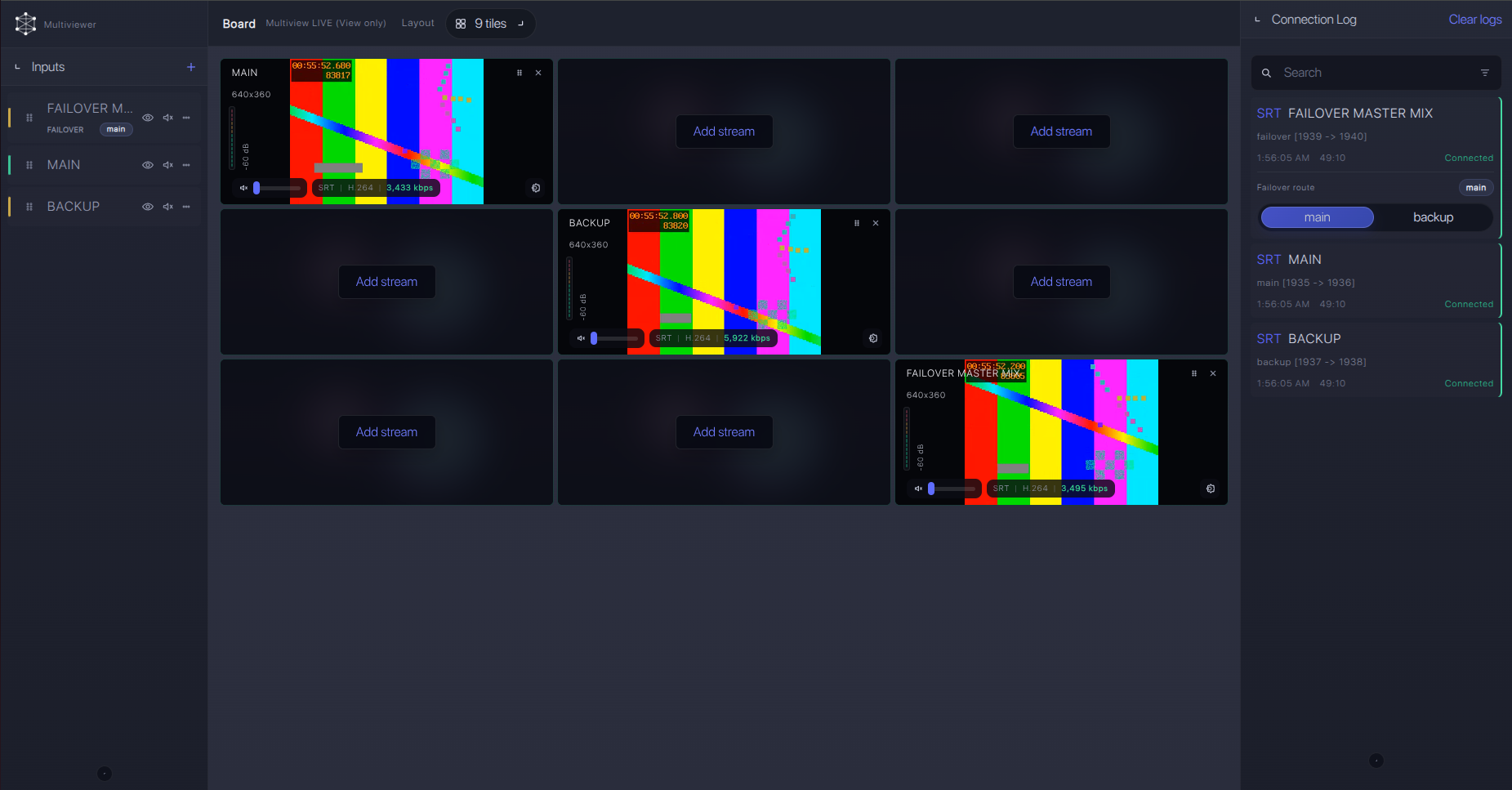
Failover and local ingest options
For production events, plan what happens if the main encoder, venue uplink, or primary contribution path fails. Callaba can be part of that continuity plan without changing the basic Lumens VC-A71P ingest workflow.
Recording and playback
Recording and playback should be treated as downstream uses after ingest is stable. Start the VC-A71P SRT feed first, confirm clean reception, then enable recording or playback outputs in Callaba. If you use HEVC/H.265, confirm that the browser, player, decoder, or downstream system can handle that codec. H.264 is often the safer first test for compatibility.
Troubleshooting
| Symptom | Check in Callaba | Check on device | Likely fix |
|---|---|---|---|
| No connection | Listener port, public IP, firewall, server status | Connection Mode Caller, URL, port | Open UDP port and correct the destination address. |
| Handshake fails | Stream ID and passphrase policy | Stream ID, encryption, passphrase | Remove hidden spaces and match capitalization exactly. |
| Connects then drops | RTT, packet loss, retransmits, uptime | Latency field and uplink quality | Raise latency or reduce bitrate/profile. |
| Video present, no audio | Preview audio meters and recording audio | Line In/Mic In level and stream audio setting | Fix camera audio input before changing Callaba routing. |
| SRT still fails with correct settings | Callaba build/support information | Firmware release notes or vendor support for SRT version | Confirm compatible SRT major versions, then test RTMP/RTMPS or an RTSP bridge as fallback. |
Official references
Useful reader resources for this exact workflow:
Vendor references
- Lumens VC-A71P 4K PTZ Camera product page
- Lumens VC-A71P datasheet
- Lumens VC-A71P / VC-A71PN user manual
Protocol references
Callaba resources
FAQ
Does Lumens VC-A71P support SRT?
Yes. Lumens lists SRT for the exact VC-A71P, and the manual shows SRT settings including URL, port, Stream ID, latency, encryption and passphrase.
Is VC-A71P an SRT Caller or SRT Listener?
Use it as Caller for this workflow. Public documentation shows Caller in the SRT settings. I would not plan Listener or Rendezvous mode unless you confirm it in your installed firmware.
Can Callaba be the Lumens VC-A71P SRT server or receiver?
Yes. In operator language, Callaba acts as the cloud SRT listener, gateway and receiver for the VC-A71P feed.
Does VC-A71P support NDI?
No, do not plan the exact VC-A71P as a native NDI source. Lumens uses nearby model names for NDI variants, so check the label before building an NDI workflow.
Should I send H.265 or H.264 from VC-A71P?
Use H.265 when you need the higher efficiency or 4K profile and the downstream path supports it. Use H.264 for a safer compatibility test.
What usually breaks VC-A71P SRT Stream ID or passphrase setup?
Small text differences: trailing spaces, copied newlines, changed capitalization, or encryption enabled on one side and not the other.
Next steps
Build the simplest SRT path first: VC-A71P Caller to Callaba Listener, one stream, one port, one Stream ID. After the feed is stable, add recording, multiview, restreaming or routing as separate downstream actions.
