

Related vendor hub
Browse all Canon SRT gateway workflows
Use the Canon hub to compare CR-N, CR-X, and XF camera workflows before choosing the exact SRT setup.
The Canon XF605 SRT setup is useful when the camera is at the venue and Callaba is the cloud SRT receiver for monitoring, recording, routing, multiview, or restreaming. The practical path is XF605 as SRT Caller into a Callaba SRT Listener. Canon added SRT IP streaming for this model in firmware version 1.0.3.1, so confirm the installed firmware before you build the event plan.
Quick answer
To use Canon XF605 with SRT, set XF605 as the SRT Caller and send the stream to a cloud SRT Listener. In this guide, Callaba works as the SRT gateway, receiver, monitor, recorder, and routing layer.
The camera sends one SRT contribution feed into Callaba. After ingest, Callaba can preview, record, route, restream, and provide multiview as parallel downstream uses, not mandatory sequential setup steps.
- Canon XF605SRT Caller
- Callaba GatewaySRT Listener
- Preview
- Record
- Route
- Restream
- Multiview
What this setup does
This workflow turns the XF605 into a remote contribution camera. The camera encodes an IP streaming feed and calls out to a Callaba SRT server over the venue internet connection. Callaba receives the feed in the cloud, where operators can check preview, audio meters, incoming bitrate, connection uptime, packet loss, RTT, retransmits, and downstream outputs.
Use this when you need an XF605 SRT to cloud path rather than only a local SDI or HDMI cable run.
What this model can and cannot do in this workflow
- Confirmed SRT: Canon firmware version 1.0.3.1 added SRT protocol for XF605 IP streaming.
- Confirmed roles: the XF605 manual describes SRT Caller and Listener modes. For cloud contribution, Caller from the camera to Callaba Listener is the normal starting point.
- Confirmed SRT fields: Stream ID is described for Caller mode; Listening Port is described for Listener mode; encryption options include AES-128, AES-192, and AES-256; Passphrase and Latency settings are also described.
- Streaming codec: Canon lists live IP streaming as H.264/AVC. The product specifications separately list recording formats including XF-AVC H.264, MP4 H.265/HEVC, and MP4 H.264/AVC.
- Hardware paths: the model includes RJ-45 Gigabit Ethernet for IP functions, 12G-SDI output, HDMI Type A output, USB-C with UVC support, dual SD card recording, two XLR audio inputs, genlock, and timecode terminals.
- RTSP fallback: the manual lists RTSP+RTP alongside UDP, RTP, RTP+FEC, and SRT in IP streaming settings. Treat RTSP+RTP as a tested fallback or bridge workflow, not the main cloud SRT path.
- Not confirmed for this model: I did not find official XF605 documentation listing RTMP, RTMPS, NDI, or ST 2110 output. Do not plan Canon XF605 as a native NDI source.
Recommended workflow
Create a Callaba SRT server first, then configure the XF605 to call that public address and UDP port. This keeps the venue side simple because the camera opens the outbound SRT connection. Reversing the roles is possible only if the camera-side network can accept inbound internet traffic; that usually means public IP planning, UDP port forwarding, firewall rules, and a rehearsal.
If the job also needs RTMP or RTMPS delivery to a public platform, receive SRT in Callaba first and restream from Callaba. I would not build the plan around direct RTMP/RTMPS output from the XF605 because it was not listed in the checked XF605 sources.
When not to use this setup
If the camera and switcher are in the same room, SDI or HDMI from the XF605 may be simpler and lower latency. If the production requires native NDI, choose a confirmed NDI source or use a separate SDI/HDMI-to-NDI converter; the XF605 itself is not officially listed as a native NDI source in the checked Canon XF605 material.
If your only target is a public streaming platform and you do not need cloud monitoring, recording, routing, or multiview, a separate encoder with confirmed RTMP/RTMPS may be enough. For remote contribution where operators need to see and manage the feed before distribution, the SRT gateway workflow is a better fit.
Before you start
- Update the XF605 firmware and keep the current Canon Advanced User Guide available.
- Use wired Ethernet for the first test when possible.
- Open the selected UDP port to the Callaba instance.
- Prepare one exact Stream ID and one exact passphrase if encryption is used.
- Confirm the camera streaming format is H.264/AVC for the SRT contribution feed.
Stream ID and passphrase values are case-sensitive and whitespace-sensitive. A copied newline, trailing space, or changed capitalization can break the SRT handshake.
Create the Callaba ingest
In Callaba, create an SRT server and choose a UDP port. Use Listener mode on the Callaba side for this workflow. If you require Stream ID authorization or encryption, configure those values before giving the destination details to the camera operator.
Success looks like a connected SRT session with a stable incoming bitrate and live preview. If no session appears, check cloud firewall rules, the server port, and whether another service is already using that port.
Configure the XF605
On the camera, open the IP Streaming settings, select SRT, and use Caller mode for the first cloud test. Enter the Callaba public host or IP address, the Callaba UDP port, and the same Stream ID, encryption, passphrase, and latency values configured on the receiver.
For a first internet test, I usually start with a conservative latency value, confirm stable statistics, then reduce latency only after RTT, packet loss, and retransmits look healthy.
Settings table
| Where | What to do / field to fill | First-test value | Why / check |
|---|---|---|---|
| Callaba | Create SRT server and choose UDP port | Use an unused port such as 5000 | Camera must reach this public UDP port. |
| Callaba | Set Stream ID if your ingest policy uses it | One short exact string | Must match XF605 Caller Stream ID exactly. |
| Callaba | Set passphrase/encryption if required | AES-128 or AES-256 with a strong passphrase | Must match the camera setting exactly. |
| XF605 IP Streaming settings | Protocol option | SRT | Canon lists SRT as an IP streaming protocol on supported firmware. |
| XF605 SRT settings | SRT mode | Caller | Best default for XF605 SRT to cloud. |
| XF605 SRT settings | Stream ID in Caller mode | Same as Callaba, or blank if not used | Check for spaces and copied line breaks. |
| XF605 SRT settings | Latency field | 250-500 ms for first internet test | Lower only after loss, RTT, and retransmits are stable. |
| XF605 streaming format area | H.264 streaming bitrate | 1080p30: 4-6 Mb/s; 1080p60: 6-8 Mb/s | Adjust to uplink, motion, and production requirements. |
Monitoring
In Callaba, watch incoming bitrate, SRT connection uptime, RTT, packet loss, retransmits, preview video, and audio meters. A stable connection with no preview usually points to codec, format, or decoder support. A preview with no audio points to camera audio routing, XLR input selection, level, or stream audio settings.
If handshake failures are hard to diagnose, confirm the XF605 firmware and the SRT library/version information available from Canon support or release notes, then compare it with the Callaba server build or support information.
Failover and local ingest options
For production events, plan what happens if the main encoder, venue uplink, or primary contribution path fails. Callaba can be part of that continuity plan without changing the basic Canon XF605 ingest workflow.
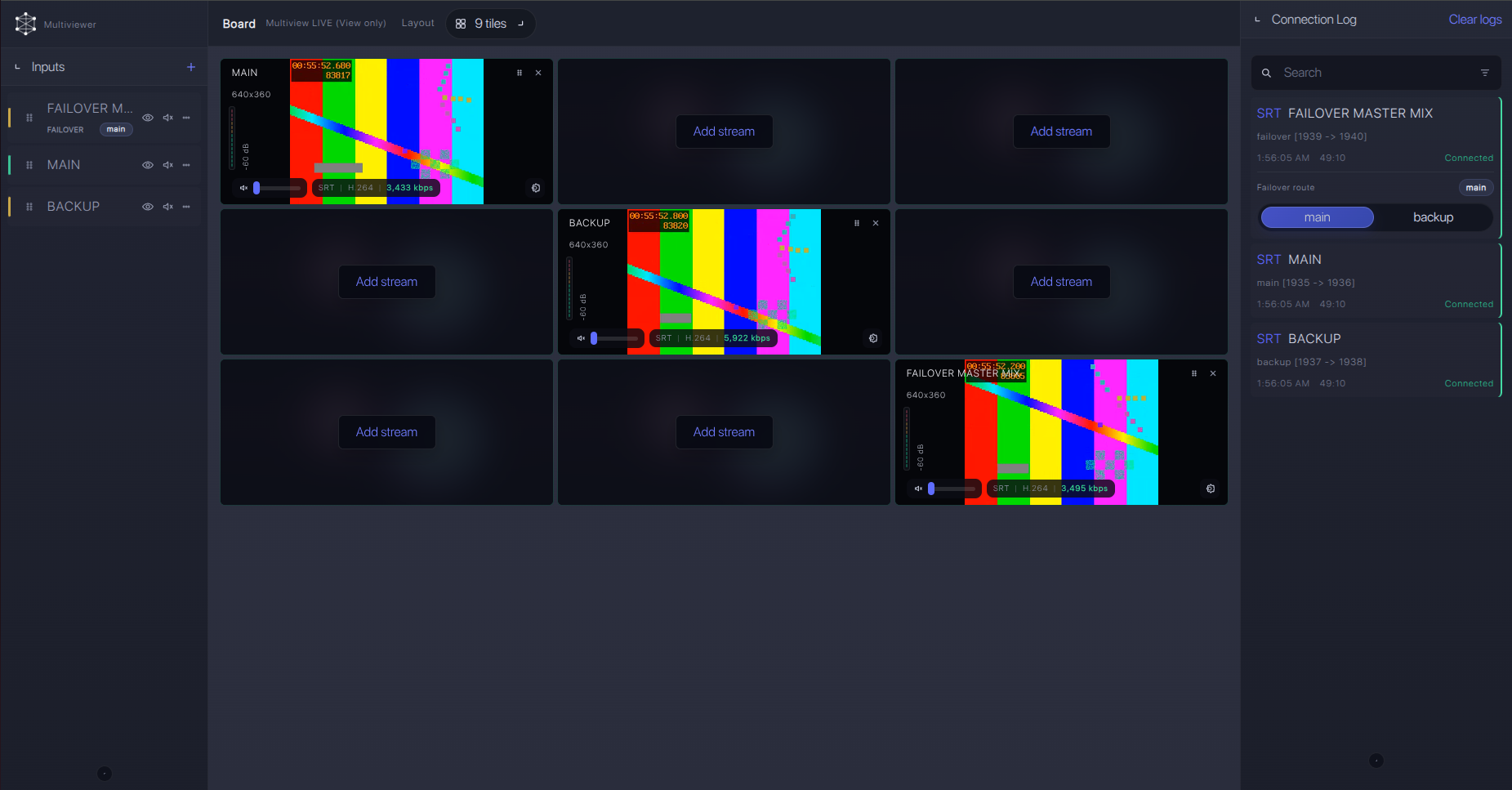
Recording and playback
After ingest is stable, recording and playback should be treated as parallel downstream uses, not steps that must happen before routing or restreaming. Record the received SRT feed in Callaba when you need a cloud copy, create web playback for production monitoring, or route the same source to other destinations.
The XF605 can also record locally to SD cards while streaming, but confirm your exact recording format, card media, and camera operating mode before the event.
Troubleshooting
| Symptom | Check in Callaba | Check on XF605 | Likely fix |
|---|---|---|---|
| No connection | SRT server is running; UDP port is open | Caller mode, destination host, destination port | Fix address/port or firewall/NAT rules. |
| Handshake fails | Stream ID and passphrase policy | Stream ID, encryption, passphrase | Remove trailing spaces; match capitalization and encryption. |
| Connects then drops | RTT, packet loss, retransmits | Network type and latency value | Raise SRT latency or reduce bitrate. |
| Video preview missing | Incoming bitrate and decoder status | Streaming codec and resolution | Start with H.264 and a conservative 1080 profile. |
| No audio | Audio meters on the received stream | XLR input assignment, levels, mute state | Confirm camera audio routing and send a tone test. |
| Need RTMP platform output | Restream destination status | Do not look for unconfirmed RTMP output | Receive SRT first, then restream from Callaba. |
Official references
Vendor references
- Canon XF605 product page and specifications
- Canon XF605 firmware version 1.0.3.1 notice
- Canon XF605 Instruction Manual
Callaba resources
FAQ
Can the Canon XF605 send SRT to Callaba?
Yes, with firmware that includes SRT support. Canon’s firmware notice says SRT was added in version 1.0.3.1 for XF605 IP streaming.
Should the XF605 be SRT Caller or SRT Listener?
Use XF605 SRT Caller for the normal cloud workflow. XF605 Listener is better treated as an advanced fallback because the venue side must accept inbound UDP traffic.
Where do I use XF605 SRT Stream ID?
Use the Stream ID in XF605 Caller mode when the Callaba SRT server expects one. Match the value exactly, including capitalization and whitespace.
Does the XF605 have direct RTMP or RTMPS output?
I did not find RTMP or RTMPS listed as XF605 IP streaming options in the checked Canon sources. Use SRT into Callaba and restream from there if RTMP/RTMPS delivery is required.
Does the XF605 support NDI?
Official XF605 sources checked for this guide did not list NDI or ST 2110 output. Do not plan this model as a native NDI source.
Can I use RTSP instead of SRT?
The XF605 manual lists RTSP+RTP, but for internet contribution I prefer SRT because caller/listener, encryption, passphrase, Stream ID, and latency are designed for this type of workflow. Use RTSP only with a tested receiver or bridge.
Next steps
Build the first test with one camera, one Callaba SRT server, conservative latency, and H.264 bitrate that fits the venue uplink. After the SRT session is stable, add recording, multiview, restreaming, routing, or API automation as separate downstream actions.
