How To Stream With OBS
More live video workflow notes and product updates.

OBS Studio remains the default tool for creators who want full control over live production on desktop. It is free, flexible, and powerful enough for both first-time streams and advanced broadcast workflows. The tradeoff is configuration complexity: OBS can produce excellent results, but only when scene design, encoder settings, and audio routing are tuned as one system.
This guide walks through a complete workflow for streaming with OBS: installation, Twitch/YouTube connection, resolution and bitrate choices, audio setup, scene architecture, test flow, and incident handling during live sessions. The goal is simple: fewer failed streams and more predictable quality.
What OBS Is Best For
OBS is ideal when you need customizable scenes, source layering, transitions, plugin ecosystem, and precise encoder controls. If you only need a one-click start, platform-native streaming apps can be faster. But if you stream regularly and want repeatable quality, OBS gives the control you eventually need.
Use OBS when your workflow includes:
- Multiple scenes (starting soon, main, BRB, ending)
- Mixed sources (camera, game, browser widgets, screen share)
- Manual audio balancing and filters
- Dedicated output profiles for normal and degraded network conditions
- Potential expansion to multi-platform or routed delivery
Install And First Launch Checklist
Install OBS from the official project source and update graphics drivers before deep tuning. On first launch, the auto-configuration wizard is useful as a baseline, but do not treat it as final production setup. It can be a good starting point for resolution and frame-rate defaults, then you refine from there.
- Install OBS and reboot if GPU driver update is required.
- Run auto-configuration wizard once.
- Create one profile and one scene collection for your channel.
- Connect stream destination and run a private rehearsal.
If you need a dedicated step-by-step onboarding article, start with how to set up OBS and then return to this guide for production-level optimization.
Connect OBS To Twitch, YouTube, Or Custom Endpoints
In OBS settings, open Stream and choose your service. For Twitch and YouTube, the safest method is account connection or validated stream key from the creator dashboard. For advanced routes, use custom RTMP/SRT endpoints only when you already own that workflow.
Connection mistakes are common and easy to prevent:
- Reset stream key after accidental exposure.
- Avoid extra spaces when pasting keys.
- Confirm server region matches your audience and uplink stability.
- Run a 5-10 minute private test before announcing stream.
Video Settings That Actually Hold Under Load
Most unstable streams fail because settings are chosen by aspirational quality, not by real hardware/network headroom. Start conservative and increase only after clean rehearsals.
Practical starting profiles:
- Starter profile: 1280x720, 30 FPS, 3000-4500 Kbps
- Balanced profile: 1920x1080, 30 FPS, 4500-6000 Kbps
- High-motion profile: 1920x1080, 60 FPS, tuned only after stable tests
Keep keyframe interval at 2 seconds for platform compatibility. For audio, AAC at 160 Kbps is a solid default in most creator scenarios.
Encoder Selection: NVENC, AMF, Or x264
On modern NVIDIA cards, NVENC is usually the best balance for gaming streams because it preserves CPU headroom. AMD AMF can work well in tuned environments. x264 is viable when CPU load is predictable and scene complexity is controlled.
Decision rule:
- Use GPU encoder first when game or app load is heavy.
- Use x264 only if CPU has stable headroom across your full scene stack.
- Record local stress tests with alerts, overlays, and camera enabled.
Do not change encoder and bitrate in one move during incidents. Modify one variable, observe 3-5 minutes, then continue.
Build Scene Architecture That Is Easy To Operate
Good OBS scene architecture reduces operator errors during live moments. Start with a small scene set and expand only when each addition is proven stable.
- Scene 1: Starting Soon
- Scene 2: Main Live
- Scene 3: BRB / Recovery
- Scene 4: Ending / Credits
For each scene, keep source order documented. Name sources clearly (`cam_main`, `game_capture`, `chat_overlay`, `alerts_browser`) so troubleshooting is immediate. Avoid duplicated browser sources across many scenes when one reusable source can be referenced instead.
Audio Chain Setup In OBS
Audio quality drives retention more than visual sharpness in many categories. A simple, clean audio chain is better than aggressive filtering that damages voice naturalness.
Baseline audio chain:
- Mic gain adjusted so speech peaks around -10 to -6 dB
- Limiter on mic channel to prevent clipping
- Optional noise suppression for noisy rooms
- Game/desktop audio reduced to preserve speech intelligibility
Do a local recording and listen with headphones before each major stream. Never assume audio is correct because OBS meters move; meters do not reveal clipping character, room echo, or voice intelligibility issues.
OBS + SRT Workflows For Higher Reliability
If your streaming workflow grows beyond simple single-destination output, SRT can improve contribution reliability over unstable networks. For OBS-specific SRT setup, use:
- how to start SRT streaming in OBS Studio
- how to receive SRT stream in OBS Studio
- OBS multiple streams
If your team compares OBS with vMix for switching or transport operations, review sending and receiving SRT stream via vMix to evaluate fit by use case.
Preflight Routine Before Every Live Session
Consistency comes from repeatable preflight checks. Use the same order every stream:
- Confirm category/title/tags on destination platform.
- Open OBS and verify scene collection/profile version.
- Check source visibility and camera framing.
- Check mic clarity and game/desktop mix.
- Start private stream for 5 minutes and inspect playback.
- Only then publish links and notifications.
Skipping preflight to save five minutes usually causes longer recovery time during live broadcast.
Troubleshooting During Live Streams
When quality drops, structured response matters more than speed alone. Use a fixed incident sequence:
- Identify if issue is render lag, encoding overload, or network drop.
- Apply one rollback step (lower bitrate or lower FPS, not both immediately).
- Validate recovery in player output, not only in OBS statistics.
- Document trigger and fix for post-stream template update.
Common causes of recurring instability:
- New browser sources added without rehearsal
- Bitrate raised after one good test, not multiple runs
- Background updates consuming CPU/GPU/disk resources
- No fallback profile for degraded conditions
Scaling OBS Workflows Into A Platform Model
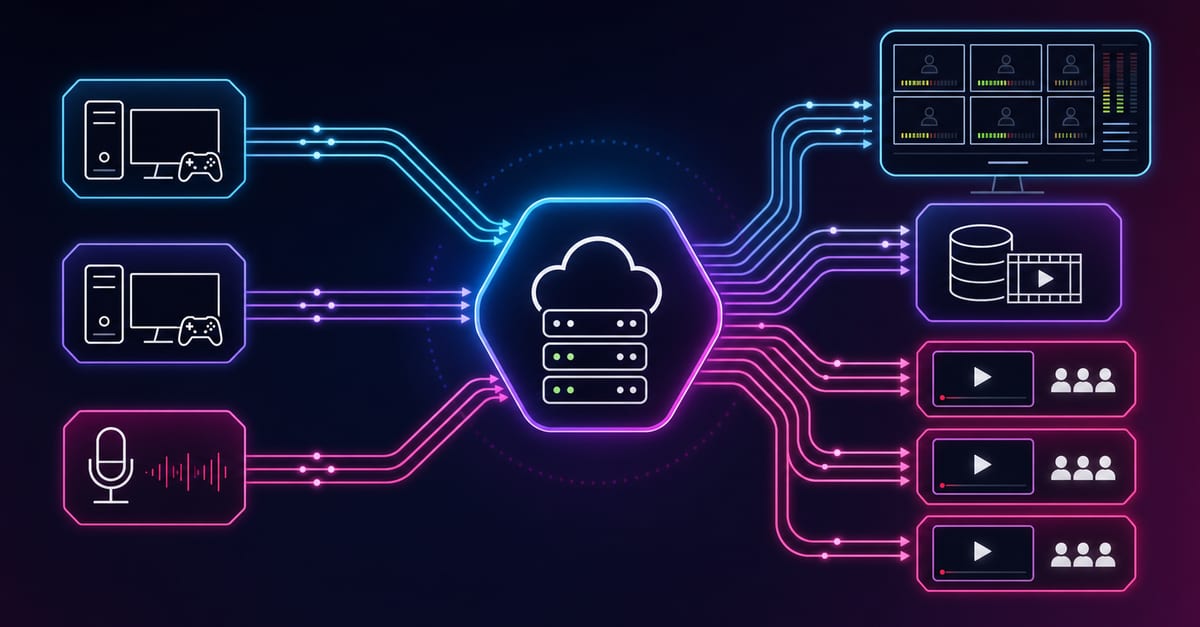
OBS is an excellent production client, but it is not a full delivery platform by itself. As your stream operations grow, separate production, routing, playback, and automation responsibilities.
For scalable operations, map responsibilities across:
- multi-streaming for distribution fan-out
- video on demand for archive workflows
- pay-per-view streaming for monetized events
- continuous streaming for long-running channels
- video API for automation and integration
This separation reduces single-point failure and makes troubleshooting ownership clearer across teams.
Practical Example: Weekly Creator Stream
Suppose you run a weekly 2-hour show with gameplay, chat Q&A, and sponsor segment. A resilient OBS setup would include:
- Primary profile: 1080p30, tested bitrate range
- Fallback profile: 720p30 with 15-25 percent lower bitrate
- Three mandatory scenes plus one emergency BRB scene
- Audio chain with limiter and rehearsed gain structure
- Short preflight with one private playback check
After each session, log one improvement item only. Continuous small improvements outperform rare full redesigns.
Hardware And PC Performance Planning
OBS stability depends on your full system behavior, not only CPU or GPU in isolation. Many creators diagnose stream issues too late because benchmark scores looked strong while real streaming load included browser overlays, chat bots, game anti-cheat, recording cache, and desktop capture.
Use the bitrate calculator to size the workload, or build your own licence with Callaba Self-Hosted if the workflow needs more flexibility and infrastructure control. Managed launch is also available through AWS Marketplace.
- Measure CPU and GPU usage during a realistic 20-minute rehearsal.
- Track disk write speed if local recording is enabled in parallel.
- Disable non-essential startup apps before live sessions.
- Keep one profile dedicated to lower-load fallback output.
- Use wired Ethernet whenever possible to reduce variance.
If your stream is critical for campaigns or paid sessions, reserve hardware headroom instead of optimizing at the limit. Running near maximum utilization increases incident probability during peak moments.
Security, Moderation, And Channel Hygiene
Technical quality alone does not protect stream outcomes. Security and moderation mistakes can disrupt live sessions just as quickly as encoder failures.
- Protect your stream key and rotate it after suspicious access.
- Assign moderator roles before large events.
- Enable platform chat protections and link filters.
- Use licensed music/assets to protect replay and monetization eligibility.
- Keep recovery text/scene prepared in case of interruptions.
For teams with recurring events, document moderation escalation paths just like technical incident paths. A predictable response process reduces downtime and protects brand trust.
Post-Stream Review Template
Without post-stream review, the same issues repeat. Keep the review lightweight and focused on action:
- What failed first and how was it detected?
- Which mitigation step was applied, and how long did recovery take?
- Did user-visible quality recover or only internal metrics?
- What single template/runbook update should be made before next stream?
Reviewing every session for 10-15 minutes creates cumulative stability. Long-term channel quality is mostly process maturity, not one-time setup perfection.
Operational KPIs For OBS Workflows
Track metrics that map to user experience and operator actions:
- Startup reliability: percentage of sessions starting within target threshold.
- Continuity quality: rebuffer frequency and interruption duration.
- Recovery speed: time from quality alert to verified viewer recovery.
- Operator response: time from detection to applied mitigation.
These KPIs make optimization decisions comparable across streams and help avoid overreacting to one noisy event.
Pricing
Free software does not mean zero production cost. Real streaming costs include operator time, monitoring, incident recovery, encoding resources, and distribution strategy. When your OBS workflow matures, deployment model decisions become financial decisions.
For faster managed launch and procurement, evaluate AWS Marketplace listing. For infrastructure control, compliance constraints, and fixed-cost planning, evaluate self-hosted streaming solution.
A practical path is phased adoption: prove demand and workflow with managed setup, then move selected traffic or workloads to self-hosted architecture where control or economics justify it.
FAQ
Is OBS good for beginners?
Yes, if you start with a minimal scene layout and conservative settings. OBS has a learning curve, but it gives long-term control that many creators eventually need.
What bitrate should I use in OBS for Twitch?
Many creators begin around 4500-6000 Kbps for 1080p depending on content motion and network stability. Test under real load and tune in small steps.
Why does OBS show dropped frames?
Dropped frames usually indicate network upload instability or route issues. Skipped frames often indicate local encoding/render overload. Diagnose which type you have before changing settings.
Should I use 1080p60 immediately?
Not by default. Start from stable 720p30 or 1080p30, then upgrade only after multiple clean rehearsals with your full scene stack.
How do I improve OBS audio quality quickly?
Set proper mic gain, add limiter, reduce game audio relative to voice, and run headphone checks on local recordings. Simplicity beats aggressive filter chains.
Can OBS stream to multiple platforms?
Yes, but local machine load rises fast. If quality drops, offload fan-out and distribution logic to dedicated multi-stream workflows.
When should I consider SRT in an OBS workflow?
Consider SRT when network conditions are unstable, contribution reliability matters, or you need clearer transport diagnostics in production workflows.
What is the biggest mistake when streaming with OBS?
Changing many settings at once without controlled testing. Make one change per test cycle and document what improved or regressed.
How often should I update OBS and plugins?
Use planned update windows, test in rehearsal, and avoid major version jumps right before critical streams.