How To Stream On Twitch PC
More live video workflow notes and product updates.

Streaming on Twitch from a Windows PC is easy to start and hard to stabilize. Most beginners can go live in 15 minutes, but many streams fail in the first week because of dropped frames, bad audio routing, wrong bitrate, or missing moderation setup. This guide gives you a practical path from first stream to repeatable quality, with exact decisions for hardware, software, settings, and day-two operations.
You will learn how to choose between Twitch Studio and OBS, configure encoder and bitrate for your internet speed, set up scenes and alerts, test stream health before going live, and build a sustainable workflow if you stream regularly. The focus is clear: stable output, clean audio, and fewer surprises during live sessions.
What You Need Before Going Live
At minimum, you need a Twitch account, a Windows PC, a stable upload connection, a microphone, and streaming software. A webcam is optional for many categories, but audio is not optional: viewers tolerate average video quality much better than poor microphone quality.
For entry-level streaming, these baseline specs are realistic:
- CPU: modern 4 to 6 cores (Intel i5/Ryzen 5 class or better)
- RAM: 16 GB recommended
- GPU: dedicated GPU preferred for encoder headroom
- Upload speed: at least 8-10 Mbps stable for 1080p workflows
- Storage: SSD for games, replay cache, and local recordings
If your system is weaker, you can still stream successfully by reducing output resolution and frame rate. A consistent 720p stream is better than unstable 1080p with stutter.
Twitch Studio Vs OBS On PC
Twitch Studio is easier for first setup and has onboarding templates. OBS gives more control, better long-term flexibility, and broader plugin ecosystem. If your goal is to learn quickly and run basic scenes, Twitch Studio can be enough. If your goal is to optimize quality and grow production complexity, OBS usually becomes the better choice.
Use the bitrate calculator to size the workload, or build your own licence with Callaba Self-Hosted if the workflow needs more flexibility and infrastructure control. Managed launch is also available through AWS Marketplace.
How To Get Your Twitch Stream Key On PC
Your stream key links your software to your channel. In Twitch dashboard, open Creator Dashboard, then Settings, then Stream. Copy the primary stream key and paste it into your software stream settings. Never share this key publicly. If you suspect exposure, reset it immediately.
Many failed first streams come from using an old key or pasting key text with invisible spaces. Paste, save, and run a short private test to confirm handshake before announcing your live session.
Recommended Video Settings For Stable Streaming
There is no universal preset for every PC and every game, but practical starting values are consistent:
- Output resolution: 1920x1080 or 1280x720 depending on headroom
- Frame rate: 60 FPS for action content, 30 FPS for low-motion content
- Video bitrate: usually 4500-6000 Kbps for 1080p Twitch workflows
- Keyframe interval: 2 seconds
- Audio bitrate: 160 Kbps AAC
If your stream drops frames or shows unstable quality, reduce one variable at a time. Start by lowering bitrate by 10-15 percent, then retest. Randomly changing five settings at once hides root cause and makes troubleshooting slower.
Encoder Choice: NVENC, AMD, Or x264
On NVIDIA GPUs, NVENC is usually the best balance for gaming streams because it offloads encoding from CPU. On AMD systems, AMF can perform well with proper tuning. x264 CPU encoding may deliver strong quality, but it can overload systems during heavy gameplay.
A practical rule:
- Use GPU encoder first for gaming and dynamic scenes.
- Use x264 when CPU headroom is predictable and gameplay load is moderate.
- Run a local recording test with overlays before going live.
When CPU spikes during scenes with alerts, browser sources, and webcam filters, your stream may stay online but degrade visually. Monitoring render delay and skipped frames during rehearsal is essential.
Audio Setup That Viewers Will Actually Tolerate
Audio is where most first streams lose viewers. Keep your chain simple:
- Mic input level peaking around -10 to -6 dB
- Limiter to prevent clipping during loud moments
- Noise suppression only as needed (avoid robotic voice artifacts)
- Separate game and voice levels for intelligibility
Record a 3-minute local test before going live and listen with headphones. Do not trust monitoring through speakers in a noisy room. If teammates help moderate your stream, ask one person to check voice clarity in parallel during first minutes of broadcast.
Scene Design For Twitch Streams
Good scene structure reduces operator stress. Use three core scenes first:
- Starting Soon
- Main Gameplay / Main Camera
- Be Right Back / Ending
Each extra source increases failure surface. Keep browser widgets, overlays, and animated alerts only where they add value. If your stream stutters when alerts trigger, simplify transitions and reduce heavy browser sources.
For multi-destination workflows (for example Twitch plus additional social destinations), evaluate multi-streaming options carefully so your primary Twitch quality is not sacrificed by local PC overload.
Network Checklist Before Every Stream
Stable upload is more important than peak download speed. Before going live:
- Use wired Ethernet instead of Wi-Fi where possible
- Pause heavy cloud sync, updates, and backup jobs
- Check packet loss and jitter, not just speed-test headline numbers
- Run a private unlisted test for 5-10 minutes
If your internet is shared, plan your stream window around household/network load. Peak evening congestion can destroy consistency even when daytime tests look perfect.
Go-Live Workflow On Twitch PC
- Open Twitch dashboard and confirm category, title, tags, and maturity settings.
- Launch OBS/Twitch Studio and verify stream key handshake.
- Check mic level, desktop audio, and scene source visibility.
- Start stream and watch first 60-120 seconds in Twitch inspector/player.
- Confirm chat, moderation tools, and clip permissions.
- Only after quality check, announce stream links externally.
This sequence avoids a common mistake: posting your link before validating playback quality. Early bad first impression hurts retention more than a two-minute delayed announcement.
Moderation, Safety, And Copyright Basics
Set moderation rules before audience growth. Enable chat filters, add trusted moderators, and define escalation actions for spam or harassment. For music and media assets, use licensed or safe-to-use sources. Copyright claims can block VOD access and reduce channel health over time.
If your channel strategy includes archived tutorials, interviews, or educational streams, plan your VOD pipeline from day one using video on demand so content remains usable after live sessions.
Why Streams Fail After Week One
Most channels fail from process issues, not one dramatic outage. Common patterns:
- No rehearsal after changing scenes or plugin versions
- Bitrate increased without checking real upload stability
- No fallback profile for degraded network periods
- No event checklist, so each stream starts from memory
Create one reusable preflight checklist and one post-stream note template. Even simple documentation gives compounding quality improvements over 10-20 sessions.
Scaling Beyond A Single PC Workflow
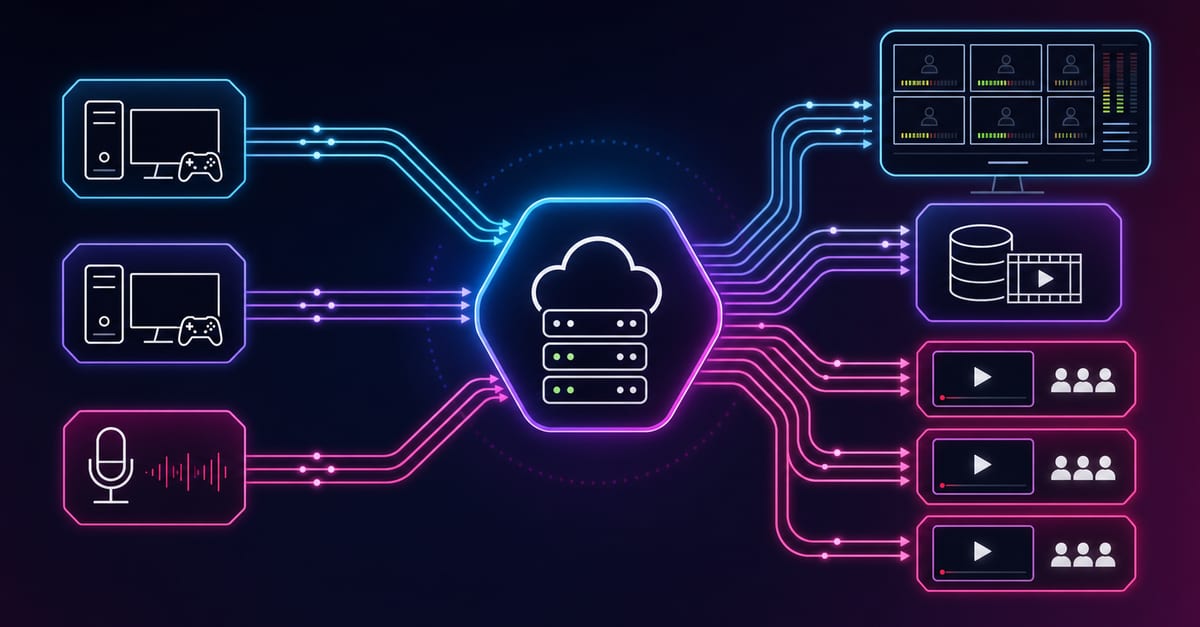
When streams become business-critical (sponsors, paid access, consistent event cadence), single-PC direct-to-platform setup can become limiting. A controlled routing layer helps with redundancy, consistent playback, and team operations.
For teams running ticketed or premium sessions, evaluate pay-per-view streaming capabilities. For custom automation and integrations, use a programmable path via video API.
If you run always-on channels or long-form programming windows, review continuous streaming architecture choices to lower operator load and reduce manual errors.
Practical Troubleshooting Patterns
When Twitch stream quality degrades, reaction speed matters less than reaction order. Start with the smallest reversible change and verify impact in the same observation window. A useful sequence is:
- Confirm whether issue is encoder-side (skipped/render lag) or network-side (dropped frames).
- If network-related, lower bitrate one step and observe for 3-5 minutes.
- If encoder-related, reduce scene complexity first, then FPS if needed.
- Check audio continuity separately; many streams recover video but keep broken voice routing.
- Document what fixed it, so next stream starts with a stronger baseline.
This simple sequence prevents panic tuning. Channels that apply consistent troubleshooting usually improve faster than channels that constantly chase perfect visual sharpness.
Example Profiles You Can Start With
These profiles are practical templates, not hard rules. Pick one based on your PC headroom and content motion:
Profile A: Safe Starter (Most New Channels)
- 1280x720 at 30 FPS
- 3500-4500 Kbps video bitrate
- AAC 160 Kbps audio
- GPU encoder when available
Profile B: Balanced 1080p
- 1920x1080 at 60 FPS (or 30 FPS for lower-motion categories)
- 5000-6000 Kbps video bitrate
- Keyframe interval 2 seconds
- Test with full overlay stack before publishing schedule
Profile C: Recovery Mode
- 1280x720 at 30 FPS
- Bitrate reduced by 15-25 percent from your normal profile
- Minimal browser sources and effects
- Used only when quality alert thresholds are breached during live session
Maintaining one recovery profile is a practical insurance policy. It helps preserve continuity during short outages or local performance drops without fully ending your stream.
Pricing
Cost planning should be explicit before your channel grows. Free platform distribution reduces entry barriers, but production costs still come from encoding, monitoring, moderation, support time, and infrastructure choices during peak traffic.
If you need managed launch speed and easier procurement, use the cloud route via AWS Marketplace listing. If you need deeper infrastructure control, compliance alignment, or fixed-cost planning, evaluate self-hosted streaming solution.
A practical model for growing channels is phased deployment: start with lightweight managed setup, validate audience and workflow, then decide whether to keep managed path or move part of traffic to self-hosted operations.
FAQ
How much upload speed do I need to stream on Twitch from PC?
For stable 1080p streaming, many creators target at least 8-10 Mbps real upload with headroom. For 720p streams, lower bandwidth can work, but consistency and low packet loss are still critical.
Should I use OBS or Twitch Studio on Windows?
Twitch Studio is simpler for first launch. OBS gives better long-term control, better ecosystem, and broader optimization options once you stream regularly.
Why is my Twitch stream dropping frames even with good internet speed tests?
Speed tests do not fully reflect jitter, packet loss, route quality, or encoder overload. Check dropped/skipped frames in your software and test with a private stream under realistic load.
What is the best bitrate for Twitch on PC?
Common starting range is 4500-6000 Kbps depending on content motion, encoder, and network stability. Start conservatively, then adjust in small steps based on test results.
Can I stream to Twitch and other platforms at the same time from one PC?
Yes, but local encoding and network load increase quickly. If quality becomes unstable, move distribution logic out of your local machine and use controlled multi-stream routing.
Do I need a webcam to start streaming on Twitch?
No. Many successful channels start with gameplay or screen content plus strong commentary audio. A clean audio chain matters more than camera quality on day one.
How do I reduce CPU usage while streaming games?
Use GPU encoding, reduce output resolution/FPS, simplify browser sources and overlays, and close background apps that consume CPU or disk throughput.
What should I check right before going live?
Confirm stream key, category/title, audio levels, source visibility, encoder status, and first-minute playback health in Twitch player before promoting your link.
When should I consider a self-hosted or managed cloud video stack?
Consider it when stream quality directly impacts revenue, paid access, partner obligations, or compliance needs. At that stage, reliability and operational control matter more than basic convenience.