Obs Settings For Twitch
More live video workflow notes and product updates.

OBS Settings for Twitch: Practical Guide for Stable Streams
OBS settings for Twitch are not about finding one magic preset. They are about matching bitrate, resolution, encoder load, and fallback logic to your real hardware and upload conditions. Many streamers optimize for peak sharpness and then lose continuity under normal network variation. The better approach is profile-based: stable baseline first, quality tuning second.
This guide gives practical settings logic for Twitch-focused workflows with clear decision rules.
Start With Twitch Constraints
Twitch ingest and viewer experience should define your baseline. Before changing OBS values, align your target resolution/FPS with reliable upload capacity and expected audience device mix.
- Prioritize continuity over maximum theoretical detail.
- Keep encoder headroom for overlays and scene changes.
- Validate settings during real peak usage windows.
Core OBS Settings That Matter Most
- Video bitrate: biggest factor for quality and buffering risk.
- Encoder + preset: quality efficiency vs system load.
- Resolution/FPS: multiplies data and compute requirements.
- Keyframe interval: impacts ingest and playback behavior.
- Audio bitrate: speech and game audio clarity.
These variables should be tuned together, not independently.
Recommended Profile Families
Conservative profile
Use when network or hardware stability is uncertain. Aim for smooth startup and low incident risk.
Balanced profile
Use for regular streaming where quality and continuity must both be strong.
High-motion profile
Use for fast gameplay or action-heavy scenes with stricter monitoring and fallback rules.
Typical Twitch-Focused Starting Ranges
- 720p30: practical for weaker hardware or unstable upload.
- 1080p30: common balanced target for many channels.
- 1080p60: only when upload and encoder headroom are consistently strong.
Use ranges as starting points and validate with rehearsal metrics before committing.
Common OBS/Twitch Mistakes
Mistake 1: Forcing 1080p60 on unstable connections
Fix: drop one rung in FPS or bitrate to improve continuity.
Mistake 2: Ignoring encoder overload warnings
Fix: simplify scenes, lower preset aggressiveness, or reduce output complexity.
Mistake 3: No fallback profile
Fix: define one conservative fallback and trigger conditions before going live.
Mistake 4: Changing multiple settings mid-stream
Fix: apply one approved mitigation at a time and validate viewer-side recovery.
How to Tune OBS for Twitch Step by Step
- Choose target event class and profile family.
- Set baseline resolution/FPS for your hardware tier.
- Apply conservative bitrate and encoder preset.
- Run 20-30 minute rehearsal with real scene complexity.
- Measure dropped frames, buffering impact, and recovery behavior.
- Adjust one parameter and retest.
This process prevents fragile settings that fail under pressure.
Operational Architecture Context
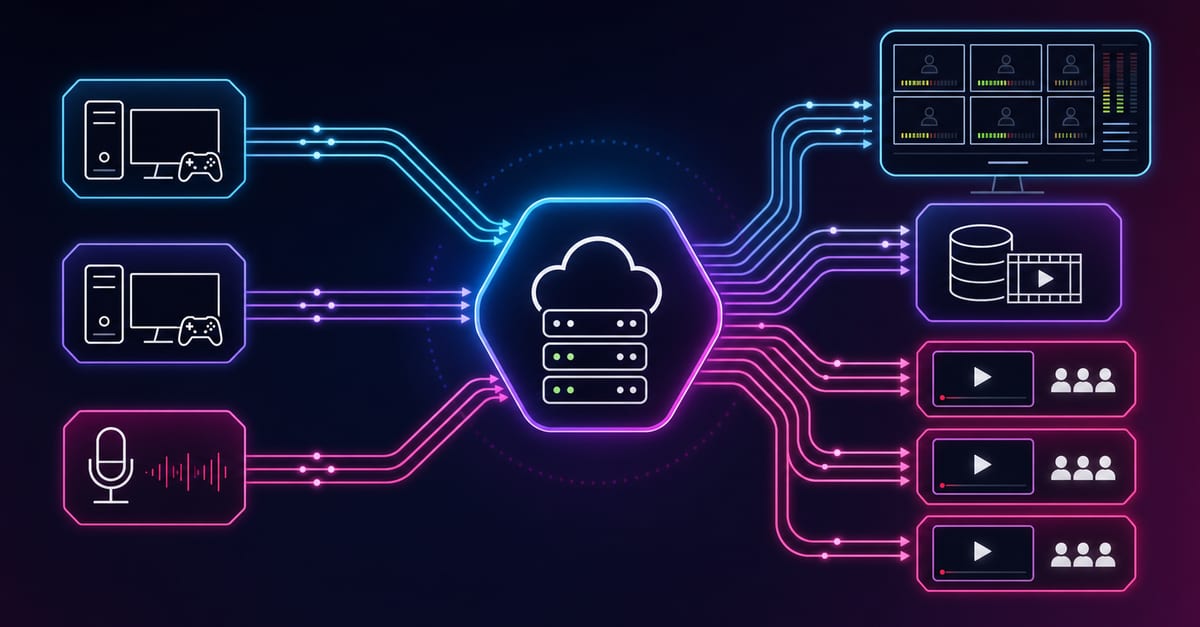
OBS client settings are strongest when connected to a broader workflow stack:
- Ingest and route for contribution and destination control.
- Player and embed for replay and controlled playback paths.
- Video platform API for automation and lifecycle consistency.
This setup reduces troubleshooting blind spots beyond OBS itself.
Twitch Stream QA Checklist
- Test from at least two regions/devices.
- Monitor dropped frames and encoder utilization in rehearsal.
- Validate audio clarity and sync in high-motion scenes.
- Confirm fallback profile and owner.
- Freeze non-critical changes before important streams.
KPIs That Matter
- Startup reliability: sessions starting under target threshold.
- Continuity quality: interruption and buffering metrics.
- Recovery speed: time to stable output after alert.
- Operator efficiency: mitigation cycle duration.
Case Example: Gameplay Channel
A gameplay channel pushed high-motion settings with aggressive bitrate. Streams looked sharp in ideal conditions but degraded during regional upload fluctuations. After moving to balanced profile with clear fallback thresholds, watch-time improved due to better continuity.
Case Example: Small Creator Team
A two-person team changed settings on every stream and had inconsistent results. They standardized three profile families, added a preflight checklist, and ran weekly postmortems. Incident frequency dropped and setup time shortened.
Use the bitrate calculator to size the workload, or build your own licence with Callaba Self-Hosted if the workflow needs more flexibility and infrastructure control. Managed launch is also available through AWS Marketplace.
Choose by operational ownership model and reliability requirements, not only by peak visual target.
FAQ
What are the best OBS settings for Twitch?
The best settings are the most stable settings your hardware and upload can sustain under real conditions.
Is 1080p60 always better for Twitch?
No. If it causes instability, a lower profile with better continuity is superior.
How often should I change OBS settings?
Only when data supports change: after structured tests or incident reviews.
Should bitrate be maximized?
No. Use bitrate that balances quality with reliable transport and recovery.
How do I reduce stream instability fast?
Apply conservative fallback profile, simplify scenes, and validate recovery before further tuning.
What matters most for growth: sharpness or continuity?
Continuity. Stable viewing experience usually drives better retention and trust.
Advanced Twitch Workflow Controls
Stable Twitch output comes from control discipline, not constant optimization. Teams should define event-class templates with clear trigger thresholds for fallback actions. Without explicit triggers, operators overreact to short fluctuations and create additional instability.
- set alert thresholds for dropped frames and continuity degradation;
- document one-step fallback actions for each profile family;
- assign operator ownership for each mitigation decision;
- track mitigation outcomes in post-event review logs.
Profile Governance
Profile drift is a major hidden risk. Maintain versioned templates and avoid last-minute edits before important sessions.
- lock baseline profile per event class;
- use release notes for every template change;
- require rollback path for each promoted update;
- audit profile usage weekly.
Role-Based Responsibilities
Producers
- Approve profile and fallback owner before live window.
- Enforce change freeze for high-impact streams.
Engineers
- Maintain template versions and monitoring dashboards.
- Correlate technical metrics with viewer-facing impact.
Support
- Capture device/region/timestamp in viewer complaints.
- Escalate repeated cohort patterns with structured context.
Weekly Operating Rhythm
- Review last week incidents and unresolved corrective actions.
- Validate profile integrity and fallback readiness.
- Run one controlled rehearsal for the highest-risk class.
- Approve one measurable improvement for next cycle.
Weekly rhythm keeps reliability from drifting as channel complexity grows.
Monthly Audit Checklist
- Are all streams using approved profile versions?
- Did fallback drills run for each major class this month?
- Are startup/continuity KPIs improving?
- Are postmortem actions closed on schedule?
Storage and VOD Considerations
For teams that repurpose Twitch streams into VOD assets, profile planning should include archive readiness and file lifecycle strategy. Capture quality and continuity settings should be evaluated for both live experience and downstream editing value.
Decision Triggers for Re-Architecture
Consider broader workflow changes when:
- incidents persist across multiple profile revisions;
- recovery speed does not improve despite runbook discipline;
- support load grows with audience scale;
- critical sessions repeatedly degrade during predictable peak windows.
At that point, workflow automation and routing architecture updates may be more effective than local OBS tuning alone.
Practical Next Step
Run two rehearsals this week for your most common Twitch format: one with current profile and one with fallback profile. Compare continuity variance and keep the profile with lower incident risk, even if peak sharpness is slightly lower.
Post-Event Review Template
- What signal indicated quality risk first?
- Which fallback action was applied?
- How fast did viewer experience recover?
- Which profile change should be permanent?
- What manual step must be automated next?
Short reviews after each important stream build reliability faster than occasional full resets.
Implementation Checklist
- Pick one profile family per stream class.
- Assign fallback owner and threshold triggers.
- Run full-scene rehearsal at least weekly.
- Freeze profile changes before critical sessions.
- Review KPI trends and update templates monthly.
Executive Summary
For Twitch, the best OBS settings are not the sharpest settings on paper. They are the settings that sustain continuity and predictable recovery across real audience conditions. Teams that prioritize repeatable operations over ad-hoc tweaks consistently grow faster and with fewer incidents.
Hardware Tier Planning
Not every creator workstation can sustain identical OBS profiles. Define at least three hardware tiers and map profile defaults accordingly. This prevents incidents caused by copying high-end settings to lower-tier systems.
- Tier 1: entry-level systems, conservative output and simplified scenes.
- Tier 2: balanced systems, standard profile and moderate overlays.
- Tier 3: high-end systems, higher motion tolerance with tested headroom.
Overlay Complexity Budget
Scene complexity directly impacts stability. Before increasing bitrate or FPS, evaluate whether overlay stack is causing load spikes. In many cases, reducing browser source count or animation frequency improves continuity more than bitrate tweaks.
- limit non-essential animated layers for critical sessions;
- preload assets where possible to avoid runtime spikes;
- test scene switches under expected live pacing.
Communication Standards During Incidents
Live mitigation is faster when communication is structured. Use one incident lead and timestamped updates that include impact, action, and next checkpoint.
- Update 1: impact scope and first signal.
- Update 2: mitigation selected and ETA.
- Update 3: recovery confirmation and preventive action.
Final Practical Reminder
A profile that survives real peak conditions is better than a profile that looks perfect only in lab tests. Optimize for sustained stability first, then quality expansion.
Operational SLA Model
- Startup SLA: target percentage of sessions starting under threshold.
- Continuity SLA: interruption ratio limits per event class.
- Recovery SLA: max acceptable mitigation time after alert.
- Change SLA: freeze windows before critical stream blocks.
SLAs align producers, engineers, and support teams around measurable outcomes.
Rapid Triage Questions
- Did degradation begin at encoder, network, or player layer?
- Which cohort was impacted first (device/region/referral path)?
- Was fallback applied according to runbook timing?
- Which metric recovered first after mitigation?
These questions help teams avoid guesswork and improve incident response quality.
Last-Step Checklist
- Confirm profile version and fallback owner before going live.
- Verify audio route and sync in preflight monitor.
- Check encoder load after first scene transitions.
- Avoid non-critical changes until post-stream review.
This compact checklist prevents most preventable Twitch stream incidents.
One-Line Rule
For Twitch, the winning OBS profile is the profile that remains stable for the full stream under real load and can be recovered quickly when conditions degrade.
Closing Guidance
Keep profiles simple, measurable, and owned. Teams that do this consistently deliver better viewer experience than teams that chase constant micro-tweaks during live sessions.
Final Action
Run one full rehearsal with your exact stream scene package this week and keep the profile that shows the lowest continuity variance, even if peak sharpness is slightly lower.
Implementation Reminder
Treat Twitch settings as a managed release artifact: version changes, rehearse before promotion, and never ship untested profile edits into critical windows. This discipline alone prevents many recurring stability incidents.
Final Checkpoint
Before every major Twitch stream, run one controlled rehearsal using the exact scene package and profile version planned for production. This catches drift early and reduces avoidable live-session instability.