Obs Bitrate
More live video workflow notes and product updates.

OBS Bitrate: Practical Guide to Stable Streaming Quality
OBS bitrate is one of the most important variables in streaming quality, but it is also one of the most misunderstood. Many creators increase bitrate assuming quality will always improve. In reality, bitrate must match network stability, encoder capacity, platform limits, and target resolution/FPS. If bitrate is too high for conditions, viewers see buffering and dropped quality. If bitrate is too low, image detail collapses.
This guide explains how to choose bitrate in OBS with practical production logic instead of guesswork.
What Bitrate Means in OBS
Bitrate is the amount of data sent per second for your stream. In OBS, video bitrate and audio bitrate are configured separately. Higher video bitrate allows more detail, but requires stronger upload stability and compatible platform settings.
- Video bitrate: primary driver of visual detail and compression artifacts.
- Audio bitrate: speech/music clarity; usually lower impact on total load.
- Total outgoing load: video + audio + overhead + stability margin.
Why “One Best Bitrate” Does Not Exist
Optimal bitrate depends on multiple factors:
- platform ingestion rules and quality ladders;
- target resolution and FPS (720p30, 1080p60, etc.);
- content motion complexity (talking head vs gameplay/sports);
- encoder type (x264, NVENC, AMF, QuickSync) and preset;
- real upload stability, not only headline speed-test number.
Teams that ignore this context often chase visual gains while harming continuity.
Practical Starting Ranges (OBS)
Use these as starting points, then validate with rehearsal metrics:
- 720p30: around 2500-4500 kbps depending on motion and platform.
- 1080p30: around 4500-7000 kbps for balanced quality.
- 1080p60: around 6000-9000 kbps when upload and platform allow it.
Audio often lands in 96-160 kbps range depending on content type and platform expectations.
Bitrate and Encoder Preset Relationship
Bitrate alone does not define quality. Encoder presets influence compression efficiency and CPU/GPU load. Slower/more efficient presets can improve quality at same bitrate but may increase system stress. For live reliability, choose settings your hardware can sustain for full session duration.
Common OBS Bitrate Mistakes
Mistake 1: Maxing bitrate to “future proof” quality
Fix: set bitrate to realistic upload and platform constraints with safety margin.
Mistake 2: Ignoring upload stability variance
Fix: test during real-world peak hours, not only ideal conditions.
Mistake 3: Using one profile for all content classes
Fix: define profile families (conservative, standard, high-motion).
Mistake 4: Tuning only visuals and ignoring recovery behavior
Fix: measure startup, continuity, and incident recovery together.
How to Choose OBS Bitrate Step by Step
- Define target resolution/FPS and content class.
- Check platform limits and recommended ranges.
- Measure stable upload floor and reserve headroom.
- Pick initial bitrate + encoder preset combination.
- Run 20-30 minute rehearsal with realistic overlays/audio chain.
- Adjust one variable at a time and retest.
This method avoids random tuning loops and speeds up stable outcomes.
Operational Architecture Context
Bitrate decisions are stronger when embedded in broader workflow control:
- Ingest and route for contribution and stream distribution management.
- Player and embed for playback consistency and UX control.
- Video platform API for automation and lifecycle actions.
This systematic mapping reduces dead-end troubleshooting.
OBS Bitrate QA Checklist
- Run test stream with realistic scene complexity.
- Monitor dropped frames, encoder overload, and output stability.
- Validate playback on desktop and mobile cohorts.
- Confirm fallback profile and rollback criteria before live.
- Log final approved settings with owner names.
KPIs That Matter
- Startup reliability: percent of sessions starting under target.
- Continuity quality: rebuffer ratio and interruption duration.
- Recovery speed: time to stabilize after degradation.
- Operator efficiency: time from alert to applied mitigation.
Case Example: Gaming Stream Team
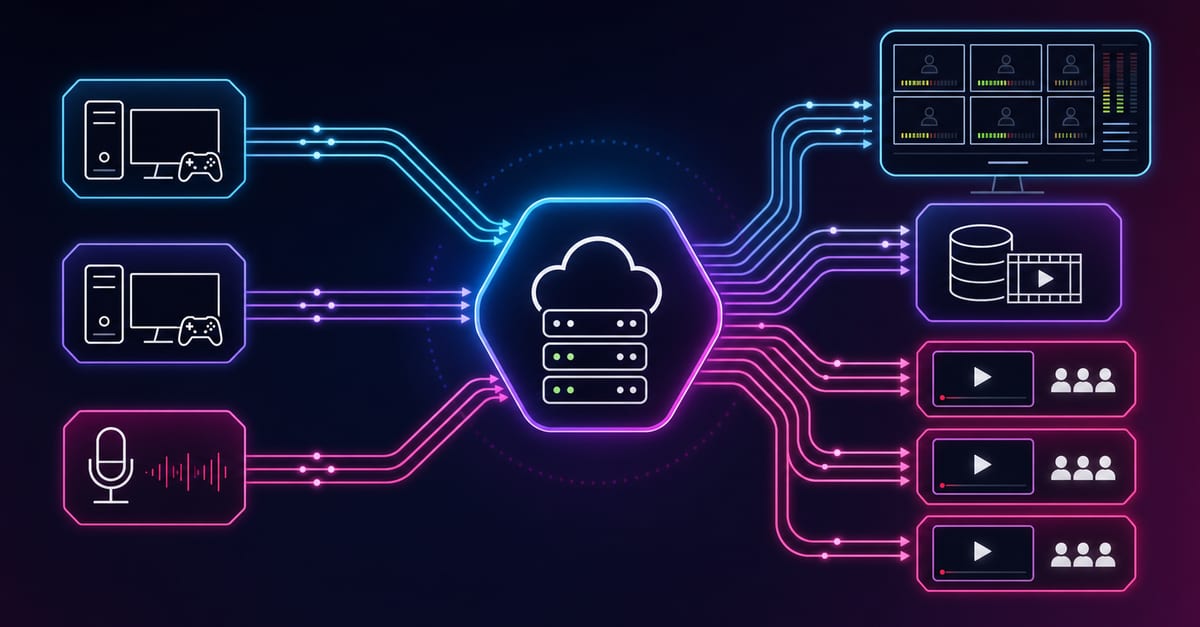
A gaming team pushed high bitrate at 1080p60 to maximize sharpness. During peak hours, upload fluctuation caused dropped frames and viewer complaints. They switched to a balanced profile and tested during real peak conditions. Viewership retention improved because continuity became predictable.
Case Example: Corporate Webinar Program
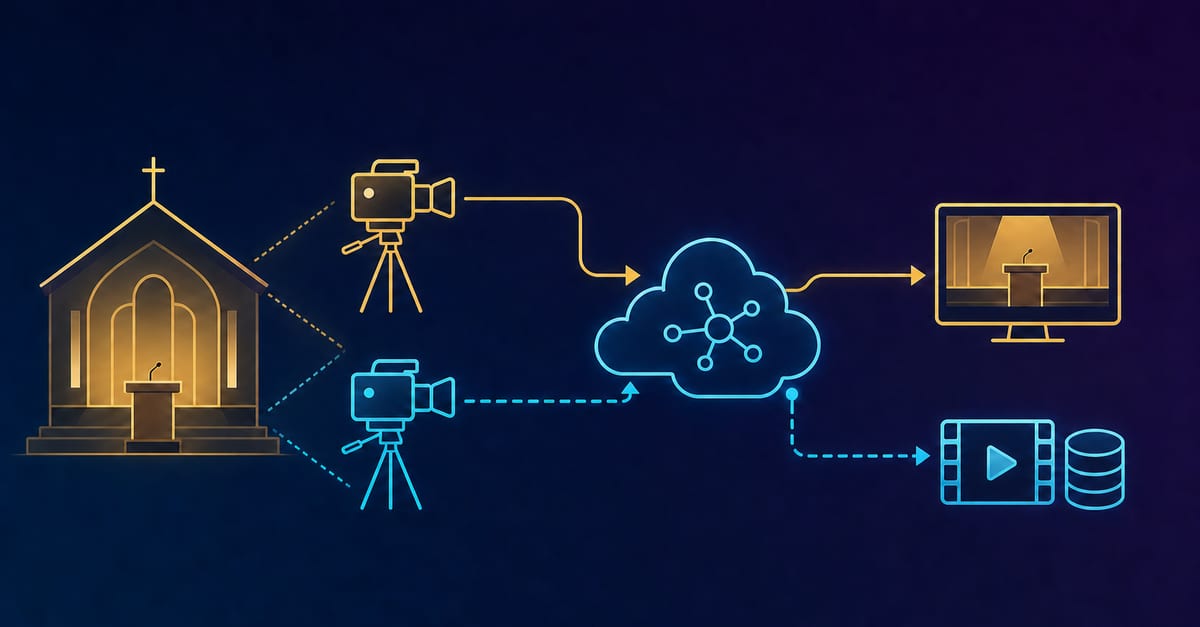
A webinar team used one bitrate profile for all sessions. Slide-heavy sessions worked, but panel discussions with dynamic motion degraded. The team introduced content-class profiles and conservative defaults for high-risk sessions. Incident volume dropped, and support load decreased.
30-Day OBS Bitrate Improvement Plan
- Week 1: baseline current stream KPIs by event class.
- Week 2: define and test profile families.
- Week 3: rehearse fallback and threshold triggers.
- Week 4: freeze stable defaults and publish runbook updates.
Decision Matrix
- Weak/variable upload: lower bitrate, prioritize continuity.
- High-motion content: use dedicated profile and stricter monitoring.
- Small team: fewer profiles, stronger operational discipline.
- High-stakes events: conservative launch profile with rehearsed fallback.
Pricing and Deployment Path
If you need faster managed launch for production workflows around OBS contribution and delivery, review the AWS Marketplace listing. If you need infrastructure ownership, compliance control, and self-managed economics, review the self-hosted streaming solution.
Choose path based on ownership model and operational readiness, not bitrate target alone.
FAQ
What is a good OBS bitrate for beginners?
Start with conservative settings based on your resolution/FPS and stable upload floor, then test and adjust incrementally.
Does higher bitrate always mean better quality?
No. If bitrate exceeds stable transport and platform conditions, viewer experience worsens.
Should I use one bitrate for every stream?
No. Different content classes and risk profiles need different presets.
How do I test bitrate safely?
Run controlled rehearsals with realistic scenes and monitor continuity metrics, not only image sharpness.
What matters more for business outcomes: quality or continuity?
Usually continuity. Stable playback with slightly lower detail often outperforms unstable sharp output.
How often should OBS bitrate settings be reviewed?
At least quarterly and after major incidents or platform rule changes.
Advanced Bitrate Strategy by Event Class
Bitrate policy should be mapped to event class, not only resolution:
- Webinars/Education: continuity-first, conservative bitrate and predictable startup.
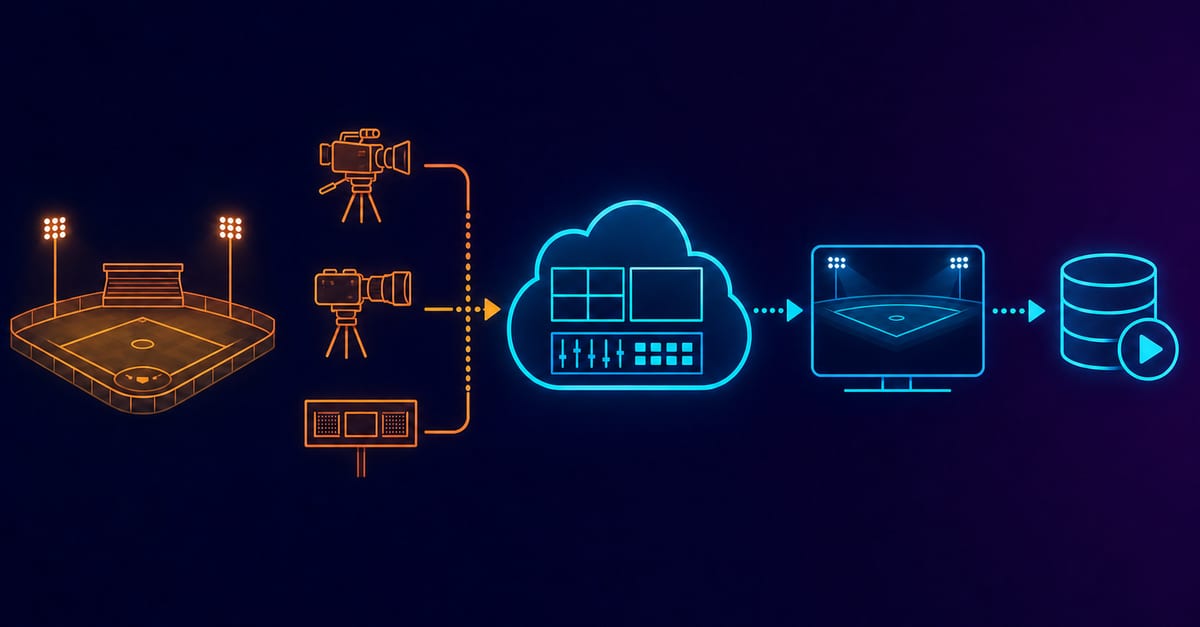
- Gaming/Sports: higher motion tolerance needs dedicated profile and tighter monitoring.
- Commerce launches: prioritize stability during conversion windows, avoid risky last-minute tuning.
- 24/7 channels: long-session resilience and operator simplicity are primary.
Class-based policy reduces operator confusion and incident variance.
Encoder Choice Impact on Bitrate Decisions
x264 and hardware encoders differ in efficiency and system load behavior. A bitrate that works with one encoder path may fail with another due to compute pressure or transient spikes. Teams should validate encoder and bitrate together, not separately.
- Track encode utilization over full session duration.
- Watch for late-session instability, not only first 5 minutes.
- Document safe ceilings per machine profile.
Runbook for Bitrate Incidents
- Confirm whether issue is contribution-side or player-side first.
- Freeze non-essential changes during incident window.
- Apply approved fallback bitrate/profile rung.
- Validate viewer-side recovery on representative cohorts.
- Capture incident timeline and convert to template update.
Structured response prevents random tuning and shortens downtime.
SLA Model for OBS-Based Operations
- Startup SLA: session start threshold by event class.
- Continuity SLA: interruption and rebuffer caps.
- Recovery SLA: maximum mitigation time after alert.
- Change-control SLA: freeze window before high-impact events.
SLA clarity aligns production, engineering, and business expectations.
Weekly Operating Rhythm
- Review latest stream incidents and unresolved actions.
- Validate profile templates and fallback ownership.
- Audit bitrate decisions against real KPI outcomes.
- Approve one measurable improvement for next week.
Consistency in routine usually delivers better quality than occasional large retuning sessions.
Monthly Audit Checklist
- Are all active profiles versioned and owner-assigned?
- Do dashboards segment metrics by event class and cohort?
- Were fallback drills executed this month?
- Did support load trend improve after profile updates?
Audit discipline keeps bitrate strategy grounded in real outcomes.
Final Recommendation
Treat OBS bitrate as an operational control, not a static number. Use class-based profiles, test under realistic conditions, and prioritize continuity over vanity sharpness during live sessions. This approach improves viewer trust and lowers incident stress.
Post-Event Review Template
- What signal showed degradation first?
- Which mitigation was applied and how quickly?
- How long did user-visible impact last?
- What setting should become default for this event class?
- Which manual step should be automated next?
Short repeatable postmortems produce faster quality gains than ad-hoc debugging.
Role-Based Ownership
Producers
- Approve event-class profile before live window.
- Enforce change freeze rules.
Engineers
- Maintain profile versions and test coverage.
- Correlate contribution and player metrics in one timeline.
Support Teams
- Capture device, region, and timestamp in playback complaints.
- Escalate repeated patterns with structured evidence.
Clear ownership usually reduces mitigation time more than extra tooling.
Migration Checklist
- Inventory all currently used OBS bitrate presets.
- Consolidate to 3 profile families maximum.
- Define fallback triggers and owner names.
- Validate profiles in two regions and mixed device cohorts.
- Freeze defaults and publish runbook notes.
A staged migration avoids sudden quality regression during active programs.
Practical Next Step
Run one rehearsal this week with your target event class, compare startup and continuity metrics across two bitrate profiles, and keep the profile that delivers lower variance, not just higher sharpness.
Use the bitrate calculator to size the workload, or build your own licence with Callaba Self-Hosted if the workflow needs more flexibility and infrastructure control. Managed launch is also available through AWS Marketplace.
- measure stable upload floor during real usage hours;
- reserve safety margin for jitter and background traffic;
- allocate budget by video bitrate, audio bitrate, and protocol overhead;
- validate with 30-minute soak tests, not short spot checks.
Budgeting prevents over-aggressive profiles that fail under normal network variation.
Platform Constraint Awareness
Different platforms enforce different ingest and recommendation limits. Teams should map profile families to platform-specific constraints before event day. A profile that performs well on one destination can underperform or be restricted on another.
- keep one compatibility profile for strict platform limits;
- keep one quality profile for higher-capacity destinations;
- avoid switching destinations without preflight validation.
Cohort-Based Validation Matrix
- Desktop broadband cohort: baseline quality and startup checks.
- Mobile mixed-network cohort: continuity and recovery stress checks.
- Embedded playback cohort: autoplay, policy, and boot timing checks.
- Low-end hardware cohort: decode and long-session stability checks.
This matrix catches issues that single-device tests miss.
Incident Escalation Ladder
- Operator applies first approved fallback rung.
- If unresolved, engineering validates transport and encoder metrics.
- If still unresolved, incident lead freezes changes and executes rollback profile.
- Post-incident review updates templates before next release.
Escalation ladders remove ambiguity during high-pressure windows.
Capacity Planning Notes
Capacity planning for OBS-based workflows should consider simultaneous sessions, event overlap, and team hardware diversity. A single “best machine” benchmark is not enough for organization-wide reliability. Keep profile defaults tied to lowest supported production hardware where possible.
Executive Summary
OBS bitrate should be managed as a controlled operations policy, not a static creative preference. Teams that standardize profile families, validate by cohort, and run disciplined fallback drills consistently achieve better continuity and stronger viewer retention.
One-Line Rule
Choose the highest bitrate your real network and operations process can sustain consistently, not the highest bitrate your best-case test can show.
Closing Note
Reliable OBS bitrate tuning is a repeatable discipline: measure, test, compare, and standardize. Repeat that cycle every release and quality becomes predictable.
Implementation Step
Document one approved bitrate profile per event class, assign an owner, and enforce that profile during the next live cycle. Compare KPI variance before and after this change. Most teams see immediate stability gains from this single control.
Final Quick Rule
Bitrate settings should be chosen by sustained performance under realistic load, not by single best-case speed tests.