How Do You Stream On Twitch
More live video workflow notes and product updates.

This guide answers the practical question "how do you stream on Twitch" from the perspective of a streaming engineer: what to configure locally, how latency and quality trade-offs work, when to use cloud restreaming, and concrete encoder/network targets you can apply immediately. It assumes you are producing an event or a daily stream and want predictable quality, stable latency, and an efficient path to restreaming or recording VODs. If this is your main use case, this practical walkthrough helps: Media Streaming Service. Before full production rollout, run a Test and QA pass with streaming quality check and video preview and a test app for end-to-end validation.
What it means (definitions and thresholds)
Streaming to Twitch is an end-to-end pipeline with discrete technical components. Understanding the terms and thresholds helps set configuration targets and spot failures quickly. For an implementation variant, compare the approach in Internet Speed For Streaming.
- Ingest (RTMP): Twitch accepts a single upstream using RTMP (use the ingest URL shown in your Twitch dashboard and your stream key). The upstream should be CBR (constant bit rate) for predictable bandwidth.
- Encoder: Software (x264 in OBS), GPU (NVENC/AMD/VCE/QuickSync) or cloud encoders. Key parameters: codec (H.264), profile (main/high), level (4.1), keyframe interval = 2s, rate control = CBR.
- GOP / Keyframe: Keyframe interval must be 2 seconds on Twitch. GOP size = keyframe_interval_seconds * framerate (e.g., 2s * 30 fps = GOP 60 frames).
- Bitrate thresholds:
- 1080p60: up to 6000 kb/s (Twitch-enforced upper limit for many streams)
- 1080p30: 4500 kb/s
- 720p60: 4500 kb/s
- 720p30: 3000 kb/s
- 480p30: 1500 kb/s
- 360p30: 800 kb/s
- Audio: AAC, 48 kHz (or 44.1 kHz), stereo, 128–192 kb/s typical. Twitch recommends 160 kb/s for stereo clarity on music/game audio.
- Viewer latency:
- Standard HLS-based delivery: 10–30 seconds end-to-end.
- Low-latency mode (Twitch reduced latency): typically 2–7 seconds in good conditions.
- Interactive (sub-second) is generally only available with specialized WebRTC or low-latency APIs, not standard RTMP-to-Twitch flows.
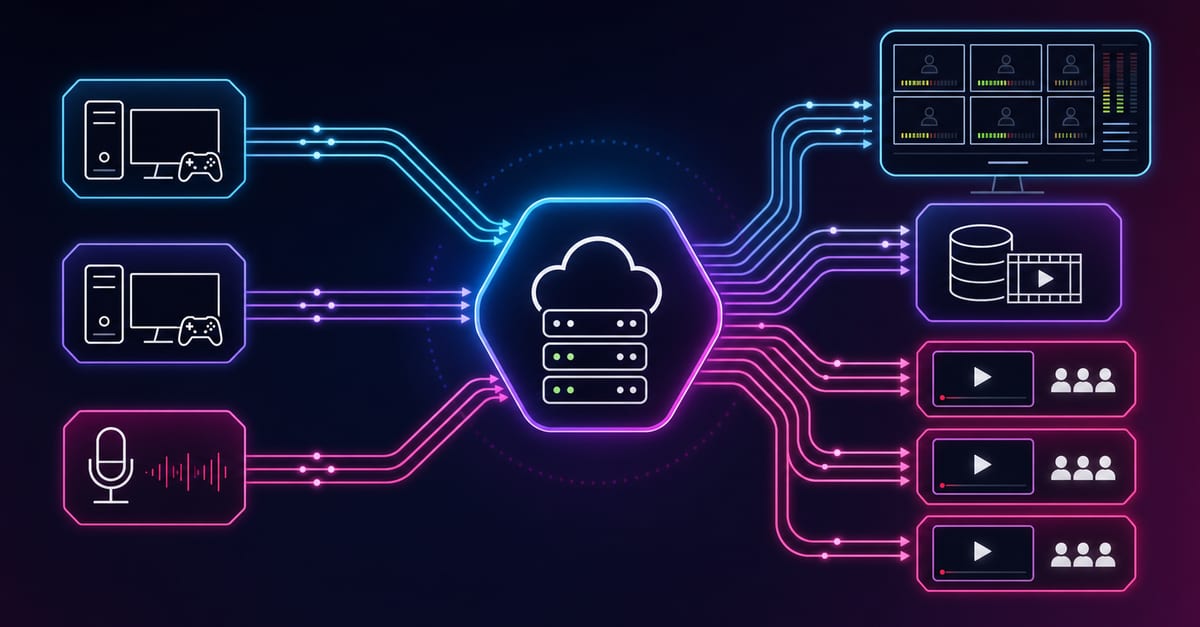
- Restreaming: Sending one high-quality upstream and having a cloud service distribute to multiple platforms (Twitch, YouTube, Facebook) is the standard approach to avoid multiple uplink streams from the same encoder.
Decision guide
Pick a workflow based on scale, latency needs, and whether you need guests or multi-destination outputs. Below are common scenarios and recommended choices. If you need a deeper operational checklist, use Flv Vs Mp4.
Use the bitrate calculator to size the workload, or build your own licence with Callaba Self-Hosted if the workflow needs more flexibility and infrastructure control. Managed launch is also available through AWS Marketplace.
Budget template (glass-to-glass)
- Capture (camera + capture card): 30–150 ms
- Encode (frame encode + queue): 100–500 ms (software x264 tends toward the higher side; NVENC can be 50–200 ms)
- Transport (uplink RTT, jitter buffering): 50–500 ms
- Ingest processing (RTMP accept + handoff): 50–300 ms
- Transcoding on platform (if enabled): 500–2000 ms
- Segmenting / packaging (HLS/DASH): 2–6 s (standard segments) or parts 200–500 ms for LL-HLS/LL-DASH implementations
- CDN propagation + player buffer: 500 ms–5 s
Example target totals
- Standard delivery (reliability prioritized): 10–30 seconds total. Segment sizes = 4–6 s; player buffer 2 segments.
- Reduced latency (streaming interactivity): 2–7 seconds total. Use smaller segments or LL-HLS parts (200–500 ms), reduce player buffer to 1–2 parts/segments, and optimize encode/transport to sub-500 ms ranges.
Use the budget to choose where to invest: for lower latency put effort into fast encoders (NVENC), network RTT reductions (regional ingest), and smaller packaging parts. For reliability, use larger segments and a stable CBR.
Practical recipes
Below are production-ready recipes you can apply immediately. Each recipe lists encoder and network targets plus common flags in OBS or a hardware encoder.
Recipe 1 — Basic OBS solo stream (stable, < 10 Mbps upload)
- Target: 720p30 at 3000 kb/s, audio 160 kb/s, keyframe 2s.
- OBS settings (Output & Advanced):
- Encoder: x264 (or NVENC if available)
- Rate Control: CBR
- Bitrate: 3000 kb/s
- Keyframe Interval: 2
- CPU Preset: veryfast (x264) — lower CPU cost at the expense of some quality
- Profile: main
- Audio Bitrate: 160 kb/s, Sample Rate: 48 kHz
- Network: ensure at least 4.5 Mbps upload available (50% headroom: 3 Mb/s * 1.5 = 4.5 Mbps).
- Steps:
- Set Twitch ingest server and paste stream key from the dashboard (do not share stream key).
- Run a 5–10 minute local recording to verify encoding settings and A/V sync before going live to Twitch.
- Confirm dropped frames < 1% in OBS; check CPU/GPU utilization does not spike over 80%.
Recipe 2 — Competitive/high-motion 1080p60 with NVENC
- Target: 1080p60 at 6000 kb/s (Twitch max), audio 160 kb/s, keyframe 2s.
- OBS settings:
- Encoder: NVIDIA NVENC (hardware)
- Rate Control: CBR
- Bitrate: 6000 kb/s
- Keyframe Interval: 2
- Preset: quality (or performance if GPU-bound)
- Profile: high
- Max B-frames: leave default per NVENC; do not increase beyond hardware defaults without testing
- Network: reserve at least 9 Mbps upload (50% headroom) and use Ethernet (no Wi-Fi).
- Steps:
- Disable unnecessary background uploads or aggressive OS updates before streaming.
- Run a 15–20 minute test with observers or a private Twitch stream to validate CPU/GPU and network stability.
Recipe 3 — Multi-platform restream from a single upstream (recommended workflow)
- Target: send a single 4500–6000 kb/s high-quality upstream to a cloud multistreamer, and let the cloud service output to Twitch, YouTube, Facebook, etc.
- Why: avoids multiple local uploads, centralizes title/metadata edits, and enables destination-specific transcoding.
- Workflow:
- Configure OBS to send one RTMP to the cloud multistream endpoint (use /products/multi-streaming as your cloud endpoint control plane).
- Use encoder settings: H.264, CBR, keyframe = 2s, bitrate = 4500 kb/s (if uploading from consumer internet with ~7–10 Mbps available).
- Set the multistream service to publish to Twitch using your Twitch account connection and to other destinations as needed.
- Network: upload >= 1.5x stream bitrate recommended (for 4500 kb/s target, reserve at least 7 Mbps)
- Notes: use per-destination stream rules for title/thumbnail/metadata; monitor per-destination health from the cloud control panel.
Recipe 4 — Low-latency guest show (cloud mix, then RTMP to Twitch)
- Target: sub-3–7s viewer latency for produced output; sub-500 ms latency between participants during capture (using WebRTC/SRT to a video API).
- Workflow:
- Capture remote guests using a real-time API or WebRTC endpoint (see /products/video-api for capture and mixing integration).
- Mix and composit in the cloud—apply audio sync, levels, and branding—and produce a single RTMP to Twitch with keyframe = 2s and bitrate = 4500 kb/s.
- Store a high-bitrate recording in VOD storage for post-processing via /products/video-on-demand.
- Why: mixing in the cloud keeps guest latency low for conversation, while Twitch sees a single consolidated stream for viewers.
Practical configuration targets
These are direct targets to set in OBS, hardware encoders, or cloud encoders. Treat them as starting points—tune after validating your network and encoder performance.
- Keyframe interval: 2 seconds (mandatory for Twitch).
- Rate control: CBR for RTMP to Twitch; set VBV/VBR only if your pipeline includes a cloud buffer/transcoder that supports it.
- Buffer/VBV:
- Set VBV buffer size equal to the target bitrate (in kb) or use the encoder default for CBR.
- Resolution & bitrate mapping:
- 1080p60: 6000 kb/s
- 1080p30: 4500 kb/s
- 720p60: 4500 kb/s
- 720p30: 3000 kb/s
- 480p30: 1500 kb/s
- Audio: AAC, 48 kHz, 160 kb/s stereo
- Network headroom: >= 25–50% above the chosen stream bitrate; always use Ethernet; avoid NAT double-wrapped carrier networks.
- Capture & encode latency: aim for encode latency <= 300 ms (NVENC) or <= 500 ms (x264 veryfast) if you want low overall latency.
Limitations and trade-offs
Every choice affects quality, cost, and latency. Know the trade-offs so you can choose what's important for your show.
- Quality vs CPU/GPU: Higher x264 quality presets (faster < veryfast) increase CPU load. Use NVENC for high FPS/low CPU but verify GPU capacity.
- Bitrate vs audience constraints: Twitch enforces maximum bitrates (commonly 6000 kb/s); not all viewers have bandwidth to receive high-bitrate streams—consider adaptive streaming if you control CDN/transcoding.
- Latency vs buffering: Lower latency requires smaller segments/parts and smaller player buffers which increases sensitivity to packet loss and jitter.
- Multi-streaming from local machine: Using multiple local RTMP outputs multiplies upload requirements; prefer a cloud multistream service that accepts one upstream and fans out.
- Transcoding availability: Twitch may not transcode for all channels—if you require multiple quality renditions for viewers, invest in cloud transcoding or multi-bitrate outputs yourself.
Common mistakes and fixes
- Frequent dropped frames in OBS:
- Cause: insufficient upload or encoder overloaded. Fix: lower bitrate, switch to NVENC, or reduce CPU preset from veryfast to superfast.
- Audio out of sync after encoding:
- Cause: encoder delay / buffering. Fix: enable audio monitoring and measure capture-to-encode delay; add an audio offset in OBS (ms) to re-align, or lower encoder latency.
- High viewer buffering or long latency:
- Cause: large HLS segments or platform buffering. Fix: enable platform low-latency mode where supported; ensure your encoder's keyframe interval matches packaging (2s); reduce segment size on your CDN if you control packaging.
- Multiple failed destinations when restreaming:
- Cause: wrong credentials/stream keys. Fix: centralize credentials in the multistream service and test each destination before going live.
- Yelling into mic / poor audio levels:
- Cause: no limiter or wrong gain staging. Fix: use a compressor/limiter on your mic channel; aim for -6 dB FS peaks.
Rollout checklist
Use this checklist before hitting "Go Live" to avoid common, costly mistakes.
- Confirm internet upload capacity using a 5-minute test. Ensure sustained upload >= 1.5x stream bitrate.
- Verify encoder settings: H.264, keyframe = 2s, CBR, bitrate set per target resolution.
- Check capture devices: camera resolution/framerate match encoder output, capture card firmware up to date.
- Run a private or unlisted test stream for 10–20 minutes and review dropped frames, CPU/GPU usage, and audio sync.
- If multi-streaming, validate destination connections in /products/multi-streaming and run a simultaneous test to each destination.
- Set up monitoring: have a second device view the Twitch output (mobile + desktop) to confirm viewer-side latency and quality.
- Record a local high-bitrate copy (MKV) or enable cloud recording to /products/video-on-demand for VOD processing.
Example architectures
Below are short, actionable architecture sketches. Choose the one that matches your needs.
Architecture A — Simple single-box producer
Local PC (OBS) -> RTMP -> Twitch ingest -> Twitch transcode + CDN -> Viewers
- Good for: casual streamers, low operational cost.
- Limitations: local upload must handle the full bitrate; no easy multi-platform support.
Architecture B — Cloud multistream (recommended for socials)
Local PC (OBS) -> RTMP -> Cloud multistream endpoint (/products/multi-streaming) -> Outputs to Twitch + YouTube + Facebook -> Viewers
- Good for: publishing to multiple platforms without multiple local uploads.
- Notes: Cloud service handles per-destination bitrate/transcoding; you retain a single control plane for metadata.
Architecture C — Low-latency guest show
Remote guests (WebRTC) -> Video API (/products/video-api) mixing -> Cloud encoder -> RTMP -> Twitch -> Viewers
- Good for: interactive shows where guests need low-latency conversation while viewers get a consolidated stream.
- Notes: record master for VOD and clipping, store on /products/video-on-demand.
Architecture D — Self-hosted origin + edge
Local/On-prem encoder -> Self-hosted RTMP origin -> Origin transcode / HLS packaging -> CDN / self-hosted edges -> Viewers. See /self-hosted-streaming-solution and the AWS marketplace listing for AMI-based or containerized options: https://aws.amazon.com/marketplace/pp/prodview-npubds4oydmku
Troubleshooting quick wins
- Dropped frames or unstable bitrate: Lower bitrate by 10–25% and switch to hardware encoder; ensure cable Ethernet and disable VPNs.
- Audio clipping or low level: Normalize and compress voice at -6 dB FS peak, use limiter.
- Long viewer latency: Verify Twitch reduced-latency setting is enabled, match keyframe interval exactly, and avoid extra server-side packaging that increases segment length.
- Black frames or frozen video: Check GPU driver, capture card cable and bandwidth, and test with a local recording to separate capture vs. upload issues.
- Multi-destination failures: Confirm valid stream keys and that destination accounts are connected in the cloud multistream control panel.
Next step
If you want to:
- Multi-stream to socials from a single upstream, evaluate our control plane at /products/multi-streaming for per-destination publishing and management.
- Build a low-latency guest experience with server-side mixing and recording, start with /products/video-api.
- Automate VOD storage, processing and multi-language renditions, review /products/video-on-demand.
Read the technical docs we reference when implementing these targets:
- /docs/rtmp-setup — RTMP endpoints and stream key handling
- /docs/encoder-config — Recommended encoder flags for OBS, NVENC, and hardware encoders
- /docs/latency-tuning — How to measure and reduce glass-to-glass latency
When you’re ready to move beyond a single Twitch stream, you can prototype a self-hosted origin or a hybrid cloud origin; read about a self-hosted option at /self-hosted-streaming-solution or deploy a tested AMI from the AWS Marketplace: https://aws.amazon.com/marketplace/pp/prodview-npubds4oydmku
If you want a custom checklist or a short production review of your current OBS/hardware settings, provide your encoder screenshots and upstream test results and we’ll produce a tailored configuration pack and rollout checklist.