

This guide shows how to use vMix SRT in both directions: first, send an SRT program output from vMix to Callaba; then receive the same SRT feed back in vMix to confirm that the signal is arriving correctly.
This workflow is useful when vMix is your live production tool and Callaba is the controlled SRT ingest point. vMix sends the live program feed over SRT. Callaba receives it, exposes live statistics, and makes the stream available for routing, monitoring, recording, restreaming, multiview, playback, or return preview.
Quick answer: how do you use SRT in vMix?
For the most common cloud workflow, create an SRT server in Callaba as Listener, then configure vMix as SRT Caller in Settings → Outputs / NDI / SRT. Use the Callaba publish-side hostname, port and Stream ID when vMix sends. To validate the feed, add a new Stream / SRT input in vMix and use the receiver-side values from Callaba.
vMix SRT: send vs receive
When people search for vMix SRT, they usually mean one of two workflows.
- vMix sends SRT: vMix acts as the sender and publishes the live output to an SRT server.
- vMix receives SRT: vMix acts as the receiver and brings an incoming SRT stream into the production as an input.
This guide covers both. First, vMix sends a stream to Callaba. Then vMix receives the same stream back from Callaba as a validation or monitoring input.
SRT URL fields in vMix
An SRT URL contains the network information needed to send or receive an SRT stream. It usually includes host, port and optional parameters such as Stream ID, mode, latency and passphrase.
srt://12.34.56.78:10080?streamid=output/event-main&latency=300If the Callaba SRT server uses encryption, include the same passphrase value on the vMix side:
srt://12.34.56.78:10080?streamid=output/event-main&passphrase=YourSecretKey&latency=300Passphrase note: use the exact same passphrase on both sides. If vMix has a separate Passphrase field, enter the key there instead of pasting it into the hostname field.
In vMix, you may need to split this URL into separate fields: hostname, port and Stream ID. If Callaba gives you a ready Publisher URL or Receiver URL, use those values as the source of truth. Do not mix publisher-side and receiver-side parameters.
vMix SRT caller, listener and rendezvous modes
SRT uses connection modes. The most common modes are Caller and Listener. Caller starts the connection. Listener waits for an incoming connection. Rendezvous is useful in some NAT cases, but it should not be your first test unless your network requires it.
When vMix receives a stream back from Callaba, vMix can also be configured as the side that connects to the receiver-side endpoint. The important point is not the label alone. The important point is which side starts the connection and which side is waiting.
What you need before you start
If you want to compare transport choices first, see SRT vs RTMP. If your main question is SRT itself, read what an SRT server is.
Send an SRT stream from vMix to Callaba
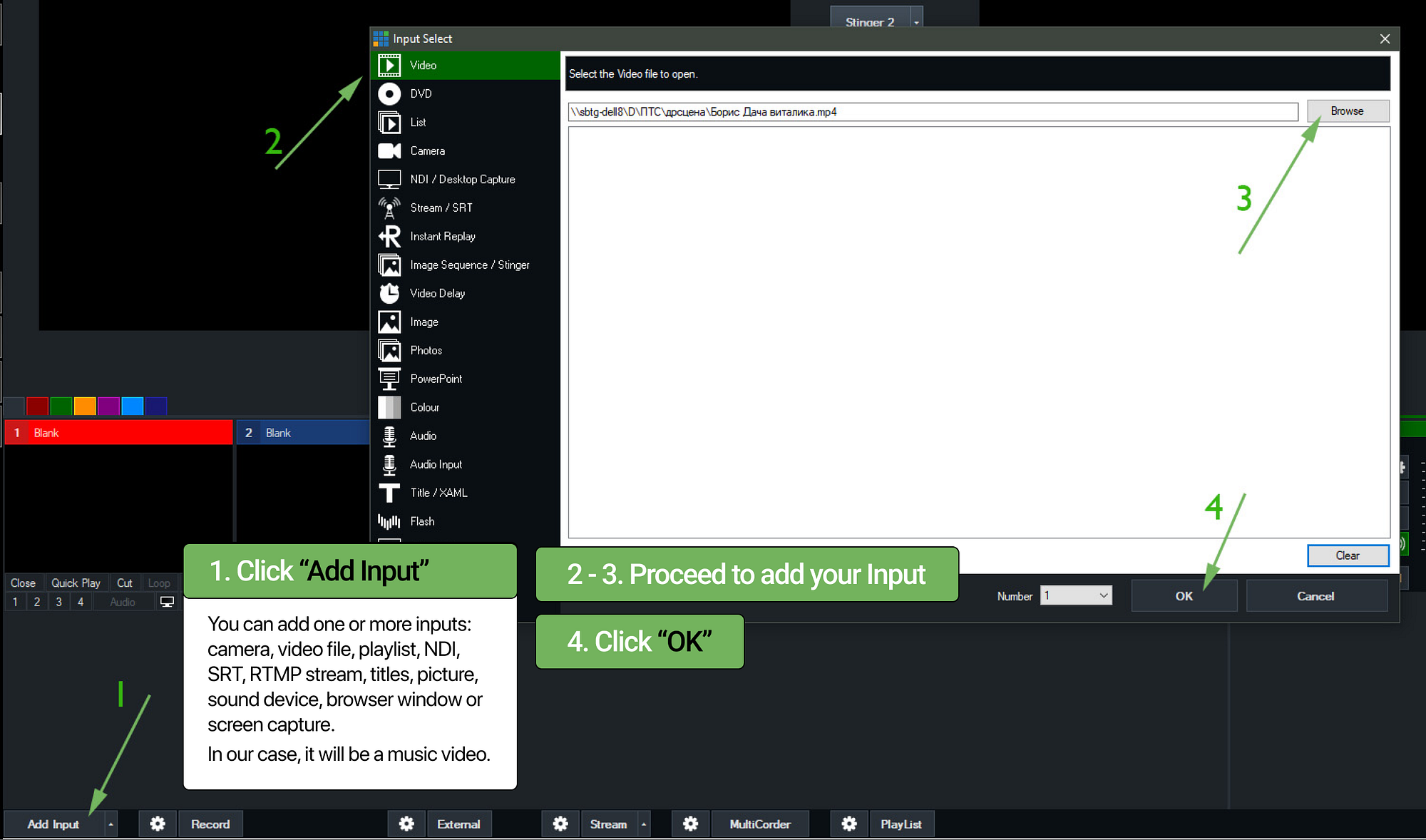
1. Add the video source in vMix
Start vMix and click Add Input. Add the source you want to broadcast. The same flow works with cameras, playlists, NDI, RTMP, screen capture, files and other supported inputs.
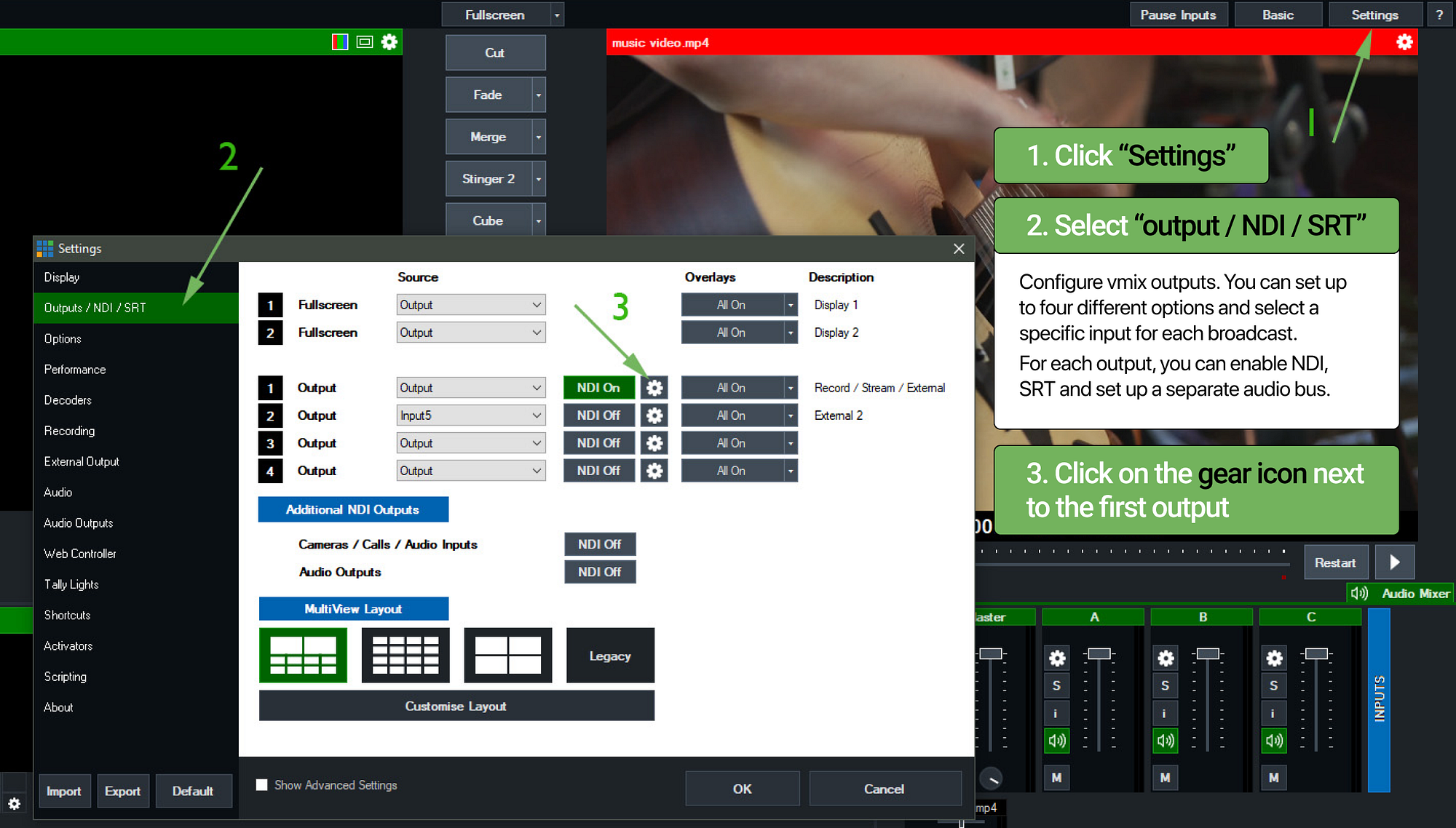
2. Open the SRT output settings in vMix
Open Settings in the upper-right corner, then go to Outputs / NDI / SRT. Click the gear icon next to the output you want to send over SRT.
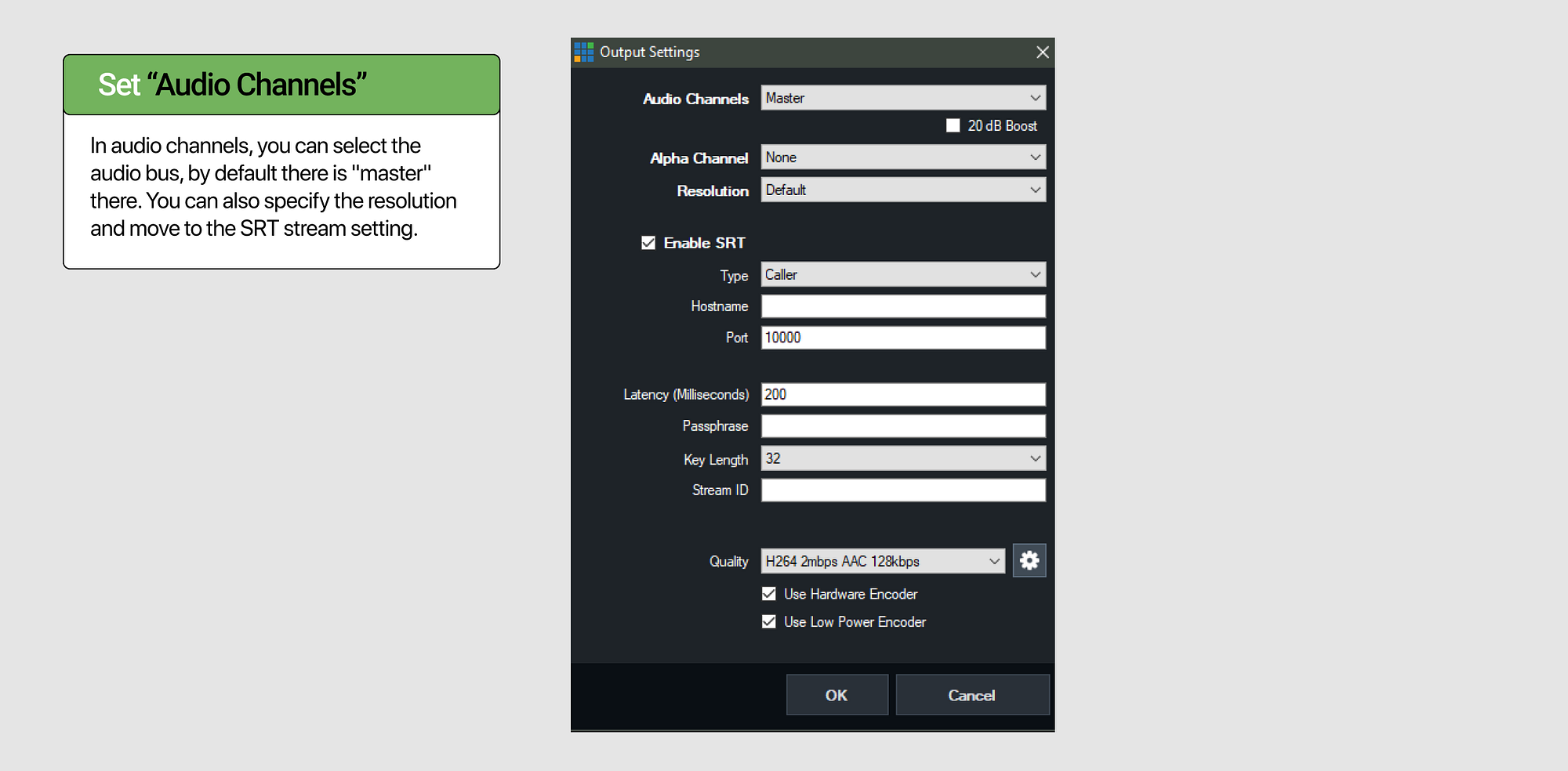
3. Prepare the vMix SRT output
Choose the output, audio bus and resolution you want to send. Keep this window open because you will return to it after creating the SRT server in Callaba.
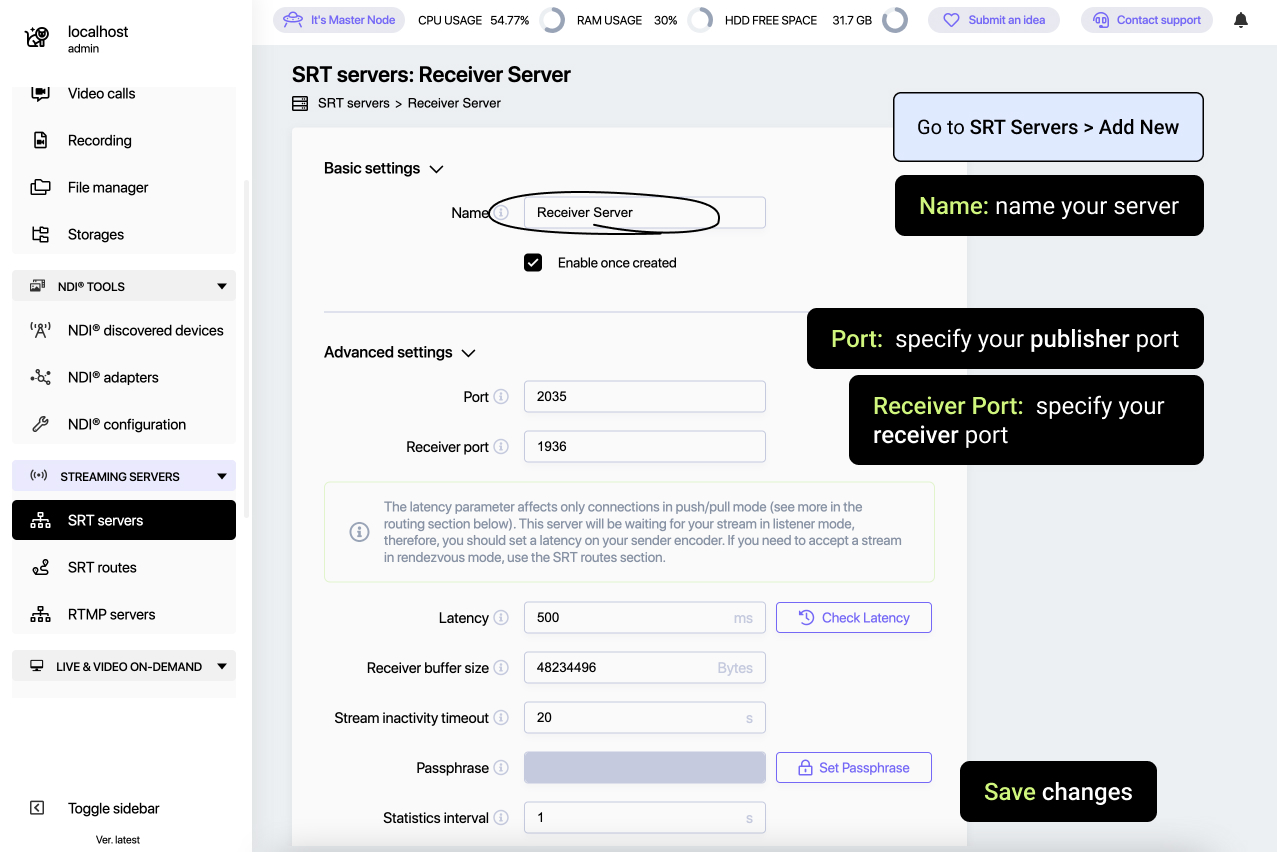
4. Create the SRT server in Callaba
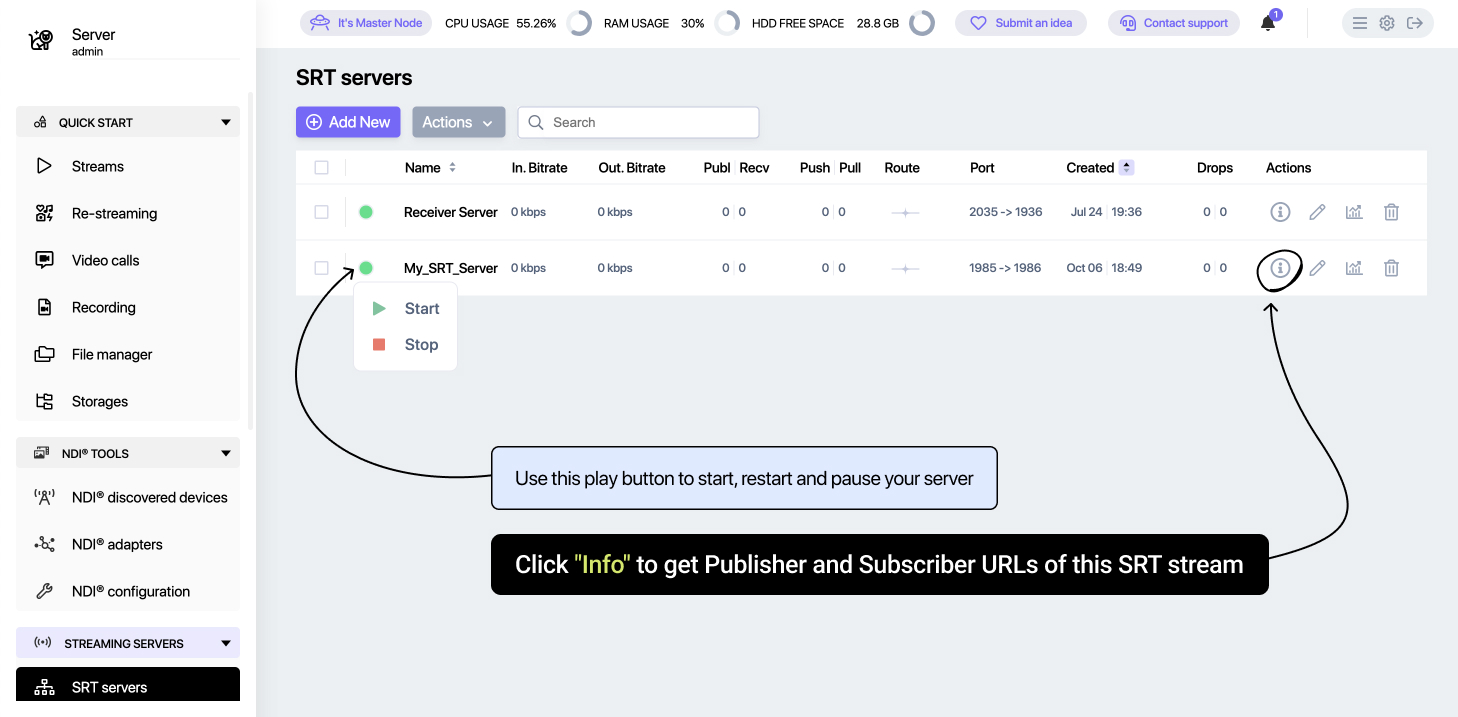
Open Callaba, go to SRT servers, and click Add New. Give the server a clear name, then set the two ports:
- Port: publisher port used by vMix to send the stream into Callaba.
- Receiver port: port used later when you receive the stream back in vMix.
Do not skip the firewall step: open the selected UDP publish and receiver ports in your cloud security group, host firewall, router or network policy. If those UDP ports are closed, packets from vMix will not reach Callaba even if the SRT values look correct.
5. Open the SRT connection details
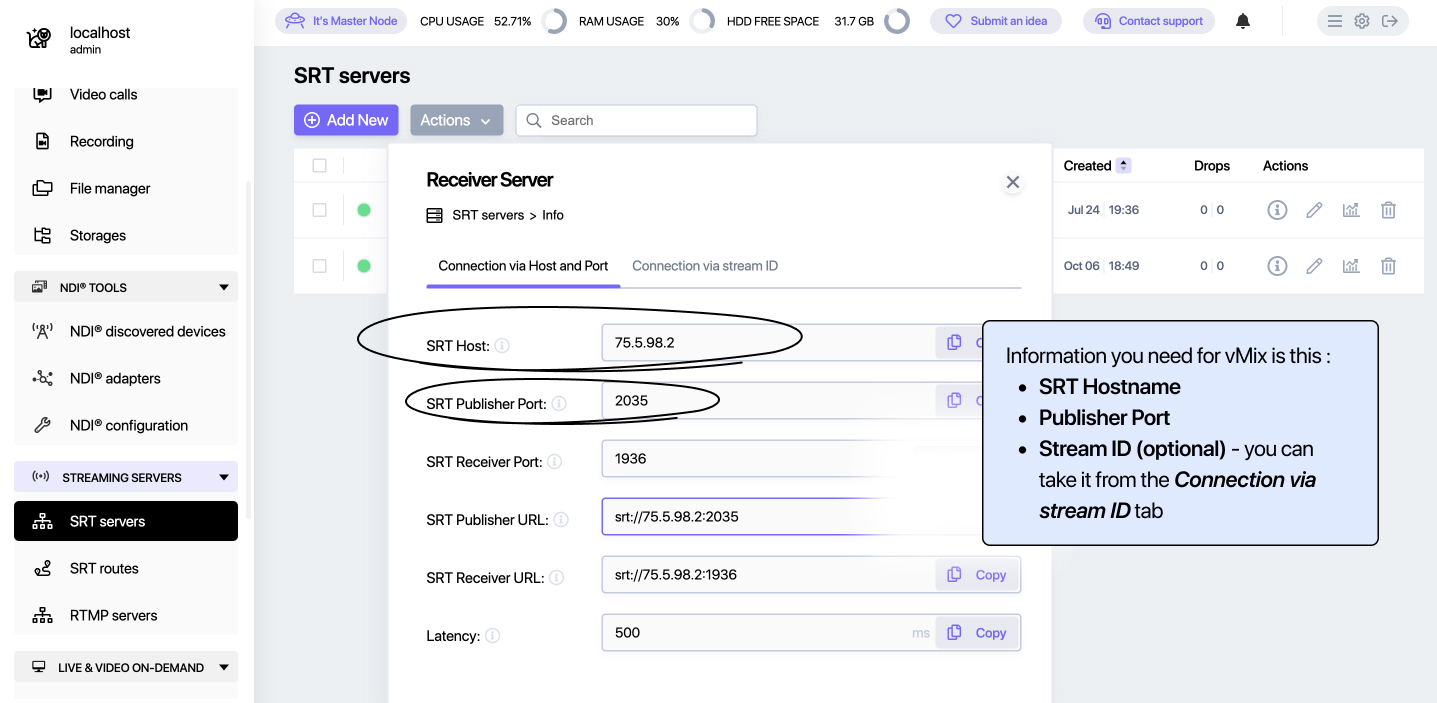
Click Info on the SRT server. This screen shows the exact parameters you need for sending and receiving. Treat this screen as the source of truth.
6. Copy the publish-side values into vMix
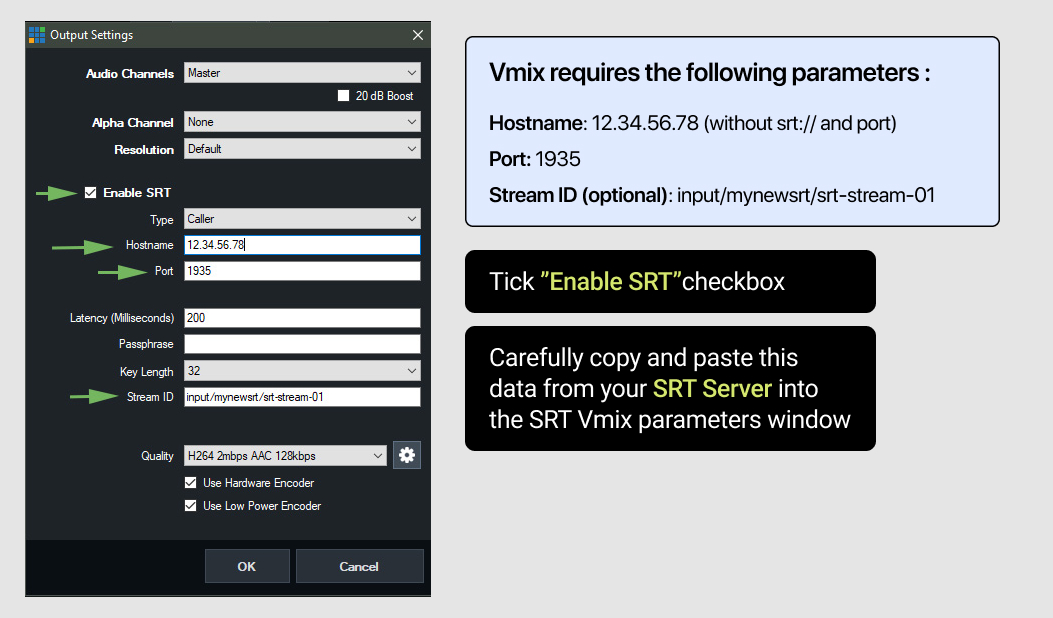
For the outgoing stream, copy publish-side values from Callaba into vMix.
- SRT Hostname: server IP or hostname without
srt://. - Port: publisher port.
- Stream ID: value shown in the connection details, if your workflow uses Stream ID.
7. Start sending the SRT stream from vMix
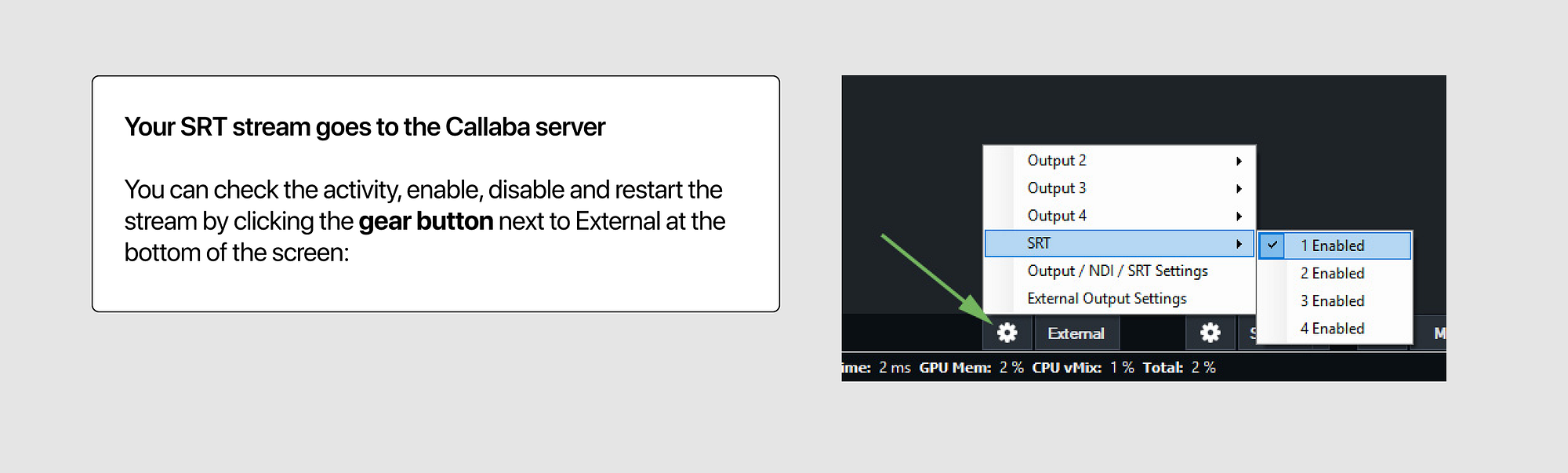
Once host, port and optional Stream ID are correct, enable the SRT output in vMix. You can monitor or restart it later from the gear icon next to External at the bottom of the vMix interface.
Confirm that Callaba is receiving the vMix SRT stream
After starting the SRT output in vMix, check the SRT server in Callaba. Do not rely only on the vMix output state. Confirm that the server is actually receiving data.
- Incoming bitrate: confirms that media is arriving.
- Connection state: confirms that the SRT session is active.
- RTT: shows timing pressure on the network path.
- Packet loss and retransmissions: show whether SRT is recovering from network problems.
- Preview or downstream output: confirms that the media is usable.
Practical threshold: in good conditions, RTT is often around 20–60 ms. If RTT is consistently above 150 ms or packet loss grows above 1–2%, increase SRT latency, lower bitrate, or improve the uplink before the event.
Receive the same SRT stream back in vMix
This step is useful when you want to confirm that the signal is really reaching the server, or when you need a local monitoring copy of the same contribution feed.
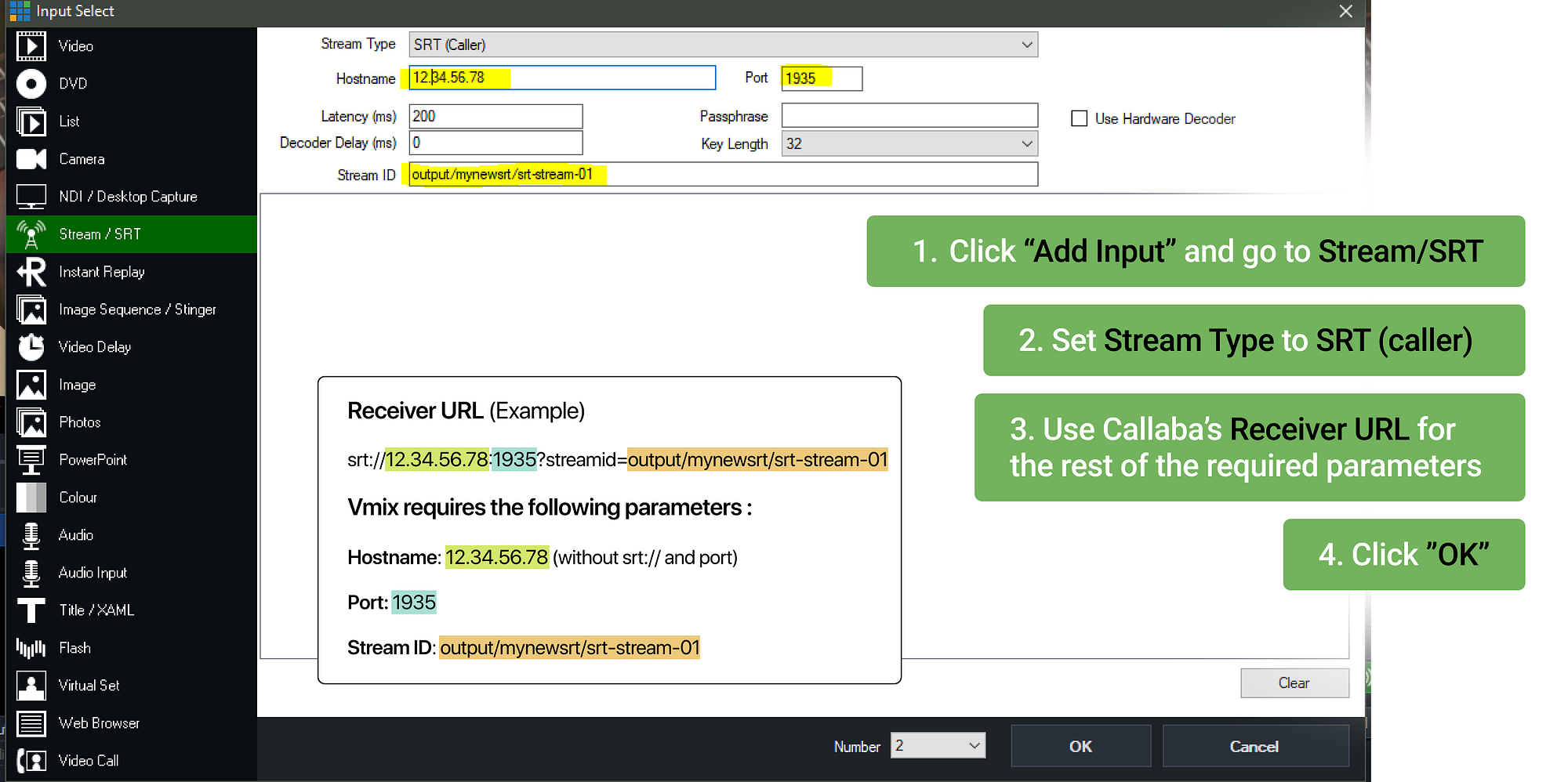
8. Add a new SRT input in vMix
In vMix, click Add Input, open Stream / SRT, and set the stream type or mode required by your Callaba Receiver URL. For the common validation workflow, vMix connects to the receiver-side endpoint and pulls the stream back.
Most common receive mode: choose SRT Caller in vMix when vMix pulls the receiver-side stream from Callaba. Use Listener only when another system must connect directly to your vMix machine.
srt://12.34.56.78:10081?streamid=output/event-mainExtract hostname, receiver port and Stream ID from the Receiver URL. Do not use the publisher port by accident.
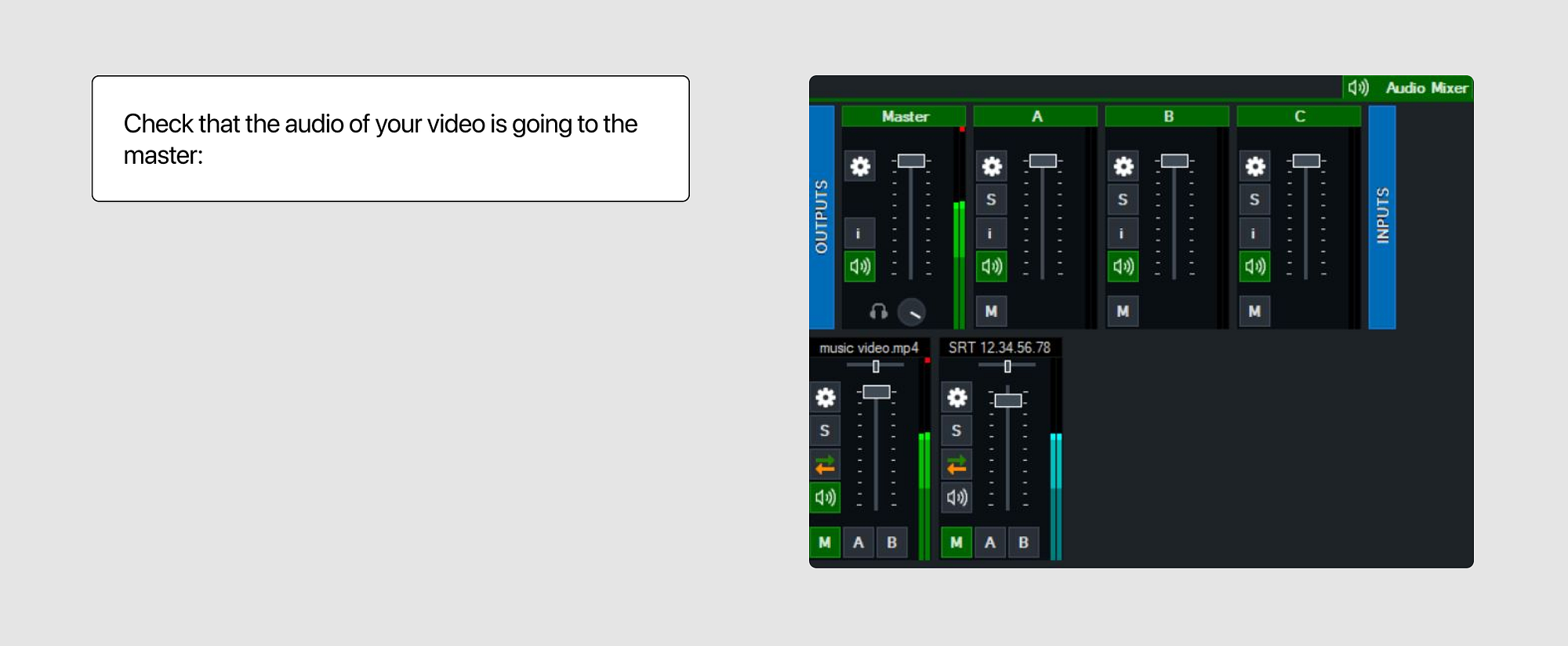
Prevent audio and video loops
If you are sending and receiving the same stream on the same machine, make sure the incoming SRT input does not go back into the same master output path. Otherwise you can create an echo loop in audio or a recursive video loop.
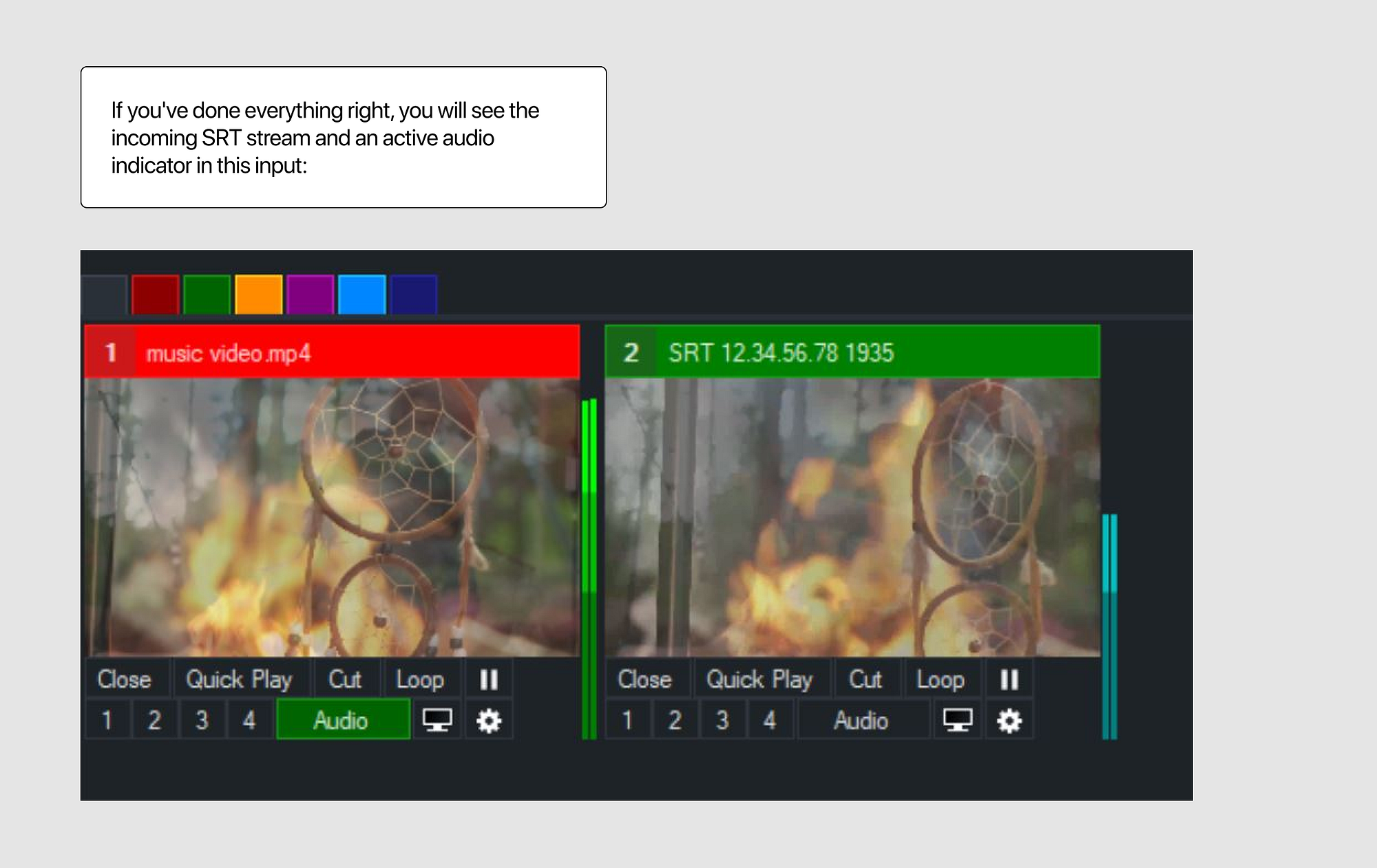
9. Confirm that the SRT feed is live in vMix
If everything is correct, the incoming SRT feed appears in vMix. You should also see audio activity if the stream includes audio and the audio route is enabled.
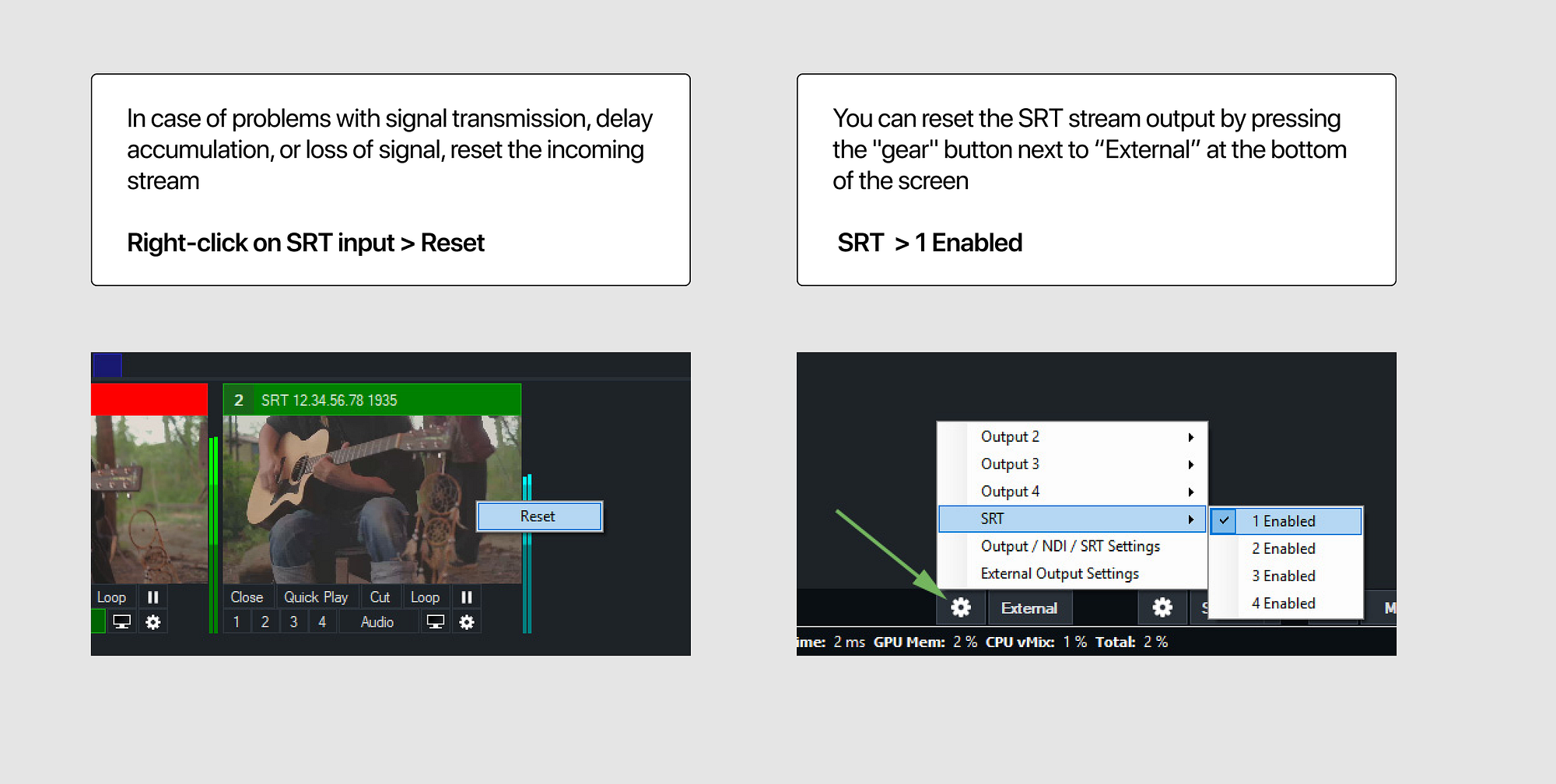
10. Reset the input if the signal stalls
If the signal stops, latency grows unexpectedly, or the stream appears to freeze, reset the incoming SRT input in vMix. You can also reset the outgoing SRT output from the External controls.
What to monitor in this vMix SRT workflow
| Signal | Where to check | Why it matters |
|---|---|---|
| Outgoing SRT output | vMix External / output controls | Confirms vMix is actually sending. |
| Incoming bitrate | Callaba SRT server stats | Confirms media is arriving, not just connecting. |
| RTT / packet loss | Callaba SRT stats | Shows whether latency is realistic for the network. |
| Audio route | vMix audio mixer and bus routing | Prevents echo loops and missing audio. |
vMix SRT troubleshooting
vMix sends SRT, but Callaba receives nothing
Check publish-side hostname, publisher port, Stream ID and UDP firewall rules. Make sure you are not using receiver-side values for the outgoing vMix stream.
No video appears in the receiving input
Most often this means the receive-side hostname, port or Stream ID does not exactly match the Receiver URL in Callaba. Re-copy values and try again.
Codec check: if the SRT session connects but the picture is black or missing, temporarily switch the vMix SRT output to H.264 and test again. HEVC can be valid in many workflows, but H.264 is the safest first diagnostic path when troubleshooting receiver compatibility.
The stream was live, then stalled or accumulated delay
Reset the receiving input first. If the problem persists, reset the outgoing SRT output and check the network path. If the route is unstable, review the SRT latency guide.
The audio repeats with an echo effect
This usually means the received SRT signal is being mixed back into the same master path as the original output. Remove it from the return path and test again.
The stream connects but video quality is unstable
Check RTT, packet loss, retransmissions, bitrate and latency. SRT can recover from network problems only if there is enough timing and bandwidth headroom.
Passphrase is enabled but the stream does not connect
Confirm that both sides use the same passphrase and compatible encryption settings. vMix supports passphrase-based SRT encryption, but the key must match on both sides.
When this vMix SRT workflow is useful
This pattern is useful when vMix is your live production tool but you want Callaba to act as the stable SRT boundary.
- send a vMix program feed to a cloud SRT server;
- monitor whether the SRT stream is arriving correctly;
- route a vMix feed into recording or restreaming workflows;
- test SRT contribution before a real event;
- separate production output from cloud ingest and delivery;
- send one vMix source into a controlled platform instead of rebuilding the path every time.
Official references and related reading
Use these if you need exact vMix SRT feature details, protocol details, latency tuning, or Callaba API setup.
FAQ
Does vMix support SRT?
Yes. vMix supports SRT workflows for sending and receiving live streams. You can send a vMix output to an SRT server, and you can also add an incoming SRT stream as an input in vMix.
How do I send SRT from vMix?
Open vMix settings, go to Outputs / NDI / SRT, choose the output you want to send, configure the SRT destination using the hostname, port and Stream ID from your SRT server, then enable the SRT output.
How do I receive SRT in vMix?
Click Add Input in vMix, open Stream / SRT, choose the connection mode required by your setup, then enter the receiver-side hostname, port and Stream ID.
What is the difference between vMix SRT input and output?
vMix SRT output sends your program feed to an SRT server. vMix SRT input receives an SRT feed and brings it into vMix as a source. Use publisher-side values for output and receiver-side values for input.
Should vMix use SRT caller or listener?
Use Caller when vMix connects to a listener endpoint such as a Callaba SRT server. Use Listener when vMix waits for another sender to connect directly to it. The correct mode depends on which side starts the connection.
What is a vMix SRT Stream ID?
A Stream ID is an SRT parameter that identifies or routes a specific stream. Copy it exactly as shown by the server or platform, because even small differences can route the stream incorrectly.
Why is my vMix SRT stream not connecting?
Common causes include wrong hostname, wrong port, incorrect Stream ID, wrong caller/listener mode, blocked UDP traffic, passphrase mismatch, or using receiver-side values when you should use publish-side values.
Why does vMix receive black video over SRT?
The SRT connection may be active while the media payload is wrong or missing. Check that the sender is live, the correct output is enabled, codec settings are compatible, and bitrate is actually arriving.
Can I send and receive the same SRT stream on one vMix machine?
Yes, but avoid audio and video loops. Make sure the received SRT input is not routed back into the same master output that is being sent out.
Is SRT better than RTMP for vMix?
SRT is usually better for contribution over unstable or long-distance networks because it supports packet recovery, encryption and latency tuning. RTMP is still useful for simple publishing and platforms that expect RTMP ingest.
What latency should I use for vMix SRT?
Start with a conservative latency such as 200–500 ms for internet paths, then adjust based on RTT, packet loss, retransmissions and real preview stability.
Can Callaba record a vMix SRT stream?
Yes. After Callaba receives the vMix SRT feed, it can be used for recording, routing, restreaming, multiview, playback or API-controlled workflows depending on the deployment.
How do I use passphrase encryption with vMix SRT?
Use the same passphrase on both sides of the SRT connection. If vMix provides a separate Passphrase field, enter the key there. If you use a URL example, the passphrase parameter must match the server-side value.
Why does vMix SRT connect but show no picture?
Check receiver-side values first, then test with H.264. HEVC can be valid in some workflows, but H.264 is the safest first diagnostic choice when a connected SRT session shows no video.
Do I need to open ports for vMix SRT?
Yes. SRT uses UDP, so the selected publish and receiver UDP ports must be open in the cloud security group, host firewall, router or network policy.
Next steps
- How to start streaming in OBS Studio over SRT
- How to receive an SRT stream in OBS Studio
- What is an SRT server?
- What is SRT protocol?
- Find the perfect latency for your SRT setup
Last updated: May 21, 2026
Try Callaba Gateway with vMix SRT
Create an SRT listener in Callaba, send your vMix program feed to the gateway, and monitor the received stream before routing it to recording, restreaming, multiview, playback, or a return preview.
See SRT server setup Open multiview demo SRT servers API docs
